Disable Stripe Successful Payments Receipt Emails (2026)
To disable Stripe Successful payments receipt emails, open Settings, then Business, then Customer emails in the Stripe Dashboard, and turn off Successful payments under Payments. The change takes a minute, but it has side effects that catch people out: an integration can still force a receipt, invoice emails are a separate switch, and Stripe's test mode will not show you whether it worked.
This guide gives the exact path, what stops and what keeps going afterwards, how to test without emailing a real customer by mistake, and what to do if you want some customers to keep getting receipts.
Where is the Successful payments receipt setting in Stripe?
It is on the Customer emails page: Settings > Business > Customer emails (the same page opens at dashboard.stripe.com/settings/emails). Stripe documents this path in its receipts guide and again in its customer emails guide for invoicing.
- In the Stripe Dashboard, open Settings.
- Under Business, click Customer emails.
- Find the Payments section.
- Turn off Successful payments.
Menu labels in Stripe move around from time to time. If you cannot find "Business", search the Settings page for "Customer emails" and look for the Payments section on that page.
What stops when you turn off Successful payments?
Stripe stops emailing an automatic receipt to every customer after a successful payment. The switch is all or nothing: you cannot turn it off for one customer or one product.
- Stops: the automatic "payment received" receipt for one-time payments, and the receipt that follows an automatically charged invoice. Stripe's invoicing guide says that if you automatically charge a customer and disable successful payment emails, they do not receive an email receipt.
- Keeps working: the receipt itself. Stripe still creates a receipt for every successful payment, and customers can open it through a receipt URL. Stripe simply does not email every receipt it creates.
- Still possible by hand: you can email any single receipt yourself. Open Transactions > Payments, click the successful payment, go to Receipt history, open the overflow menu and choose Send receipt. You can enter several recipients as a comma-separated list.
Refunds are a different toggle. The Refunds switch sits in the same Payments section and controls refund receipts. Turning off Successful payments does not change it, so decide on it separately.
Do invoice emails stop too?
No. Invoice and subscription emails are separate settings, and turning off Successful payments leaves them as they were.
Finalized invoice emails, unpaid-invoice reminders, failed-payment emails and credit note emails live under Settings > Billing > Subscriptions and emails. If you also want to stop those, change them there. Stripe's guide notes that if you disable finalized invoice emails, it still sends webhooks so you can build your own emails.
This matters when your goal is "fewer duplicate emails". A customer on a subscription can get an invoice email and a payment receipt for the same charge. Check both places before you decide which one to keep.
Why do receipts still go out after you turn the setting off?
Usually because the payment was created with a receipt email address attached. Stripe's documentation says that when a PaymentIntent is created with receipt_email, Stripe sends a receipt to that address when the payment succeeds in live mode, even if Successful payments is off. For Checkout Sessions the equivalent field is payment_intent_data.receipt_email.
That is why form builders, WordPress plugins and billing tools sometimes keep sending receipts. The Dashboard toggle does not override them. The fix is in the tool that creates the charge: turn off its own receipt option or stop it sending the receipt email parameter. Our guide to stopping duplicate receipt emails lists the toggles for common platforms, and the Stripe receipts not sending fixes cover the opposite problem.
Two other things can trip you up. Receipts you send manually from Receipt history are not blocked by the toggle, and invoices sent by hand from the Dashboard still email the customer.
How do you test the change safely?
Test mode cannot prove the setting works, because Stripe does not send automatic receipt emails for test payments at all. Stripe's receipts guide says test payments do not trigger automatic receipt emails and that you can send a test receipt manually.
That leaves two checks, and they answer different questions:
- Does the toggle save? Reload the Customer emails page and confirm Successful payments is off. This costs nothing.
- Does a real payment stay quiet? Take a small live payment from a customer record that uses your own email address, then check your inbox. Stripe keeps logs of customer emails sent in the last 60 days on the Customers page, so open that customer and look for a receipt entry. If one appears, an integration is probably attaching a receipt email to the charge (see the section above).
Do not run the live check with a real customer's address. If the toggle is not the cause, they will get the email you were trying to stop.
What if only some customers should get receipts?
Stripe cannot do that on its own, because the setting applies to everyone. If a few customers need receipts for expense reports and everyone else does not, you need something that decides per customer.
Route Receipts is a Stripe App built for this case. You install it from the Stripe App Marketplace with the Stripe Owner or Admin role, and it runs inside the Stripe Dashboard sidebar. You keep Successful payments switched off and add the customers who should get receipts to an allowlist, using a Stripe customer ID, an email address or both. When a payment from an allowlisted customer succeeds, Route Receipts sets the charge's receipt email and Stripe sends its standard receipt. Customers who are not on the list get none. The allowlist guide walks through adding entries, and the comparison with Stripe's native receipts shows where the two differ.
Things to know before you rely on it:
- Setup takes about 5 minutes with no code or webhook setup, and it works in Stripe test mode so you can try routing before going live.
- Turning off Successful payments is a required step. If it stays on, allowlisted customers get two receipts.
- It covers successful payments (paid invoices, one-off charges, Checkout, Payment Links and Terminal). It does not control refund receipts or credit notes, and it does not support Stripe Connect.
- The receipt is Stripe's standard email. There are no templates, branding or extra recipients on the Route Receipts side.
- There is a free trial. The Free plan is $0 a month for 20 receipts a month, Pro is $9 a month for 300, and Business is $29 a month for unlimited receipts. If you reach the monthly limit, receipts stop until the next period or an upgrade. They do not fall back to Stripe's setting.
If you want to read the install steps first, see installing Route Receipts from the Stripe App Marketplace.
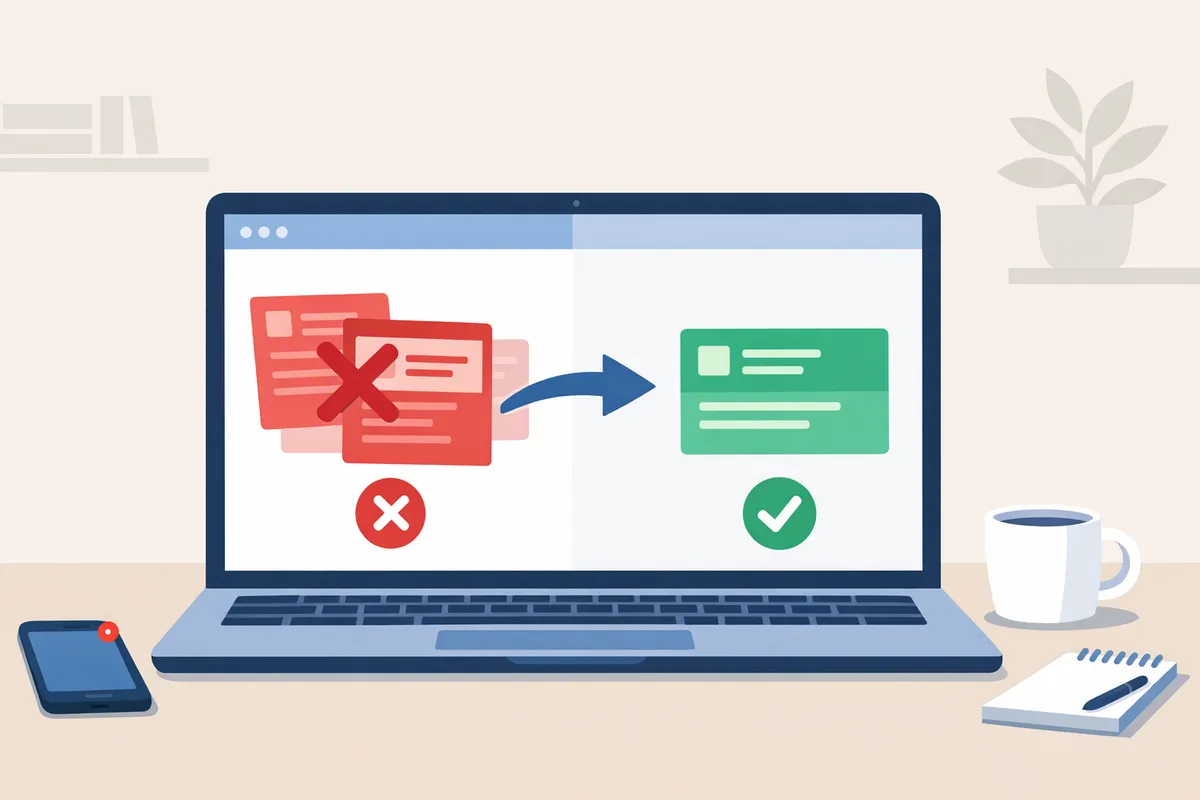
Worked example: a software company with a few enterprise accounts
Say you sell a subscription to about 200 small customers and 6 enterprise clients. The small customers never read receipts. Your enterprise contacts file them for expense reports and complain when one is missing.
- Open Settings > Business > Customer emails and turn off Successful payments. Leave Refunds as you want it, since that is its own switch.
- Check Settings > Billing > Subscriptions and emails and decide whether finalized invoice emails should stay on. For subscriptions, many teams keep invoices on and drop the receipt.
- Ask your developer, or check your checkout tool, whether charges are created with a receipt email address. If so, remove it or you will keep sending receipts to everyone.
- Take one small live payment with your own address and confirm nothing arrives.
- If the 6 enterprise clients still need receipts, either send them by hand from Receipt history after each payment, or add their customer IDs or emails to an allowlist in Route Receipts so it happens on its own.
Sending by hand works while the list is short and payments are rare. Six clients paying monthly is 72 manual sends a year, which is where an allowlist starts to pay off.
Frequently asked questions
How do I turn off Stripe receipt emails?
Go to Settings > Business > Customer emails and switch off Successful payments under Payments. That stops Stripe's automatic emails for successful payments.
Does this also turn off refund emails?
No. Refunds has its own switch in the same Payments section.
Will customers lose access to their receipts?
No. Stripe still creates a receipt for every successful payment, and you can email one any time from the payment's Receipt history.
Why did a customer still get a receipt?
Most often the payment was created with a receipt email address, which Stripe honors in live mode even when the setting is off. Check the tool that creates the charge.
Can I turn the setting off for one customer only?
Not in Stripe's own settings. You would need a tool that decides per customer, such as an allowlist app.
Do test payments send receipt emails?
No. Stripe does not send automatic receipt emails for test payments, but you can send a test receipt manually from the payment's Receipt history.