
Gravity Flow Stripe Feed Required: Fix (2026)
An unexpected 'gravity flow stripe feed required' error can stop checkout flows and cost a small team 30–90 minutes to fix. 'gravity flow stripe feed required' is an error message that indicates Gravity Flow lacks an active Stripe feed for the selected form, preventing payments. This integration-guide shows how to fix the error, set up feeds correctly, and optimize receipt routing with RouteReceipts. RouteReceipts is a Stripe app that sends receipts only to an allowlist you manage from a dashboard-native interface and logs each routing decision. Our step-by-step instructions cover installation via the Stripe Marketplace and a basic test; setup typically takes 15–30 minutes. See the RouteReceipts setup guide and the RouteReceipts FAQ for screenshots and troubleshooting, then check the common misconfiguration checklist to find the exact cause.
How does the 'Stripe feed required' gate work in Gravity Flow?
The 'Stripe feed required' gate stops a Gravity Flow step until a configured Stripe feed has executed and reported the expected payment status. This gate enforces that downstream workflow steps (shipping, license issuance, approval routing) only run after the payment action mapped in the feed completes. Understanding feed mapping, API key mode, and feed status triggers is critical to fixing the error quickly and avoiding lost orders or reconciliation gaps.
What is a Stripe feed and how does it control workflow execution? 🧭
A Stripe feed is a Gravity Forms action that maps form fields to Stripe payment data and sets when a downstream Gravity Flow step can run. The feed defines which form fields populate Stripe (amount, customer email, description), picks the payment action (authorize or capture), and sets the event that allows Gravity Flow to continue (for example, run on submit or wait for capture). For example, if a feed is configured to authorize-only at submit and the downstream step is gated to wait for capture, Gravity Flow will show the gravity flow stripe feed required message until Stripe sends a capture event. RouteReceipts is relevant when receipt delivery timing matters because it manages which customers receive Stripe receipts from the Stripe dashboard, reducing support tickets tied to receipt confusion.
Which plugin versions and prerequisites cause the feed gate to appear? ⚙️
The gate appears when Gravity Forms, Gravity Flow, or the Stripe Add-On is missing, out of date, misconfigured, or when API keys use mismatched modes. Check these items in order: WordPress core and PHP compatibility; an active Gravity Forms license matching the installed add-ons; Gravity Flow compatibility with your Gravity Forms version; the Stripe Add-On version (note whether it supports feed status triggers for your use case); and that the Stripe keys are in the same mode (test or live) as the feed. Also confirm the feed is active for the specific form and that conditional logic on the feed or form fields is not preventing execution. If you installed a Stripe marketplace app or RouteReceipts from the Stripe Marketplace, follow gravity flow stripe marketplace app connection troubleshooting steps in your install checklist.
💡 Tip: Check Stripe dashboard logs for the form's customer email or charge ID to confirm whether the expected event (submit, capture, invoice.paid) reached Stripe before troubleshooting Gravity Flow.
How do Stripe Add-On feed status triggers change feed behavior? 🔄
Feed status triggers let a Stripe feed run only on specific Stripe events such as capture, charge.succeeded, or invoice.paid. Instead of firing immediately on form submission, a feed configured with a status trigger can wait for an explicit webhook event from Stripe, so Gravity Flow steps run on the exact payment outcome your business requires. For example, merchants using authorize-now-and-capture-later often set feeds to fire on capture; if a team expects fulfillment at submit but the feed waits for capture, Gravity Flow will block downstream steps with the please check if you have activated a stripe feed for your form error until the capture occurs. To verify, open the feed settings in Gravity Forms, examine the trigger option, and cross-check Stripe’s event logs. RouteReceipts does not change feed triggers but complements this flow by controlling who receives receipts when the triggering event sends Stripe email notifications; see the RouteReceipts documentation for guidance on disabling Stripe automatic receipts to avoid duplicates.
How do Stripe integration options compare? (Stripe Add-On vs Stripe extension vs RouteReceipts) 🔍
The three options differ mainly in where payment control and receipt routing live, the setup effort, and their business impact. Below is a concise comparison to pick the right approach for preventing workflow blocks and reducing receipt-related support overhead.
| Feature | Stripe Add-On (Gravity Forms) | Alternate Stripe extension / custom webhook | RouteReceipts (Stripe app) |
|---|---|---|---|
| Feed control location | Form-level feed controls mapping and gating | External app or custom webhook code controls events | Dashboard-native app controls receipt routing and allowlist |
| Receipt routing capability | Sends Stripe receipts via Stripe settings (limited selectivity) | Varies by extension; often requires dev work | Selective allowlist. Decide per customer from the dashboard |
| Required configuration effort | Configure form feed, map fields, set trigger | Developer time for webhook endpoints and maintenance | Install from Stripe Marketplace and configure allowlist; minimal engineering |
| UI for allowlists or exceptions | No central allowlist; per-form configuration only | Possible but requires custom UI | Yes. Dashboard UI with audit log for decisions |
| Business impact | Controls when Gravity Flow steps run; misconfig causes gating errors | Flexible but higher risk of integration errors and maintenance | Reduces receipt inbox clutter, reduces reconciliation noise, and lowers support requests related to receipts |
| Typical cause of 'Stripe feed required' error | Feed inactive, wrong trigger (submit vs capture), API mode mismatch | Missing webhook events or misrouted webhooks | Not a direct cause, but can eliminate receipt-related confusion that often accompanies payment gating issues |
For businesses that need selective receipt delivery, RouteReceipts offers a low-effort, auditable alternative to building custom webhook filters. See the RouteReceipts documentation for setup instructions and the FAQ for plan details and common questions. If you want the product rationale and implementation templates, read Why Did We Build Route Receipts? or the beginner’s guide to selective delivery.
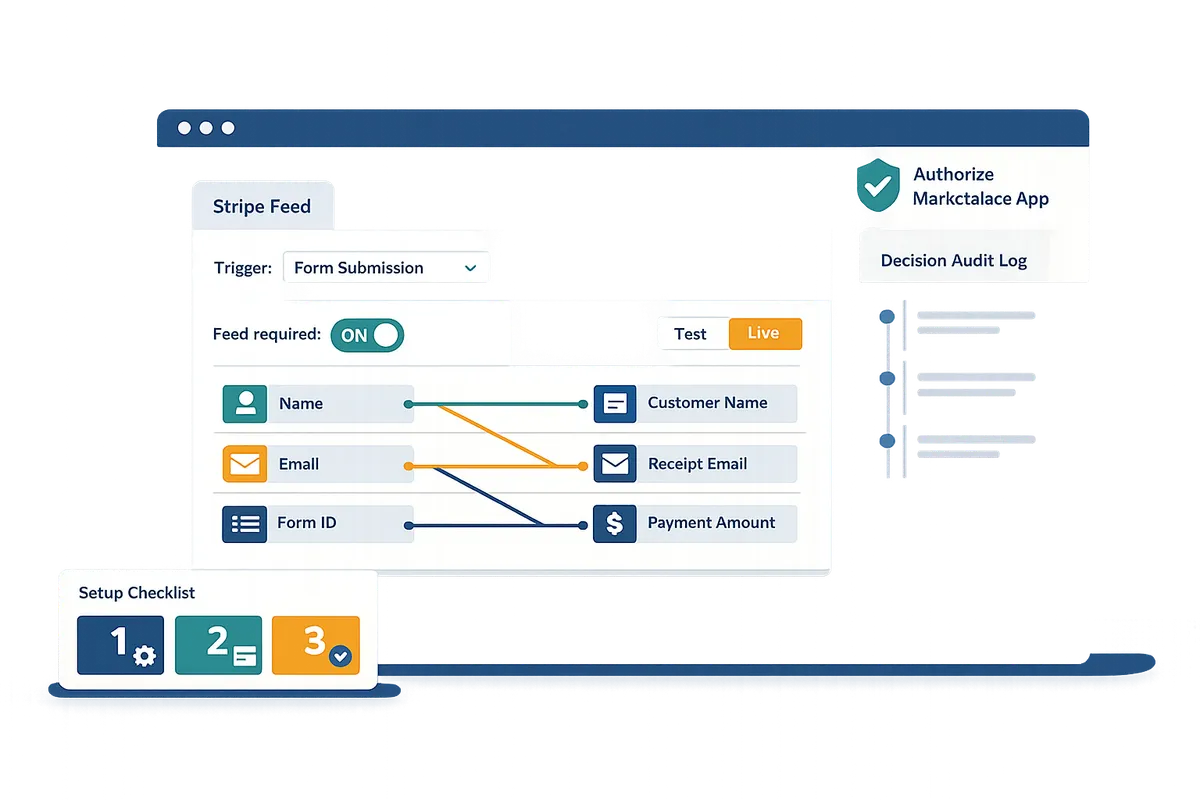
How to set up a required Stripe feed so Gravity Flow steps proceed
Create and activate a matching Stripe feed on the exact Gravity Forms form, match test/live modes, and authorize the Gravity Flow Stripe marketplace app so the 'feed required' gate clears. This prevents a stalled step and cuts the time your team spends troubleshooting failed payment gates. Follow the five-step checklist below to make feeds run reliably and verify with quick tests.
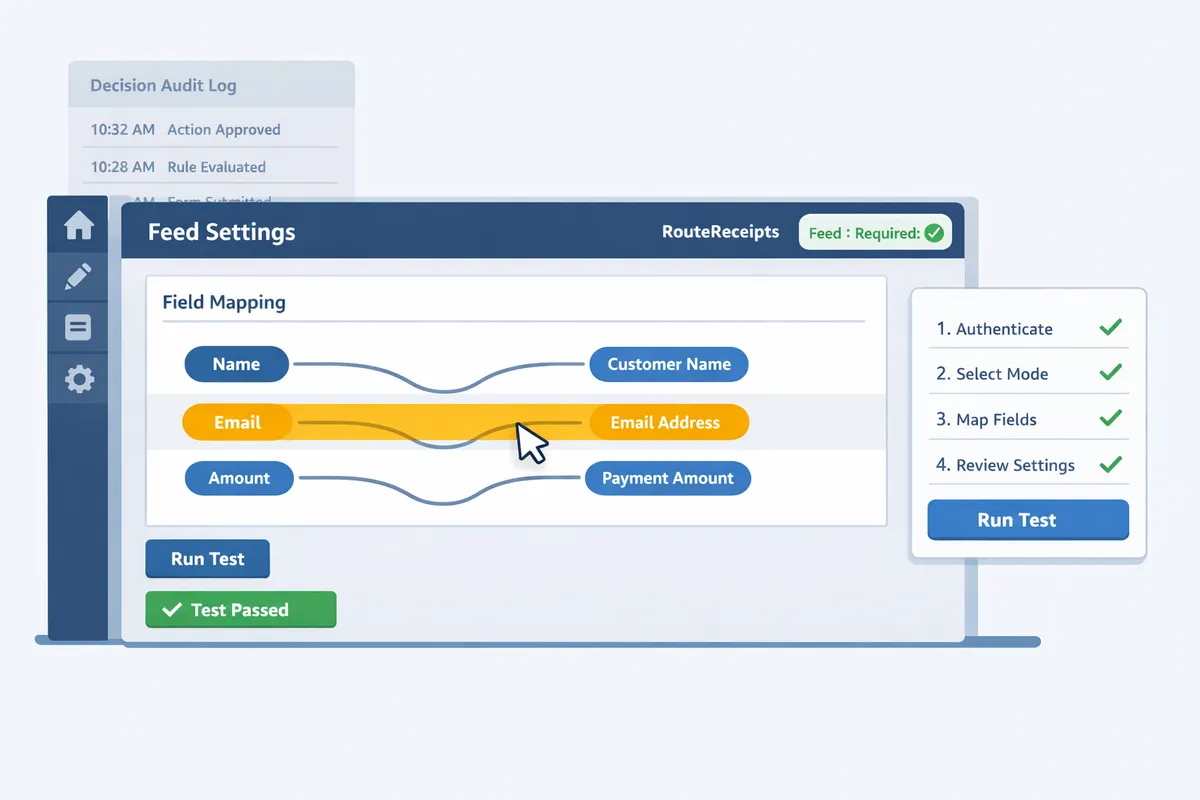
Confirm compatibility and plugin prerequisites 🧾
Ensure WordPress, Gravity Forms, Gravity Flow, and the Stripe Add-On meet the minimum supported versions and that Gravity Forms licensing is valid. Check WordPress is running a supported release (for example, WordPress 6.2 or later), server PHP is 7.4 or 8.0+, Gravity Forms is updated (2.7+ recommended), Gravity Flow is current for your license, and the Stripe Add-On is version 6.0 or newer if you intend to use feed status triggers. These version checks matter because older Stripe Add-On builds do not expose delayed feed or feed status trigger options; that will leave the feed unable to satisfy Gravity Flow's gate.
Verify SSL is active on the site and that Gravity Forms shows a valid license under Forms > Settings > Licensing. Expect to see the Stripe Add-On listed and active under Plugins. If any item shows inactive or outdated, update before creating feeds. RouteReceipts users should also review the RouteReceipts installation notes in the documentation to ensure receipt routing settings do not conflict with Stripe automatic receipts. See the RouteReceipts Documentation for installation details and the FAQ for common account questions.
Create and activate a Stripe feed in Gravity Forms 💳
Create and activate a Stripe feed on the exact form you use so Gravity Flow recognizes payment events. Open Forms > your form > Settings > Stripe, choose Add New, give the feed a clear name, set Mode to Test or Live to match your API keys, map the customer and amount fields, and select Payment Type (Charge or Authorize). Configure Post Payment Actions and choose whether the feed should run immediately, only after capture, or use feed status triggers (available in Stripe Add-On 6.0+).
If you need receipts routed differently, disable Stripe automatic receipts and use RouteReceipts to control which customers receive emails. For example, set the feed to "Only on Capture" when you want the Gravity Flow step to wait for a captured charge before issuing license keys or triggering shipping. After saving, confirm the feed status shows Active on the form's Stripe settings page and that entry notes will include a line like: "Stripe Feed: [feed name] ran. Status: succeeded." Refer to the RouteReceipts Documentation for guidance on preventing duplicate receipts during this setup.
Match Test vs Live mode across Gravity Forms and Stripe 🔒
Make sure the API keys entered in Gravity Forms match the payment mode (test or live) you use for submissions. A mode mismatch is the most common reason for the 'please check if you have activated a stripe feed for your form' error and for feeds not firing. Check Forms > Settings > Stripe and confirm the keys are the correct pair (test keys begin with "sk_test_" and live keys with "sk_live_").
When testing, use Stripe test cards and submit the form while Gravity Forms is set to Test mode. If you submit in Live mode with test keys, the Stripe API will reject the charge and the Stripe feed will not run, leaving Gravity Flow waiting. If you see failed signatures in entry notes or a blank feed activity, re-enter keys and re-run the test. The troubleshooting phrase "gravity forms stripe test live mode mismatch" should guide your checks when debugging.
⚠️ Warning: Do not switch keys mid-test without resubmitting the form. A single submission records the mode used at submission time; changing keys afterwards does not retroactively trigger a feed.
Complete the marketplace app connection and authorize access 🔗
Authorize the Gravity Flow Stripe marketplace app connection so feeds can perform actions on the connected Stripe account. In the Stripe dashboard, confirm the Gravity Flow marketplace app appears under Settings > Connected apps and shows Authorized for your account. In Gravity Flow, open Settings > Stripe Marketplace and verify the connection status reads Authorized and lists the connected account ID.
If you encounter errors, re-run the OAuth flow from Gravity Flow and ensure the Stripe user performing the authorization has admin privileges on the Stripe account. For persistent issues, follow the gravity flow stripe marketplace app connection troubleshooting steps: clear cached tokens in Gravity Flow, revoke the app from Stripe, then reauthorize. RouteReceipts installation also uses the Stripe Marketplace flow; if you plan to route receipts, install and authorize RouteReceipts from the Stripe Marketplace and consult the RouteReceipts FAQ for installation nuances.
Verification checklist and quick tests ✅
Run a same-mode test payment and confirm the Stripe feed fired in the entry notes and a matching Stripe event appears in the Stripe dashboard. Perform these numbered checks:
- Use the correct mode keys and a test card. Submit the form and note the submission timestamp.
- Open the new entry and look for a note: "Stripe Feed: [feed name] ran" and a payment status (authorized, captured, failed).
- In the Stripe dashboard, view the Events or Payments list for an event matching the submission timestamp and amount.
- Check Gravity Flow step history to confirm the gate moved from "waiting for feed" to the next step.
- If using RouteReceipts, confirm Stripe automatic receipts are disabled and that RouteReceipts logged the receipt routing decision in its dashboard audit log.
If the feed did not run, re-check that the feed is Active, field mappings point to the correct amount and email fields, and that the feed is not set to a delayed trigger you did not intend. For step-by-step help on routing receipts and disabling Stripe auto receipts, see the RouteReceipts Documentation and the RouteReceipts FAQ. If you still need assistance, include the Stripe account ID, entry ID, and screenshots when contacting RouteReceipts Support or Gravity Forms support.
💡 Tip: Disable Stripe's automatic receipt emails before enabling RouteReceipts to prevent duplicate receipts. See the RouteReceipts Documentation for the recommended configuration and audit-log expectations.
How to use RouteReceipts and optimization tips to reduce receipt issues and support load
Use RouteReceipts to control which customers get Stripe receipts and apply workflow optimizations that reduce reconciliation errors and support tickets. Implementing selective receipt routing alongside precise feed triggers shortens troubleshooting time and prevents the "gravity flow stripe feed required" gate from stalling downstream steps. The items below provide business-focused patterns, step checks, and examples you can apply in staging and production.
Common use cases: selective receipts for enterprise vs consumer customers 🧾
Send receipts only to customers who need them while suppressing receipts for consumers who prefer less email clutter. RouteReceipts uses an allowlist of customer IDs, emails, or domain patterns that you maintain from the Stripe dashboard. For example, add enterprise domains (finance@acme.com or @acme.com) to the allowlist so expense teams always get receipts while B2C buyers do not. This reduces finance friction and support ticket volume because expense reporting teams get consistent email trails and consumers avoid duplicate messages.
How to map it to Gravity Flow: write the customer metadata from the form (for example a hidden field set to "enterprise") and ensure the Stripe customer record includes that metadata or the enterprise email. Our docs show the allowlist setup and matching logic in detail: Documentation. For a quick implementation template, see our no-code walkthrough: The No‑Code Way to Route Customer Receipts.
Optimization tips: feed triggers, capture settings, and reconciliation best practices ⚙️
Set feeds to the exact payment event you need and standardize field mapping to reduce reconciliation friction. Audit each Gravity Forms feed and confirm whether the feed should trigger on authorization, capture, or a specific webhook event. Prefer capture-only triggers for confirmed sales that require receipts and downstream fulfillment. Standardize a single form field as your accounting key (for example order_number) and map it to the Stripe invoice or metadata field so finance has a single reconciliation key.
Practical steps:
- Export current feeds and document trigger events (authorize vs capture).
- Change feeds that prematurely fire to capture-only where business logic requires a settled payment. Test one form in staging first.
- Standardize field mapping across forms so exported CSVs and Stripe exports match your ERP columns.
RouteReceipts sits outside feed triggers and focuses on receipt delivery, so disabling Stripe automatic receipts is necessary when RouteReceipts handles routing. For setup specifics, consult our Documentation.
💡 Tip: Use a single reconciliation key (order_number or invoice_id) in both Gravity Flow field mapping and Stripe metadata to speed month-end matching.
Troubleshooting checklist: quick fixes for missing or duplicate receipts 🛠️
Missing or duplicate receipts most often come from duplicate feeds, RouteReceipts not authorized, or Stripe automatic receipts remaining enabled. Follow this prioritized checklist to resolve receipts problems quickly:
- Confirm feed activation. If you see "please check if you have activated a stripe feed for your form error," open the form's feed list and ensure the correct feed is active in the same mode (test vs live).
- Verify RouteReceipts is installed and authorized from the Stripe Marketplace. If the marketplace connection failed, see our marketplace connection notes under Support. This addresses common "gravity flow stripe marketplace app connection troubleshooting" scenarios.
- Disable Stripe automatic receipts if using RouteReceipts to avoid duplicates.
- Review the RouteReceipts decision audit log to see why a receipt was allowed or suppressed. The audit log shows matching criteria and decision timestamp.
- Inspect Stripe event logs for invoice.sent, invoice.payment_succeeded, or payment_intent.succeeded to confirm the underlying payment events occurred.
- Search for duplicate feeds on the same form (often a production/test feed copy left enabled).
⚠️ Warning: Do not leave Stripe automatic receipts enabled while RouteReceipts is active. That causes duplicates and spikes support tickets.
For more troubleshooting flows and examples of decision log entries, see the FAQ and our troubleshooting guide in Documentation.
Version and upgrade considerations: migrating to Stripe Add‑On 6.0 and beyond 🔁
Upgrading to Stripe Add‑On 6.0 can change when feeds fire because of new feed status triggers; always test feeds in staging before upgrading production. Before you upgrade, document all current feed trigger events and Gravity Flow gating logic so you can compare behavior after the upgrade. Create a test matrix that includes: a standard consumer checkout, an enterprise checkout (allowlist member), and a failed payment flow to verify the 'Stripe feed required' gate clears only when intended.
Upgrade checklist:
- Snapshot feed settings and Gravity Flow step gating rules.
- Run each test case in a staging environment and capture the sequence of Stripe events and RouteReceipts decisions.
- If you see unexpected behavior after upgrading, use the documented settings to revert or adjust triggers.
If you encounter issues related to marketplace authorization during or after upgrade, follow our marketplace troubleshooting steps and contact Support.
When to add RouteReceipts for selective receipt control and how it fits the workflow 📬
Add RouteReceipts when you need dashboard-native control over who receives receipts without building custom webhooks. Install from the Stripe Marketplace, authorize the app, then create an allowlist based on customer emails, IDs, or domains. Tie your Gravity Flow logic to the allowlist by ensuring your form writes enterprise markers into Stripe customer metadata or uses enterprise emails at checkout.
Quick install and test flow:
- Install RouteReceipts from the Stripe Marketplace and authorize access.
- Disable Stripe automatic receipts if you will route all receipts through RouteReceipts.
- Add a sample enterprise customer to the allowlist.
- Submit a Gravity Form in staging with enterprise credentials and confirm a receipt is sent.
See our step-by-step install and allowlist guide in Documentation and read why we built the app to solve inbox clutter and finance workload in Why Did We Build Route Receipts?. If you need help during setup, include your Stripe account ID and the form/feed IDs when you contact Support.
Frequently Asked Questions
This FAQ answers common operational, setup, and troubleshooting questions about the "gravity flow stripe feed required" error and how Route Receipts controls Stripe receipt delivery. Read the short, actionable resolutions below and follow the linked setup and troubleshooting pages for step-by-step guidance.
Why does Gravity Flow show 'Stripe feed required' even though I added a feed? 🤔
The message appears because the feed either did not run or is configured in a way that prevents the gate from clearing. Check that the feed is active for the exact Gravity Forms form and environment (test vs live), confirm the feed trigger (submit vs capture vs delayed), and verify that API keys and marketplace app authorization match the form mode. A common cause is a delayed feed or a feed set to run on capture while your payment remains in an uncaptured state. If you want to reduce support tickets caused by receipt confusion while you fix feeds, Route Receipts can limit who receives Stripe receipts and prevent unnecessary customer emails. For detailed installation steps, see the RouteReceipts documentation.
How do I resolve a 'please check if you have activated a stripe feed for your form' error? 🛠️
Resolve that error by confirming the feed is active on the exact form, verifying the API key mode is consistent, and ensuring the feed maps required payment fields. Inspect Gravity Forms entry notes and Gravity Flow step logs to confirm the feed attempted to run, then open the Stripe Dashboard event logs to see whether Stripe received or rejected the request. If the feed did run but the gate still blocks the step, check the feed's status trigger (for example, whether it expects capture confirmation). Our RouteReceipts FAQ explains how disabling Stripe's automatic receipts can prevent duplicate receipt issues while you troubleshoot the feed.
Can Route Receipts stop Stripe from sending receipts to everyone? ✉️
Yes. Route Receipts is a Stripe app that uses an allowlist to send receipts only to selected customers. This removes the all-or-none constraint in Stripe's native settings and reduces receipt noise for customers who do not need them. Install Route Receipts from the Stripe Marketplace, add customer IDs or emails to your allowlist, and optionally disable Stripe's automatic receipts to avoid duplicates. See the RouteReceipts documentation for a step-by-step install and allowlist setup and our FAQ for plan and usage details.
What should I check if test payments work but live payments do not? 🔍
The most likely cause is a gravity forms stripe test live mode mismatch between environments. Verify that live API keys are entered in Gravity Forms and that Gravity Flow is using the same production credentials. Confirm the Stripe account has no verification holds, required permissions, or restricted capabilities that block charges. Also check that your live feed mapping includes the same required payment fields as your test feed. Use Gravity Flow step logs and Stripe live event logs to see whether Stripe accepted the request or returned an authentication or permission error.
⚠️ Warning: A test/live key mismatch is the single most common reason for payments failing in production. Always re-check both Gravity Forms and Gravity Flow settings after moving from sandbox to live mode.
Does installing Route Receipts require code changes or webhooks? 🔗
No. Route Receipts installs from the Stripe Marketplace and provides a dashboard-native UI without requiring custom webhooks or code changes. The app registers within your Stripe account, offers an allowlist UI, and logs routing decisions in an audit trail visible in the RouteReceipts dashboard. Follow the RouteReceipts documentation for install steps and plan management details.
How do feed status triggers affect delayed feeds and workflow timing? ⏱️
Feed status triggers control when Gravity Flow considers a feed complete and therefore when downstream steps execute. If a feed waits for a capture or another specific Stripe event, Gravity Flow pauses subsequent steps until that event arrives; this is why an otherwise correct feed can stall a workflow. To reduce delay, adjust the feed to run on submit or configure Stripe to capture automatically where business requirements allow. When you change triggers, re-test end-to-end using a live or test charge and verify the expected Stripe event appears in the Stripe Dashboard event logs.
Where can I find more detailed troubleshooting and logs? 📁
Use Gravity Forms entry notes, Gravity Flow step logs, and the Stripe Dashboard event logs together for end-to-end tracing. Gravity Forms entry notes show what the form submitted. Gravity Flow logs record step transitions and gate evaluations. Stripe event logs show webhook deliveries, charge attempts, and status changes. If you face receipt duplicates or missing receipts while resolving feed issues, our documentation and FAQ pages for Route Receipts include a dedicated troubleshooting guide and examples of common fixes. For direct help, contact Route Receipts support and include your Stripe account ID and relevant log IDs.
Useful links:
- RouteReceipts documentation: https://routereceipts.app/docs
- RouteReceipts FAQ: https://routereceipts.app/faq
- Why we built Route Receipts (product rationale and templates): https://routereceipts.app/blog/why-did-we-build-route-receipts
- Beginner's guide to selective receipt delivery: https://routereceipts.app/blog/the-nocode-way-to-route-customer-receipts-in-stripe-beginners-guide-to-selective-delivery
- RouteReceipts support contact and troubleshooting details: https://routereceipts.app/support
Next steps to fix the gravity flow stripe feed required error and route receipts.
Confirm each Gravity Flow feed is active, match your Stripe test/live mode, and re-run a test payment to verify routing. A correct feed setup and mode alignment prevents duplicate charges and missing receipts that waste finance time.
If the gravity flow stripe feed required error still appears, review feed permissions and the form's feed activation. For mode mismatches and common troubleshooting, see our Frequently Asked Questions on RouteReceipts for guidance.
RouteReceipts is a specialized application designed to enhance the way businesses manage their Stripe receipt distribution. Install Route Receipts from the Stripe Marketplace and follow the getting-started guide in our Documentation to set an allowlist and disable Stripe's automatic receipts where needed.
Start with the step-by-step RouteReceipts Stripe setup in Documentation to get selective receipt routing working for your account. Subscribe to our newsletter for short implementation tips, updates, and troubleshooting notes after you install.