
Gravity Forms Stripe Feed Required Error Guide
A single misconfigured Stripe feed can stop payments and trigger the 'gravity forms stripe feed required error' during checkout. The gravity forms stripe feed required error is an error message that indicates a missing or misconfigured Stripe feed in Gravity Forms, preventing the form from sending data to Stripe. This guide provides a concise troubleshooting flow, version-aware fixes for Gravity Forms and the Stripe extension, and step-by-step RouteReceipts integration steps to control which customers receive receipts. RouteReceipts is a Stripe app that controls receipt delivery with an allowlist and a dashboard-native interface so you avoid sending unnecessary emails. See our RouteReceipts Stripe setup documentation and RouteReceipts FAQ for install details and the one setting most admins miss.
What causes the 'gravity forms stripe feed required' error and how do I spot it?
The error appears when a Stripe field exists on a form but no active, correctly mapped Stripe feed is attached to that form. Most occurrences come from a missing feed, an inactive feed, mis-mapped fields, or conditional rules that prevent the feed from firing.
Which error messages indicate a missing or inactive Stripe feed? 🔍
Messages that say a feed is required or instruct you to activate a feed point to a missing or inactive Stripe feed. Common text strings include:
- Feed required to use the Stripe field — gravity forms stripe
- Please check if you have activated a Stripe feed for your form — appears on the front-end or as a validation error.
- No active Stripe feed found or Stripe feed not configured — shows up in entry notes or the feed logs.
Check three places where these strings appear: the front-end error shown to users, the form editor warnings, and the entry notes for that submission. If you see any of the above text, the root cause is almost always an inactive or missing feed rather than a Stripe account problem. Route Receipts does not trigger receipts when no charge occurs, so a missing feed also prevents any Route Receipts routing from happening. For setup details, see the Route Receipts Documentation.
How can I quickly check feed status in the Gravity Forms UI? ✅
Open the form, go to Settings → Stripe (or Payments), and confirm a feed exists and is set to Active. Then verify these three mappings: the Stripe field maps to the correct payment amount, the payment description matches your product or form label, and conditional logic (if any) is set so the feed can run.
Step-by-step quick check:
- Open Forms → select your form → Settings → Stripe (or Payments).
- Confirm at least one feed is present and shows Active.
- Edit the feed and confirm the Transaction Amount maps to the correct form field and the correct product or pricing field.
- Review the feed's conditional logic and confirm conditions are true for the test submission.
Version note: Stripe Add-On layout changed between 5.x and 6.x; in 6.x the Payments area consolidates feeds and subscription settings, so look under Payments if you do not see a separate Stripe menu. If you prefer guided setup, follow Route Receipts Documentation for Stripe integration tips. If you still see the feed active but it does not fire, contact Route Receipts Support with your Stripe account ID and form ID for faster troubleshooting.
⚠️ Warning: If you use Route Receipts for selective receipt delivery, disable Stripe's automatic receipts in the Stripe dashboard to avoid duplicate emails.
How do plugin conflicts or conditional logic show up as this error? 🛠️
Plugin conflicts or incorrect conditional logic typically prevent an active feed from firing, which often manifests as successful form submissions without a Stripe charge and an entry note indicating a feed was required. Signs that point to conflicts include entries that show the submission completed but no payment appears in Stripe, repeated front-end errors only when specific fields are filled, or feed logs showing feed skipped.
Minimal isolation test to confirm a conflict:
- Clone the form or create a new simple form with a single Stripe field and one pricing field.
- Deactivate non-essential plugins (caching, optimization, other payment add-ons) or switch to a default theme.
- Test in Stripe test mode and watch for a charge in the Stripe dashboard and entry notes in Gravity Forms.
If the simple form charges correctly, the original form’s conditional rules or a plugin conflict is the culprit. Fixing those avoids lost orders and manual reconciliation headaches. Remember: Route Receipts only routes receipts for charges that actually hit Stripe, so resolving feed firing issues restores receipt routing automatically.
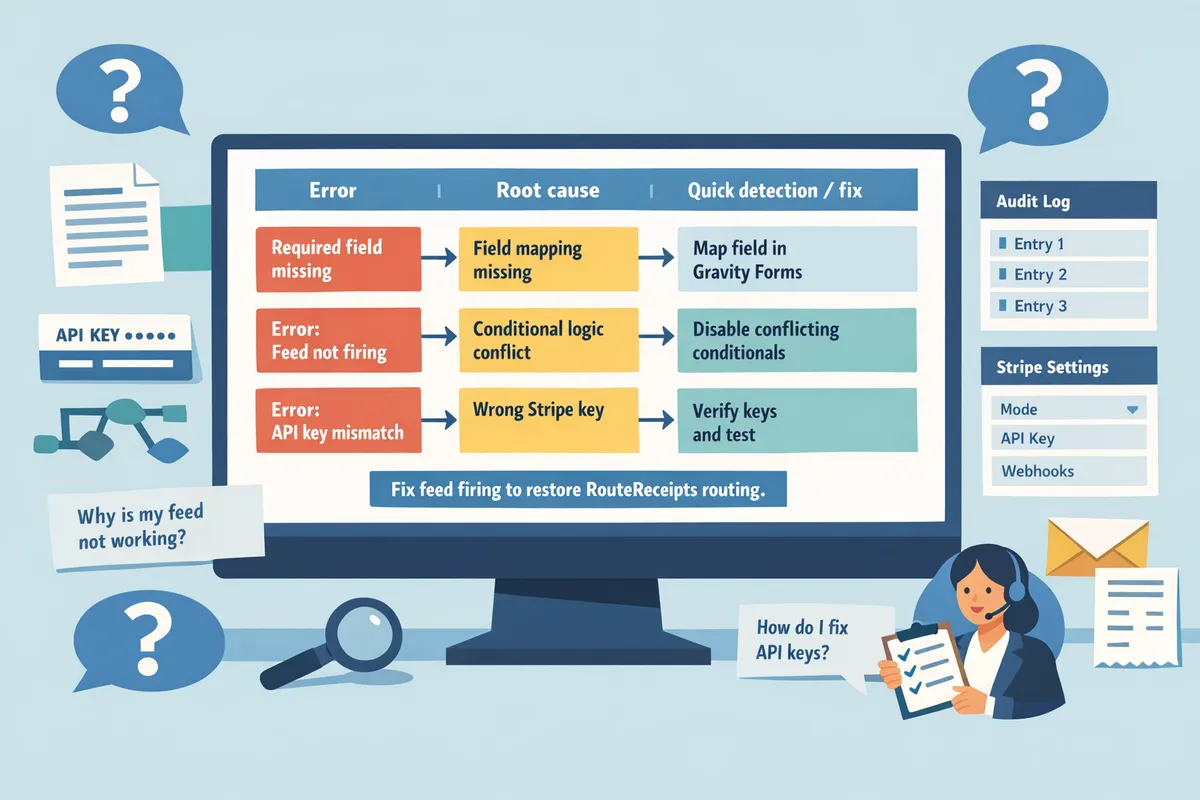
For further reading on selective receipt delivery and dashboard-native receipt controls, see our guide The No‑Code Way to Route Customer Receipts in Stripe and the Route Receipts FAQ. If you need hands-on help, contact Route Receipts Support.
How do I fix 'Feed required to use the Stripe field' errors step-by-step?
Fix the Feed required to use the Stripe field error by following a four-step, prioritized flow: confirm a feed exists and is active, verify the Stripe field maps to that feed, ensure the feed uses the same Stripe mode (test or live) as your account, and isolate plugin or theme conflicts if the problem persists. This flow minimizes time spent troubleshooting and reduces the risk of missed payments by targeting the most common failures first. Please check if you have activated a Stripe feed for your form before running plugin conflict tests to avoid wasted effort.
What is the quick priority checklist for busy admins? 📋
Follow this four-item priority checklist to resolve the error fast.
- Confirm the feed exists and is active. Go to Forms → select the form → Settings → Stripe → Feeds and make sure a feed is present and set to Active.
- Ensure the Stripe field on the form is mapped to that active feed; mismapped fields are the most frequent cause.
- Match the feed's mode to your Stripe account mode (test vs live); a test feed while your Stripe account is live will block payments.
- Re-run a test payment and check for an entry plus a successful Stripe charge.
- Business impact: following this checklist typically cuts troubleshooting time from hours to minutes and prevents lost revenue from silent payment failures.
- Product note: if you use Route Receipts, disable Stripe's automatic receipt emails to prevent duplicate receipts and follow our docs on integration for setup details. See our Documentation for setup steps and receipt routing rules.
💡 Tip: When you run the test payment, use Stripe test cards and verify both the Gravity Forms entry and the charge in your Stripe dashboard. Save the charge and entry IDs before continuing.
Which exact error messages map to which fixes? ✅
Match the message you see to the concrete fix using this table. The table lists the common wording admins report, the likely root cause, a one-click fix you can try, and where to check inside Gravity Forms.
| Error message | Likely cause | One-click fix | Where to check in Gravity Forms |
|---|---|---|---|
| Feed required to use the Stripe field | No active feed on the form | Activate or create a Stripe feed | Forms → [Your form] → Settings → Stripe → Feeds |
| No feed mapped to this Stripe field | Stripe field not linked to any feed | Map the Stripe field to the correct feed and save | Form Editor → select Stripe field → Field Settings → Feed Mapping |
| Feed is inactive | Feed was disabled during updates or migrations | Toggle feed to Active | Forms → [Your form] → Settings → Stripe → Feeds (activate) |
| Feed mode mismatch: test vs live | Feed set to different mode than Stripe account | Switch feed to the correct mode (test or live) | Forms → [Your form] → Settings → Stripe → Feed Editor (mode option) |
| Conditional logic prevented feed | Feed has conditional rules that evaluated false | Review and adjust conditional logic or create a catch-all feed | Forms → [Your form] → Settings → Stripe → Feed Editor → Conditional Logic |
If you still see the message after the one-click fix, re-run a test payment and record both the Gravity Forms entry ID and the Stripe charge ID for faster support help. For Route Receipts users, verify you have disabled Stripe automatic receipts per our Documentation to avoid duplicate receipt problems.
How do I apply version-aware fixes for Gravity Forms and the Stripe Add-On? 🧾
Adjust the feed and conditional settings according to the Gravity Forms core and Stripe Add-On version you run. For all versions, start at Forms → [Your form] → Settings → Stripe → Feeds to find feeds and the feed editor.
- Gravity Forms core differences: newer Gravity Forms releases sometimes move settings panels; if you do not see Stripe under Form Settings, check the global Add-Ons screen or the form's top-level Settings menu.
- Stripe Add-On 5.x vs 6.x (practical check): older 5.x UIs kept feed toggles and conditional logic in a compact feed panel. 6.x introduced a clearer feed editor with explicit per-feed test/live toggles and a more visible conditional logic section. If your site updated the add-on recently, open an existing feed and confirm where the live/test toggle and conditional rules now live.
- How to adapt the checklist per version: when a recent update moved the test/live toggle, always re-open each feed after an add-on update and re-save to ensure the toggle persisted. Re-saving a feed often re-registers it with the add-on and clears stale config references.
If you're uncertain which add-on version you run, check the plugin list in WordPress or the Stripe Add-On details page. Route Receipts integrates at the Stripe dashboard level and is not affected by Gravity Forms UI changes, but you must still ensure Gravity Forms sends charges to the correct Stripe mode before Route Receipts applies receipt rules.
How do I isolate plugin conflicts and run a stepwise test plan? 🔁
Use a short, repeatable test plan to identify conflicts without disrupting live payments. 1) Put the site in maintenance mode or test on a staging site. 2) Temporarily disable all non-essential plugins except Gravity Forms and the Stripe Add-On. 3) Switch to a default theme like Twenty Twenty-Three. 4) Create a minimal test form with only a Name field and one Stripe field. 5) Create a fresh Stripe feed for that form and set it to the same Stripe mode as your account. 6) Run a Stripe test card payment and confirm the Gravity Forms entry and Stripe charge both exist.
If the test works when other plugins are disabled, re-enable plugins one at a time and repeat the test until the error reappears. Record which plugin caused the failure and check for known compatibility notes in the plugin changelog. If the error persists with only Gravity Forms and Stripe active, gather the form ID, feed ID, Gravity Forms version, Stripe Add-On version, and a sample entry/charge ID and contact our Support with those details for faster diagnosis.
⚠️ Warning: If you use Route Receipts, disable Stripe's automatic receipt emails before running tests to avoid duplicate receipt delivery. See our FAQ and Documentation for the exact instruction set to toggle Stripe's receipt behavior and to configure your allowlist.
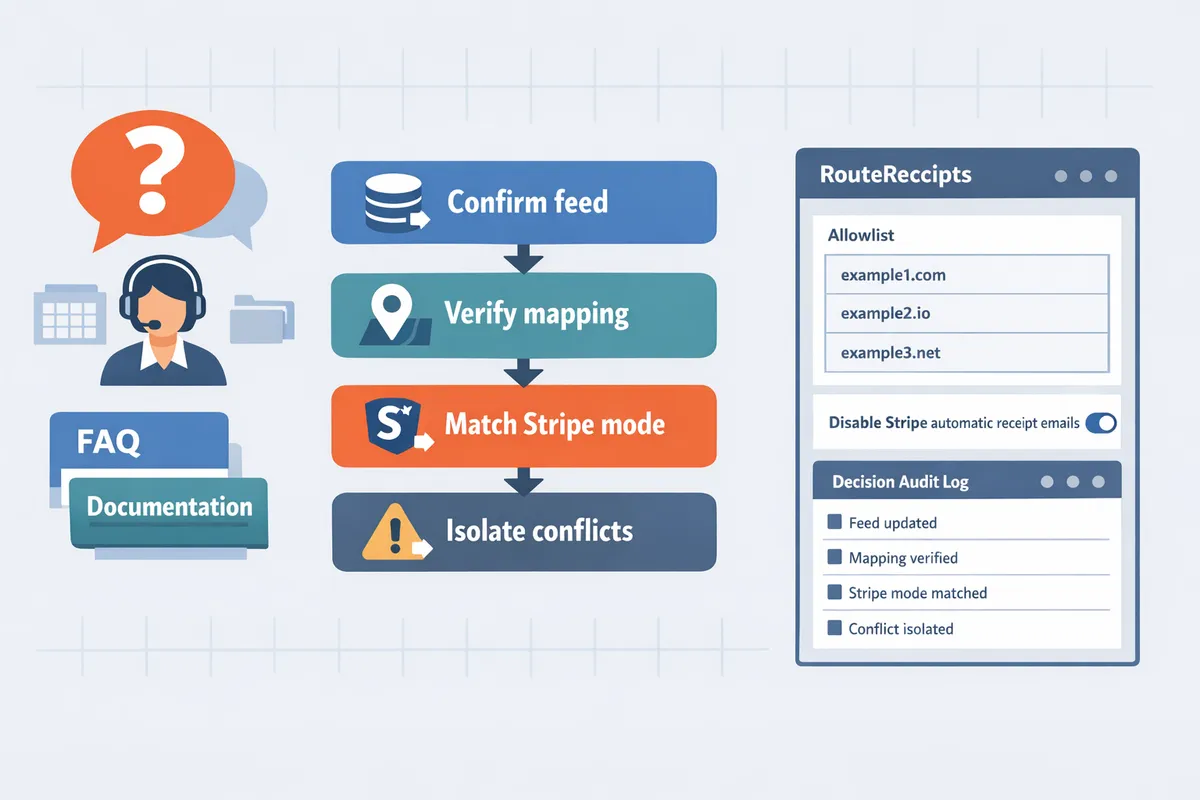
For detailed Route Receipts setup steps and how receipt routing interacts with Stripe's receipt settings, consult our Documentation and the Frequently Asked Questions page. If you need one-on-one assistance, our Support page explains what information to include for the fastest response.
How can RouteReceipts reduce receipt email conflicts that interact with Gravity Forms and Stripe feeds?
RouteReceipts reduces receipt email conflicts by applying an allowlist at the Stripe account level so only selected customers receive invoice or payment receipts. This prevents duplicate or unwanted emails that often confuse customers and create false leads when troubleshooting the gravity forms stripe feed required error. Our guidance below shows where RouteReceipts sits in the Stripe flow and how it complements Gravity Forms payment handling to reduce time spent chasing email duplicates.
How RouteReceipts integrates with Stripe and fits into Gravity Forms flows 🔗
RouteReceipts installs as a Stripe Marketplace app and evaluates every receipt event against an allowlist before Stripe sends email receipts. RouteReceipts handles decisions at the account level, so it intercepts Stripe's default send or not send behavior and prevents receipts from going to customers who are not on the allowlist. In a Gravity Forms flow, this means forms that submit payments through the Stripe Add-On or Stripe Card Element no longer cause duplicate emails when you also use custom confirmation emails or third-party notification tools. That reduces false positives while troubleshooting the gravity forms stripe feed required error because you can rule out receipt duplication as the root cause. See our Documentation for the installation and decision logic, and consult the FAQ for common integration questions.
Step-by-step: set up RouteReceipts to avoid receipt and webhook conflicts 🛠️
Install RouteReceipts from the Stripe Marketplace, follow the setup wizard, disable Stripe automatic receipts if the setup guide instructs you to, create an allowlist, then monitor the decision audit log. Follow these numbered steps for a reliable setup:
- Install RouteReceipts in Stripe and connect the account. See our Documentation for the install checklist.
- Disable Stripe automatic receipts if the guide recommends it to prevent duplicate messages. Please check if you have activated a Stripe feed for your form before you test.
- Build an allowlist using customer emails or Stripe customer IDs that should receive receipts. Use the dashboard to add enterprise or finance contacts first.
- Run test transactions in Stripe test mode and confirm RouteReceipts records decisions in the audit log.
- If you see unexpected behavior, export the decision log and open a support ticket with Stripe account ID and relevant IDs; our Support page explains what to include.
💡 Tip: If you plan to keep Gravity Forms confirmation emails, disable Stripe automatic receipts during initial testing to avoid duplicate notices.
When to choose RouteReceipts vs manual webhook or custom code (comparison table) ⚖️
Choose RouteReceipts when you want a dashboard-native solution that reduces ongoing maintenance and avoids engineering time. Manual webhooks or custom code work when you need highly bespoke routing tied to internal systems, but they increase developer hours and maintenance risk.
| Approach | Time to implement | Ongoing maintenance | Compliance risk | Developer hours | Best for |
|---|---|---|---|---|---|
| RouteReceipts | Hours to a day | Low. Dashboard controls allowlist edits | Low. Audit log preserves decisions | Minimal | Finance teams and non-technical admins who want a no-code UI |
| Manual webhook | 1–3 days initial | Medium. Maintain endpoint and retries | Medium. Must secure endpoints and logs | Moderate | Teams with existing webhook workflows and dev bandwidth |
| Custom code | Weeks for a robust solution | High. Fixes, updates, and edge cases | Higher if not audited | High | Organizations requiring bespoke routing logic tied to ERP or CRM |
RouteReceipts reduces hours spent diagnosing receipt-related problems and lowers the risk of missed or duplicate receipts interfering with payment troubleshooting. If you prefer a no-code, auditable approach, RouteReceipts is the recommended path; consult our blog post on the no-code setup for additional context.
For deeper configuration details, visit our Documentation, read frequently asked questions on the FAQ, or contact Support for account-specific help.
Frequently Asked Questions
This FAQ answers the most searched questions about the gravity forms stripe feed required error and how RouteReceipts changes receipt delivery. Use these concise answers to quickly identify feed state, version issues, and receipt routing noise.
Why does Gravity Forms say Please check if you have activated a Stripe feed for your form? ❓
That message appears when a form includes a Stripe payment field but no active Stripe feed is attached to that form. Check the feed state by opening WordPress admin > Forms > select the form > Settings > Stripe > Feeds and confirm the feed shows Active. If no feed exists, create a new Stripe feed and map the form's payment field to it. Activating the feed and confirming the mapped payment field resolves the error in most cases.
Does the Stripe feed need to be active in both test and live modes? 🧪
Yes. Feeds operate per Stripe mode, so an active live feed will not run in test mode and vice versa. Switch the mode in Gravity Forms by entering the appropriate Stripe API keys (test keys for testing, live keys for production) under Forms > Settings > Stripe. Then open the feed editor and confirm the feed's mode matches the keys you used. For a practical setup checklist, see the RouteReceipts documentation on Stripe setup.
Can missing or duplicate Stripe receipts cause the feed required message? 📧
No, missing or duplicate receipts rarely cause the feed required error, but duplicate receipts can obscure the real error and slow diagnosis. Duplicate receipts typically come from having Stripe automatic receipts enabled while also sending receipts via a webhook or third-party tool. RouteReceipts reduces this noise by allowing you to disable Stripe's automatic receipts and control delivery with an allowlist; see the RouteReceipts FAQ and setup guide for detailed steps and troubleshooting for duplicates.
What should I do if a specific Stripe Add-On version breaks feeds? ⚠️
If an Add-On release breaks feeds, rollback to the last working Add-On version or apply the vendor-provided patch, then test with a minimal form. Check the Gravity Forms and Stripe Add-On changelogs for known issues before upgrading. When you report the problem to support, include Gravity Forms version, Stripe Add-On version, Stripe account ID, the affected feed ID, and a screenshot of the feed settings. Use our Support page for contact details and the exact information to supply.
⚠️ Warning: Test rollbacks on a staging site when possible to avoid disrupting live payments.
How do I confirm a Stripe feed is linked to the correct form and field? 🔎
Open the feed editor and verify the mapped form fields, the payment amount source, and any conditional logic match the form you intend to charge. Specifically confirm: feed name, assigned form, mapped card or Stripe field, payment amount source (product field or calculated total), transaction type, conditional logic rules, and Stripe mode. After confirming these settings, submit a test transaction using the same Stripe mode to ensure the feed fires as expected.
Will disabling Stripe automatic receipts break RouteReceipts? 🔄
No. Disabling Stripe automatic receipts is part of the recommended configuration so RouteReceipts can control receipt delivery without creating duplicates. RouteReceipts installs through the Stripe Marketplace and uses an allowlist to decide who receives invoice and payment emails. Follow the installation and configuration steps in the RouteReceipts documentation to disable Stripe's native receipts, create your allowlist, and confirm routing behavior. If you need help, our Support page lists exactly what to send when you contact us.
Fix the gravity forms stripe feed required error with a short, version-aware troubleshooting flow.
If you see the gravity forms stripe feed required error, start by verifying form feeds and plugin versions, then test with a minimal form to isolate conflicts. Please check if you have activated a Stripe feed for your form. For version-specific fixes and a quick checklist, follow the step-by-step RouteReceipts Stripe setup in our Documentation and consult the FAQ for known causes.
RouteReceipts is a specialized application designed to enhance the way businesses manage their Stripe receipt distribution. This app addresses a significant limitation within Stripe's native functionality, which traditionally forces businesses to either send receipts to all customers or none at all. See the setup guide, troubleshooting tips, and allowlist workflow in Documentation, or reach out via Support if you hit edge cases.
Start by creating your first allowlist or follow the getting-started guide to install RouteReceipts and resolve feed-related receipt routing. Subscribe to our newsletter for implementation tips and updates. For background on selective delivery and why we built this flow, read our beginner’s guide and the article on Why Did We Build Route Receipts?
As an event approaches, it is worth considering how details related to short cosplay wigs will affect the complete look. When the final look will be photographed, it is sensible to balance details related to cosplay costume sets with care and storage needs. For combinations connected with details related to photoshoot preparation, heat resistant cosplay wigs for conventions offers a useful starting point for practical preparation. For an outfit that feels convincing, a balanced view of details related to character accuracy can support both detail and comfort.