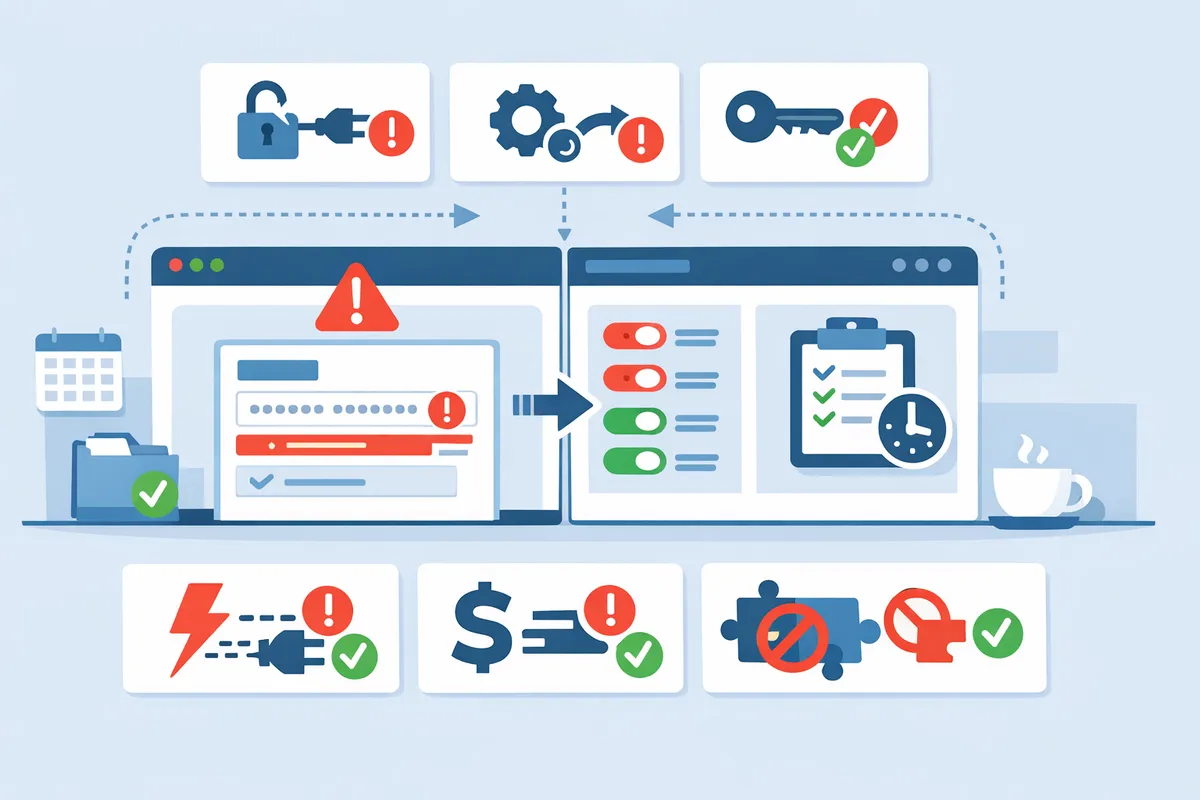
Gravity Forms Stripe Payments Not Working: 6.x Guide 2026
A single broken webhook can make Gravity Forms Stripe payments not working and halt checkout for all affected customers. Gravity Forms Stripe payments not working is a troubleshooting scenario that occurs when misconfigured API keys, webhooks, or plugin conflicts prevent Stripe charges from completing. Our RouteReceipts app integrates in the Stripe dashboard and focuses on selective receipt routing, which helps separate receipt delivery issues from core payment failures. This article shows six practical checks for 6.x installations: API key validation, webhook delivery, Stripe receipt settings, Gravity Forms feed configuration, common plugin conflicts, and server timeouts. For hands-on setup steps see our RouteReceipts Stripe setup guide and consult the RouteReceipts FAQ for installation quirks. Which webhook log entry do most teams miss?
How do I quickly identify which failure mode is causing Gravity Forms Stripe payments not working?
Use a symptom-first checklist that maps visible errors to six likely failure modes so you can prioritize fixes in under ten minutes. This quick triage saves time by pointing you to the single fastest check for each failure mode. Follow the decision-tree after the checklist to confirm the root cause and apply the appropriate fix.
Six common failure modes and the symptoms to watch for 🔎
Start with these six failure modes: SSL/connectivity, payment feed misconfiguration, webhook failures, live/test mode mismatch, missing form entries after Stripe success, and notification/email delivery errors. Below is a compact checklist you can run in order.
| Failure mode | Visible symptom (what you see) | Where to check first | Fastest next check |
|---|---|---|---|
| SSL / connectivity | Stripe payment fields fail to load on page or show a secure context error | Browser console and site certificate | Visit site over HTTPS and confirm certificate valid; check mixed-content warnings in the console |
| Payment feed misconfiguration | Stripe charges appear in Stripe but Gravity Forms shows no entry or incorrect amount | Gravity Forms > Forms > Settings > Stripe feeds | Confirm the form is linked to the correct feed and feed conditions match the submission (Gravity Forms Stripe Post Payment Actions 6.x settings) |
| Webhook failures | Stripe shows payment.succeeded but webhook delivery status is failing or shows 4xx/5xx | Stripe Dashboard > Developers > Webhooks > Delivery logs | Open the latest delivery log and inspect HTTP response and endpoint URL used by Gravity Forms |
| Live vs test mode mismatch | Transactions appear in test mode or live mode only; payments processed but no site updates | Stripe Dashboard mode toggle and API keys in Gravity Forms add-on | Ensure Gravity Forms API keys and Stripe mode match the mode you are testing (test keys for test mode) |
| Missing form entries after Stripe success | Stripe records charge, but Gravity Forms has no entry and no admin notification | Stripe event details and Gravity Forms entry list | Check whether the Stripe webhook reached your site and whether the feed condition prevented entry creation |
| Notification / email delivery errors | Payments recorded but customers or admins do not receive receipts | Gravity Forms Notification settings and Mail server logs | Verify notification is enabled for the form and test SMTP delivery; if using selective receipt routing, confirm RouteReceipts settings |
Refer to our Documentation for detailed steps on configuring receipt routing and webhook behavior. If you need help quickly, open a ticket with Support and include the Stripe event ID and Gravity Forms entry ID.
Three-step decision-tree for first-response troubleshooting 🧭
Follow a three-step decision-tree: reproduce the issue in test mode, confirm the Stripe event status, then inspect Gravity Forms feeds and webhook deliveries. Use this order because it isolates configuration errors from network and webhook failures.
- Reproduce in test mode. Submit the form with Stripe test card numbers and watch the browser console, the Gravity Forms entry list, and the Stripe Dashboard in test mode. This confirms front-end and client-side issues before digging into webhooks.
- Confirm the Stripe event. In Stripe, find the event (payment_intent.created, payment_intent.succeeded, charge.succeeded). Check the event’s delivery log and HTTP response to see whether Stripe reached your endpoint. If delivery failed, note the status code and timestamp.
- Inspect Gravity Forms feeds and webhook handling. Open the Stripe feed for the form in Gravity Forms and verify feed conditions, post-payment actions, and notification rules. If webhooks show 2xx but Gravity Forms did not create an entry, check conditional logic and entry restrictions.
Print or save this cheat sheet to repeat the checks in the same order during incidents. If you use RouteReceipts to control receipt delivery, confirm the app is enabled in the Stripe Dashboard and that it is not interfering with post-payment webhooks; our Documentation explains webhook-driven routing behavior.
⚠️ Warning: If you install a receipt-routing app like RouteReceipts, disable Stripe's automatic receipts to avoid duplicate emails. See the install notes in our Documentation and FAQ.
What is a webhook and how does Gravity Forms use it? 🔗
A webhook is a notification system that sends event payloads from Stripe to your site when payment events occur. Gravity Forms uses those webhook payloads to record payment results, create or update entries, and trigger post-payment actions such as notifications or subscription provisioning.
Where to view delivery logs. Open Stripe Dashboard > Developers > Events or Webhooks to see every delivery attempt. The delivery log shows the full payload, the timestamp, the HTTP response code, and any error message returned by your site. A 2xx response means Stripe received a successful acknowledgment.
How Gravity Forms expects webhook payloads. Gravity Forms expects the endpoint to respond quickly with a 2xx status and not alter the payload in a way that breaks the signature verification. If your site returns 4xx or 5xx, Stripe will mark the delivery as failed and retry per Stripe’s retry schedule. If a delivery shows retries but no entry appears, check feed conditions and duplicate protection.
Fast checks to run in the webhook case. 1) Confirm the webhook endpoint URL in Stripe matches the Gravity Forms Stripe add-on endpoint. 2) Inspect the most recent delivery log for response codes and latency. 3) Temporarily enable verbose logging in Gravity Forms and resubmit a test payment to capture the incoming payload and internal handling.
RouteReceipts integrates into this flow because receipt routing decisions happen at or shortly after webhook events. If you rely on selective receipt delivery, our The No‑Code Way to Route Customer Receipts in Stripe: Beginner’s Guide to Selective Delivery explains how webhook-driven routing and the allowlist interact with Gravity Forms post-payment actions.
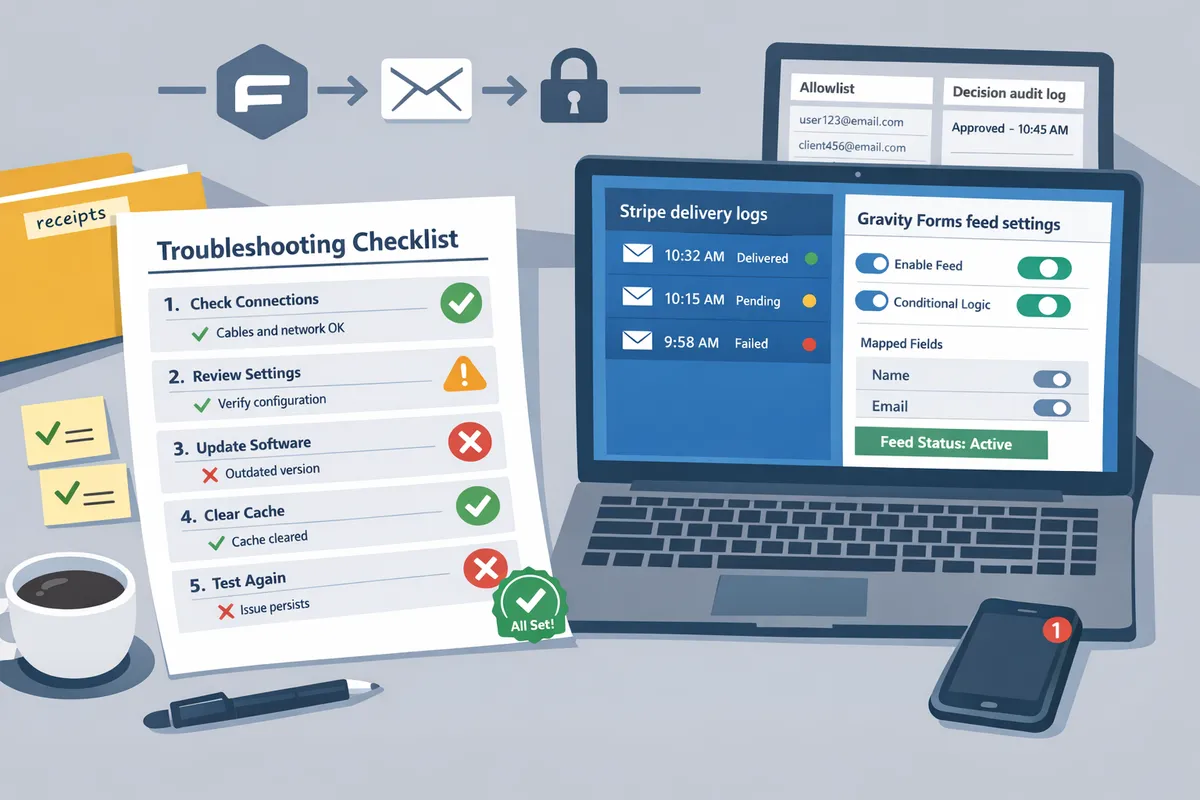
How do I fix each common cause of Gravity Forms Stripe payments not working?
Fix each failure mode with focused checks so you can get payments flowing again without a developer. The list below goes issue-by-issue with symptoms, non-technical checks, and quick fixes you can run in minutes.
SSL and hosting health checks (🔐)
Confirming SSL and basic hosting reachability fixes most connection-related failures quickly. Open the form URL in a browser and verify the padlock icon shows a valid certificate. If you see mixed-content warnings in the browser console, strip insecure assets (HTTP) or update their URLs to HTTPS; mixed content often prevents Stripe scripts from loading.
Steps you can run now.
- Open the form page in an incognito browser window and confirm the URL begins with https and the padlock shows no errors.
- Press F12 and check the console for mixed-content or blocked script errors. Note the asset URL and update it in your theme or plugin settings.
- From the Stripe dashboard, send a test webhook to your endpoint to confirm Stripe can POST to your site. If Stripe shows delivery failures, contact your host to verify they allow inbound POSTs to PHP endpoints.
Example: a client’s form loaded over HTTPS but fonts used HTTP, which blocked Stripe.js and prevented card collection. Fixing those font URLs restored the Payment Element within 10 minutes.
⚠️ Warning: An expired SSL certificate will allow pages to load but block payment scripts in many browsers. Renew certificates through your host or Cloudflare immediately.
How to diagnose and fix webhook delivery problems (🔁)
Webhook delivery failures are the most common reason Gravity Forms does not receive Stripe payment postbacks. Check Stripe’s Events log for failed deliveries, inspect the HTTP response codes, and replay failed events from the Stripe dashboard.
Step-by-step checks and fixes.
- Open Stripe > Developers > Events and filter by the event type you expect (payment_intent.succeeded or charge.succeeded). Look for red failed entries.
- Click a failed event and read the response code. 4xx usually means your endpoint rejected the request (wrong URL, missing query param, blocked by authentication). 5xx indicates your site errored; share the event ID with your host for server logs.
- Confirm the webhook endpoint URL and signing secret configured in Gravity Forms match the exact values shown in Stripe. A missing trailing slash or an outdated secret is a common mismatch.
- Use Stripe’s Replay button to resend a single event after you fix the endpoint. Verify Gravity Forms creates the entry after the replay.
Example: a site returned HTTP 403 because Cloudflare’s WAF blocked Stripe’s IP range. Temporarily whitelisting Stripe IPs and reprocessing the events fixed entries and notifications.
⚠️ Warning: Replaying live payment events can create duplicate entries or trigger duplicate downstream actions. Replay only after confirming the endpoint behavior and test with a single event first.
RouteReceipts integration note. Our Documentation explains how RouteReceipts uses webhook-driven routing for receipts; if you use RouteReceipts, confirm its webhook is healthy in Stripe and that it does not intercept or block the same events Gravity Forms needs. See our Documentation for setup details.
Why Stripe shows payment success but Gravity Forms has no entry (🤔)
A missing Gravity Forms entry after Stripe records a successful payment usually means the post-payment action that creates the entry failed or a feed prevented entry creation. Check feed rules, entry restrictions, and Gravity Forms Stripe Post Payment Actions 6.x settings.
Checklist to isolate the cause.
- Test in Stripe test mode with a known-good card and watch both Stripe events and Gravity Forms logs. If Stripe has a succeeded event and Gravity Forms has no entry, open the form’s Stripe feed log.
- Review each feed: look for conditional rules (create only if field X equals Y) that might exclude the test payment. Disable the condition temporarily and retry.
- Inspect Gravity Forms confirmations and notifications that run after payment. A misconfigured post-payment action in Gravity Forms Stripe Post Payment Actions 6.x can short-circuit entry creation.
- If multiple feeds exist, temporarily disable all but one feed and reprocess the Stripe event to see if an earlier feed blocked processing.
Example: a nonprofit used conditional feeds to separate donation types. A mis-typed condition prevented the donor email from meeting the rule, so the entry was never created despite Stripe showing payment success.
RouteReceipts relevance. RouteReceipts does not change whether Gravity Forms creates entries, but if you use RouteReceipts to suppress automatic Stripe receipts, confirm your feed that issues receipts or triggers external receipt webhooks does not assume Stripe sent a receipt. See our Frequently Asked Questions for guidance on avoiding duplicate or missing receipts.
Payment Element vs legacy Stripe fields: comparison table (📊)
Payment Element uses Stripe’s hosted UI and behaves differently from Gravity Forms’ legacy Stripe fields in script loading, webhook reliance, and debugging paths. The table below compares the two to help you pick which path to debug first.
| Feature | Payment Element | Legacy Stripe fields | Notes / impact |
|---|---|---|---|
| UI hosting | Hosted by Stripe (client-side) | Field-level integration inside Gravity Forms | Payment Element failures usually show as missing scripts or blocked if SSL/mixed content issues exist. |
| Script loading | Requires Stripe.js and Payment Element scripts to load from stripe.com | Requires embedded scripts but fewer external resources | If the element does not render, check blocked third-party scripts and CSP rules. |
| Webhook dependency | Still requires webhooks for final confirmation for server-side actions | Also requires webhooks; more granular field errors available in Gravity Forms logs | Both need webhooks, but Payment Element can appear to succeed client-side while server-side postbacks fail. |
| Common failure modes | Script blocked, publishable key mismatch, CSP/SSL issues | Field tokenization errors, JavaScript conflicts with other plugins | Legacy fields are often easier to debug because errors appear in Gravity Forms logs. |
| Test-mode differences | Uses Stripe test keys; behavior mirrors production when keys match | Same, but legacy fields expose more server logs | Always test with matching key sets and in the same browser session. |
| Debug ease | Medium — client-side errors may not write to server logs | Higher — errors surface in Gravity Forms logs and feed errors | If you must narrow quickly, start by checking legacy field logs if available. |
Example: a site with strict Content Security Policy blocked scripts from stripe.com, preventing the Payment Element from loading. Switching CSP to permit stripe.com resolved the issue.
Gravity Forms Stripe multiple feeds priority rules can block payments (🧩)
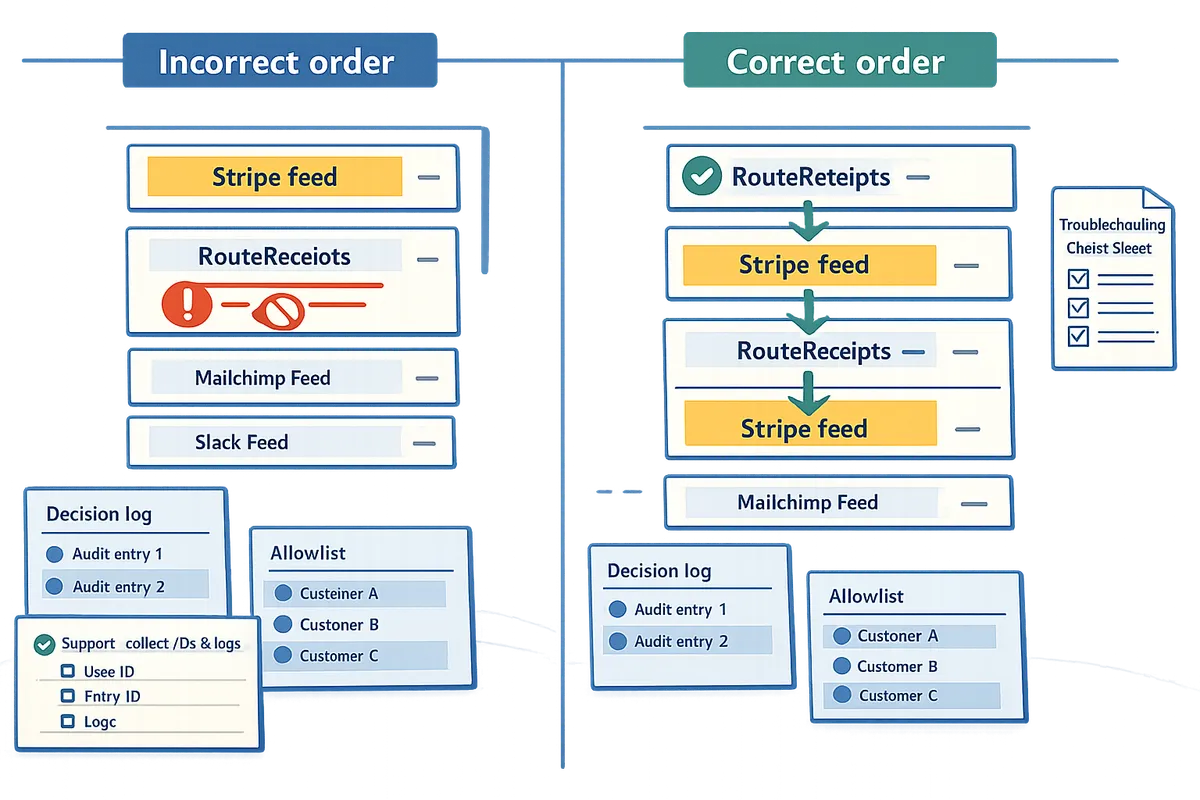
Conflicting or incorrectly ordered Gravity Forms Stripe multiple feeds can stop later actions and block entry creation or notifications. Audit feed order, disable or reorder conflicting feeds, and test changes in a staging copy of the form.
How to audit and resolve feed priority conflicts.
- Open the form, go to Stripe feeds, and list the feeds in the order they execute. Note any feed with conditional logic that might run early and stop processing for subsequent feeds.
- Temporarily disable nonessential feeds and run a test payment. If the entry is created, a disabled feed was blocking processing.
- Reorder feeds so the one that must always run sits first, and put optional or conditional feeds after. Use the Gravity Forms feed priority UI to move feeds.
- If you run complex post-payment processes, duplicate the form to a staging environment and test with live-like data to avoid disrupting customers.
Example: a store had a capture-only feed placed before a donation feed; because the first feed marked the transaction as handled, the donation feed did not create the expected entry. Reordering fixed the workflow.
💡 Tip: Before changing live feeds, duplicate the form and run test-mode payments to verify behavior without affecting customers.
RouteReceipts operational note. If you pair RouteReceipts with multiple feeds that trigger receipt or webhook workflows, ensure the feed order does not prevent RouteReceipts from receiving the events it needs to decide who gets a receipt. Our Support page lists what IDs and logs to gather if you need help troubleshooting routing interactions.
How do I prevent recurring failures and monitor Gravity Forms Stripe integrations over time?
Use a compact set of configuration controls, daily checks, and a printable troubleshooting cheat sheet to catch issues before customers notice. These controls include separating test and live keys, validating webhook endpoints for each mode, and reducing receipt noise with Route Receipts so your support team sees only relevant messages. Follow the checklist below and run lightweight monitoring to reduce incident response time.
Best-practice setup checklist for stable payments ✅
Set separate test and live Stripe keys, confirm webhook endpoints for both modes, and disable Stripe automatic receipts if you will manage receipts with Route Receipts.
- Configure API keys. Use distinct Stripe test and live keys in Gravity Forms and verify each in the Stripe dashboard. This prevents accidental test-mode charges.
- Verify webhook endpoints. Create separate webhook endpoints for test and live and confirm each receives recent events. If an endpoint shows failures, fix the endpoint URL or update your TLS settings.
- Disable Stripe automatic receipts when using Route Receipts to avoid duplicate emails. Route Receipts is an application that routes receipts by allowlist and prevents duplicates by handling delivery decisions; follow the Route Receipts documentation for marketplace installation and allowlist setup.
- Check Gravity Forms feeds and post-payment actions. Open Gravity Forms Stripe Post Payment Actions 6.x and confirm each feed targets the correct form, payment type, and conditional logic. For example, create one feed for subscriptions and a separate feed for one-time payments to avoid mismatched entries.
- Confirm field types. If you use Stripe Payment Element instead of legacy Stripe fields, test a live and test checkout to ensure tokens map to the correct feed. Payment Element changes how card data posts; mismatches cause silent failures.
Refer to the Route Receipts documentation for step-by-step installation and allowlist configuration: RouteReceipts documentation.
Monitoring, logging, and lightweight automated checks 📈
Run daily checks of Stripe event failures, Gravity Forms entry gaps, and keep a short log of webhook replays to spot recurring problems quickly.
- What to monitor and how often:
- Stripe event failures: check once daily in the Stripe events log for any 4xx/5xx delivery errors.
- Gravity Forms entry gaps: run a daily entry count for payment forms and compare to yesterday; flag drops greater than 10% for investigation.
- Webhook replay log: record replays with timestamp, event ID, and the reason for replay so you can spot flaky endpoints.
- Quick triage flow when a mismatch appears: (1) confirm the Stripe event shows succeeded, (2) check Gravity Forms feed status and form entry list, (3) review webhook delivery and replay the event if delivery failed.
- How Route Receipts helps: Route Receipts provides a decision audit log and dashboard that shows whether a receipt was routed, why, and by which allowlist rule, cutting diagnostic time when customers ask about missing or extra receipts. See the FAQ for routing behavior and plan details: RouteReceipts FAQ.
⚠️ Warning: Keep Stripe automatic receipts disabled when you use Route Receipts; otherwise customers may receive duplicate emails.
For support during complex incidents, include the Stripe event ID and recent webhook request IDs when you contact support: RouteReceipts support.
Printable readiness checklist and one-page troubleshooting cheat sheet 📝
Keep a two-column printable checklist with immediate checks and escalation steps so support resolves common symptoms in under five minutes.
Immediate checks (fast fixes):
- SSL and mixed content. If form fields fail to load, confirm HTTPS and valid TLS certificate. Clear CDN cache after renewal.
- Live vs test mode. Confirm the form and Stripe are both in the same mode. A live charge against test keys will not create a live entry.
- Feed enabled. Open Gravity Forms Stripe Post Payment Actions 6.x and make sure the correct feed is active and its conditions match the submission.
Escalation checks (if immediate checks fail):
- Webhook delivery. Inspect the Stripe webhook log for delivery errors and replay the event if needed.
- Server health. Check hosting response times and error logs for 5xx spikes over the last hour.
- Stripe status. Check Stripe system status and outages before wide incident escalations.
Symptom-to-action examples (printable):
- Symptom: "Payment succeeded in Stripe but no Gravity Forms entry." Fastest action: replay the webhook and verify the feed is active.
- Symptom: "No card fields load on form." Fastest action: confirm HTTPS and that Payment Element is supported on current theme; switch to legacy fields to test.
You can print this section or use our detailed setup walkthrough in the blog post on selective receipt delivery for team training: The No‑Code Way to Route Customer Receipts in Stripe.
💡 Tip: Tape the one-page cheat sheet at your support station and include space to log webhook replays for the last 72 hours; a short handwritten log speeds postmortem timelines.
Frequently Asked Questions
This FAQ lists concise, actionable answers to the specific errors site owners see when Gravity Forms Stripe payments not working. Our website focuses on rapid triage, webhook checks, and receipt routing so you can restore checkout flow without developer hours.
Why does Stripe show a successful charge but Gravity Forms has no entry?
A successful Stripe charge often lacks a Gravity Forms entry when the webhook or post-payment feed failed to run. Check the Stripe event log for the charge and confirm the webhook to your Gravity Forms endpoint returned HTTP 200. Next, inspect the form's Stripe feeds for conditional logic or feed rules that might block entry creation. Example: a test charge appears in Stripe while the webhook shows a 500 response because a plugin conflict prevented Gravity Forms from processing the payload; replaying the event after resolving the conflict produced the missing entry. If you need help collecting relevant IDs before contacting support, our Support page lists the exact Stripe and form IDs to provide.
How do I test webhook replays without charging customers?
Use Stripe test mode and Stripe's event replay feature to resend historical events to your Gravity Forms endpoint without creating live charges. Steps: (1) Switch your form to test API keys and confirm Gravity Forms is in test mode. (2) Create a test payment using one of Stripe's test card numbers. (3) In the Stripe dashboard, find the related event and use Replay to resend it to your endpoint. (4) Watch Gravity Forms for the entry and check logs for processing errors. This method verifies how Gravity Forms handles a real Stripe payload while avoiding live transactions.
Can multiple Gravity Forms Stripe feeds interfere with each other?
Yes. Multiple Stripe feeds execute by priority and an earlier feed can block downstream feeds from running. Review the feed order inside the Gravity Forms Stripe settings and temporarily disable nonessential feeds during tests. Use a staging copy of the form to reorder feeds and test scenarios like subscription creation plus single-charge processing. Example step: disable Feed B, replay the webhook, confirm Feed A creates the entry, then re-enable Feed B and adjust its conditions so both feeds run as intended.
Should I use Stripe Payment Element or legacy Stripe fields with Gravity Forms? 🎯
Choose Payment Element when you prefer centralized card collection and reduced PCI scope; choose legacy Stripe fields when you need field-level conditional logic inside Gravity Forms. Payment Element keeps card collection in Stripe's host-controlled UI, which reduces the number of fields you manage in Gravity Forms. Legacy Stripe fields let you show or hide specific card fields with Gravity Forms conditional logic, useful for donation forms or complex conditional billing. Comparison:
| Trade-off | Payment Element | Legacy Stripe fields |
|---|---|---|
| PCI surface | Smaller, Stripe-hosted | Larger, fields inside the form |
| Conditional field control | Limited | Full Gravity Forms conditional logic |
| Setup complexity | Lower for card collection | Higher when you need field-level rules |
If you rely on conditional field visibility for pricing or donor data, test the legacy fields on a staging site. If you want fewer moving parts and simpler card updates, test Payment Element.
How do I stop Stripe from sending receipts to every customer?
Disable Stripe's automatic receipts in the Stripe dashboard and use RouteReceipts to maintain an allowlist for selective receipt delivery. RouteReceipts installs via the Stripe Marketplace and routes receipts based on an allowlist you manage in the dashboard, preventing receipts from going to customers who do not need them. See our documentation for step-by-step setup, how to disable Stripe's native receipts to avoid duplicates, and how routing decisions appear in the audit log. For an introduction to the no-code setup, read our beginner's guide to selective delivery.
What immediate checks should I run when a payment failure is reported?
Run three immediate checks: confirm the form is served over HTTPS, verify Stripe and Gravity Forms are both in the same mode (test or live), and inspect Stripe event logs for webhook delivery failures. Step-by-step: 1) HTTPS: open the form in a private browser window and confirm the certificate shows as valid; mixed-content errors can block Stripe assets. 2) Mode match: compare the API keys in Gravity Forms with the keys shown in your Stripe dashboard to ensure you are not mixing test and live events. 3) Webhook logs: open the Stripe event, check the endpoint response code, and replay failed events after you fix the cause.
💡 Tip: Run webhook replays on a staging site where possible and disable nonessential feeds first to prevent duplicate entries or accidental live actions.
For receipt-specific questions or to get help preparing artifacts for support, consult our Support page or the RouteReceipts FAQ for receipt routing details.
Take clear steps to fix Gravity Forms Stripe payments not working and prevent repeat failures.
Start by checking your form feed settings, API keys, webhook endpoints, and Stripe dashboard logs for declined charges or signature mismatches. These quick checks catch the majority of failures and restore payment flow faster than rebuilding integrations.
Confirm Gravity Forms Stripe multiple feeds priority rules so the intended feed runs for each submission; if priorities conflict, the wrong feed can block payment processing. If that doesn't resolve the issue, open our Support page with your Stripe account ID and example entry IDs for targeted help.
RouteReceipts is a specialized application designed to enhance the way businesses manage their Stripe receipt distribution. This app addresses a significant limitation within Stripe's native functionality, which traditionally forces businesses to either send receipts to all customers or none at all. RouteReceipts empowers businesses with the flexibility to selectively send receipts to specific customers, thereby preventing unnecessary email clutter for those who do not require them. By integrating directly into the Stripe dashboard, RouteReceipts allows users to manage an allowlist of customers effortlessly, without the need for complex coding or custom webhook integrations. The application features a dashboard-native user interface, a decision audit log for transparency, and a straightforward setup process via the Stripe Marketplace. RouteReceipts offers a tiered pricing model, starting with a free plan that includes 20 receipts per month, with the option to upgrade for higher volume needs. This solution is ideal for businesses seeking to streamline their financial communications and maintain a professional relationship with their clients by ensuring that only necessary communications are sent.
Start with the RouteReceipts getting-started guide in our Documentation to add selective receipt routing to your Stripe workflow.
Subscribe to our newsletter for implementation tips and updates.
The fit of the collar should be comfortable for all-day wear. The fit of the armhole is crucial for overall comfort and mobility. A balanced discussion of Chelsea away shirt can cover adult, youth and gift-buying needs while keeping the advice relevant to different buyers. A shirt with a comfortable cut is the top priority for most fans.