
Gravity Forms Stripe Webhook Failing Playbook
One misfired webhook from Gravity Forms can cause dozens of Stripe receipt emails to arrive twice or not at all, creating reconciliation headaches and lost revenue. gravity forms stripe webhook failing is an integration failure that stops Stripe from receiving reliable payment events and triggers missing or duplicate receipt emails. This Gravity Forms Stripe Webhook Failing Playbook gives a step-by-step guide to diagnose webhook delivery, correct common Gravity Forms settings, and repair duplicate receipt flows. RouteReceipts is a Stripe app we provide that controls which customers receive receipts via an allowlist inside the Stripe dashboard, reducing receipt routing risk without custom code. Our RouteReceipts documentation shows the one Stripe Receipt Settings tweak most teams miss and why it matters.
How do I recognize the problem when a Gravity Forms Stripe webhook is failing?
You recognize a failing Gravity Forms Stripe webhook by seeing delivery errors in Stripe paired with missing, duplicate, or delayed receipt emails recorded in Gravity Forms. Check Stripe's event delivery history and match event IDs to Gravity Forms entry IDs to confirm whether an event reached your site. Quick, targeted checks often identify misconfiguration faster than broad trial-and-error and save hours of support time, especially when you also consider whether Route Receipts is active and affecting receipt routing.
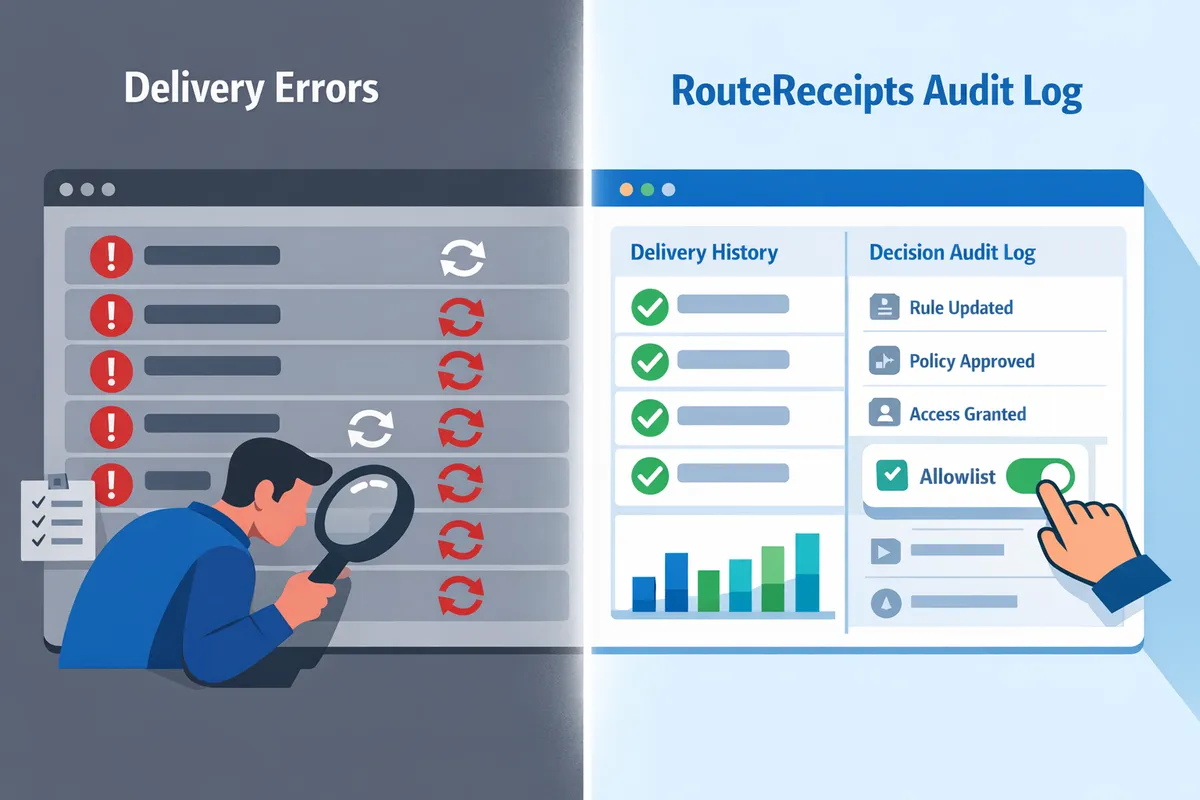
What is a webhook failure? 🔍
A webhook failure is a delivery error that prevents a Stripe event from reaching Gravity Forms and triggering receipt workflows. In practice this means Stripe shows an event such as invoice.payment_succeeded but Gravity Forms has no matching entry update or receipt record. Map the Stripe event ID to a Gravity Forms entry ID (or payment reference) to confirm non-delivery. Use Stripe's Developers > Events and Webhooks view to see HTTP response codes and retry attempts, then cross-check Gravity Forms logs or the form entry's payment status for that same timestamp. If you run Route Receipts, consult the decision audit log in Route Receipts' dashboard to confirm whether the receipt was held or routed differently, since that can look like a missing receipt while the webhook itself succeeded. For setup details and how webhook-driven routing affects receipts, see the RouteReceipts documentation.
Common symptoms and their business impact ⚠️
Common symptoms include missing receipts, duplicate receipts, delayed confirmations, and 4xx/5xx HTTP responses; each symptom leads to specific business pain. Missing receipts raise support volume and can break enterprise clients' expense reporting, creating billing disputes. Duplicate receipts cause accounting confusion and extra reconciliation work. Delays in confirmation lower perceived reliability and increase churn for time-sensitive purchases. 4xx responses usually indicate a misconfiguration such as URL or mode mismatch; 5xx responses point to hosting problems or plugin conflicts. For example, a small SaaS that processes 200 invoices monthly and sees a 10% webhook failure rate may face dozens of support tickets and manual reconciliations each month. Route Receipts helps by adding an audit trail that shows whether a receipt decision was made, which reduces time spent investigating whether a missing email was a webhook failure or an intentional routing rule. For background on why selective routing matters, read Why Did We Build Route Receipts?.
Quick verification checklist (first 5 minutes) ✅
Run these four checks in order to rule out common misconfigurations quickly.
- Check Stripe webhook delivery. Open Stripe Dashboard > Developers > Webhooks and inspect recent delivery attempts and HTTP response codes. Look for failing events (4xx/5xx) and note the event IDs.
- Inspect Gravity Forms logs and the specific form entry. Match the Stripe event ID or payment reference to the entry ID and payment status. If the entry shows no update, treat it as undelivered.
- Confirm site URL and webhook URL match. Ensure your site uses the same hostname and protocol registered in Stripe and that no redirect is breaking the endpoint.
- Verify Stripe test vs live mode. Make sure the webhook endpoint and API keys are both in the same mode. Mismatched modes create silent non-delivery.
💡 Tip: If you use Route Receipts, disable Stripe's automatic receipts before testing to avoid duplicate emails; then check Route Receipts' decision audit log to confirm whether the receipt was routed or suppressed. See the RouteReceipts FAQ for guidance on disabling automatic receipts.
Common causes and quick Gravity Forms actions 🛠️
URL mismatch, SSL problems, mode mismatch, endpoint secret rotation, plugin conflicts, and hosting 503s are the most frequent causes. Use the table to prioritize actions based on what you observe.
| Symptom observed | Likely cause | Gravity Forms action (next step) | |---|:|---| | Stripe shows 400-series responses | Webhook URL or path mismatch, missing trailing slash, or bad domain | Confirm webhook URL exactly matches site endpoint. Update Gravity Forms/Stripe webhook to the canonical site URL and re-test. | | Stripe shows TLS/SSL errors or connection refused | Expired or misconfigured SSL certificate, or blocked port | Verify SSL certificate chain with your host and ensure port 443 accepts connections. Contact host if certificate renewal failed. | | Events appear in Stripe but not in Gravity Forms | Test vs live mode mismatch or wrong API keys | Verify both webhook and Gravity Forms Stripe settings use the same mode and keys. Re-run a live test after correcting keys. | | Recent endpoint secret rotated | Endpoint signing secret changed in Stripe | Re-enter the current webhook signing secret in Gravity Forms Stripe settings or re-register the endpoint. | | Intermittent failures with 500/503s | Plugin conflict or hosting resource limits | Temporarily disable recent plugins or switch to a maintenance environment to reproduce. Check server error logs for PHP timeouts and memory spikes. | | Duplicate receipts in customers' inboxes | Multiple receipt senders (Stripe automatic + webhook flow) | Disable Stripe automatic receipts or use Route Receipts to control routing. Check Gravity Forms and Route Receipts logs to confirm a single sender. |
Prioritize fixes that match your symptom. If Stripe shows delivery failures, start with URL, SSL, and mode checks before disabling plugins or contacting hosting. If routing decisions are ambiguous, review Route Receipts' decision audit log and our documentation for troubleshooting duplicates or missing receipts. If you need hands-on help, include the Stripe account ID, failing event IDs, and a Gravity Forms entry ID when you contact Route Receipts support.
For step-by-step setup of receipt routing and how it interacts with webhook workflows, see the RouteReceipts documentation and our support page.
What decision tree should you follow to fix Gravity Forms Stripe webhook failures?
Follow a five-step decision tree that narrows failures to configuration, signing, hosting, plugin conflicts, or receipt-routing policy issues. This focused path isolates the root cause quickly so you avoid hours of guesswork and reduce the chance of repeated customer emails or lost entries.
Step 1: Verify Stripe delivery and HTTP responses.
Check Stripe's event delivery history first because the HTTP response code tells you whether Stripe reached your endpoint or the endpoint rejected the event. Stripe's Dashboard (Developers > Events or Webhooks) lists each event, the HTTP status, and retry attempts. If Stripe shows 2xx deliveries, Gravity Forms probably processed the event; confirm by matching the event ID to an entry in Gravity Forms and the Stripe Add-On logs. If Stripe shows 4xx or 5xx responses, treat this as a server- or endpoint-level failure and capture the exact response body from Stripe for diagnostics. Replaying the event from Stripe's Dashboard after making a fix is the fastest way to validate resolution.
Step 2: Confirm Stripe mode and API keys match Gravity Forms.
Match Stripe mode (test vs live) and the API keys configured in Gravity Forms because a mode mismatch prevents events from mapping to live entries and receipts. Open Gravity Forms' Stripe Add-On settings and verify the API keys correspond to Stripe's selected mode in the Dashboard. A common symptom of a mismatch is successful test events in Stripe that never appear as entries in your production site or messages showing unknown customer IDs. After correcting keys or switching mode, run a controlled test payment and watch Stripe's event timeline to confirm events flow into Gravity Forms.
Step 3: Check endpoint secret rotation and signing verification.
Ensure the webhook signing secret in Gravity Forms matches the active secret in Stripe because stripe endpoint secret rotation gravity forms can break signature verification and cause dropped events. In Stripe, reveal the current endpoint signing secret and paste it into Gravity Forms' webhook or Stripe Add-On signing-secret field. If you recently rotated secrets during maintenance, expect 400-level signature errors until you update Gravity Forms. If signature verification still fails after updating, enable verbose logging in Gravity Forms and compare the raw event payload and signature header from Stripe to pinpoint mismatches.
Step 4: Inspect SSL, domain, and hosting behavior (503s, timeouts) 🛠️
Validate the SSL certificate, exact webhook URL, and host response under load because expired certs, www vs non-www mismatches, or firewall rules commonly cause 503s and timeouts. Confirm the webhook URL in Stripe uses the same domain variant as your WordPress General Settings and that HTTPS responds to POST requests. Use your host's access and error logs to find mod_security blocks, rate limits, or PHP fatal errors returned to Stripe. Run an SSL checker and confirm certificate chain and expiry; an invalid certificate will show as TLS errors in Stripe's delivery logs. If you see intermittent timeouts, ask your host about outbound concurrency limits and PHP worker counts.
⚠️ Warning: Do not disable HTTPS or bypass TLS checks to make webhooks succeed. That creates security and compliance risk.
Step 5: Identify plugin conflicts and duplicated handlers.
Look for other Stripe integrations, custom webhook code, or multiple add-ons because duplicate listeners produce repeated receipts or conflicting processing. Audit active plugins and your theme's functions for second Stripe add-ons, Marketplace apps, or custom webhook endpoints. Temporarily disable any nonessential Stripe-related plugins and re-run a test payment to see if duplicate receipts stop. Also check whether Stripe's automatic receipts are enabled while you run a routing app; RouteReceipts' docs explain disabling Stripe automatic receipts to avoid duplicates and best practices for installation. If disabling extras fixes the problem, re-enable items one at a time to find the conflicting handler.
💡 Tip: When testing plugin conflicts, use a staging site and the same Stripe mode to avoid polluting production customer data.
Decision node: Use RouteReceipts when receipt routing policies cause manual complexity.
Choose RouteReceipts when custom webhook branching or manual receipt logic creates repeated errors or costly maintenance. Our RouteReceipts app integrates inside the Stripe dashboard and replaces bespoke routing code with a simple allowlist and audit log, removing a common source of webhook duplication and human error. Install instructions and setup notes live in our RouteReceipts documentation, which also shows how to disable Stripe's automatic receipts and configure allowlists so receipts only go to customers who need them. For background on why we built this approach and the operational benefits of a dashboard-native flow, see Why Did We Build Route Receipts?. If you still need help diagnosing an edge case, contact RouteReceipts support or review the FAQ for common install issues.
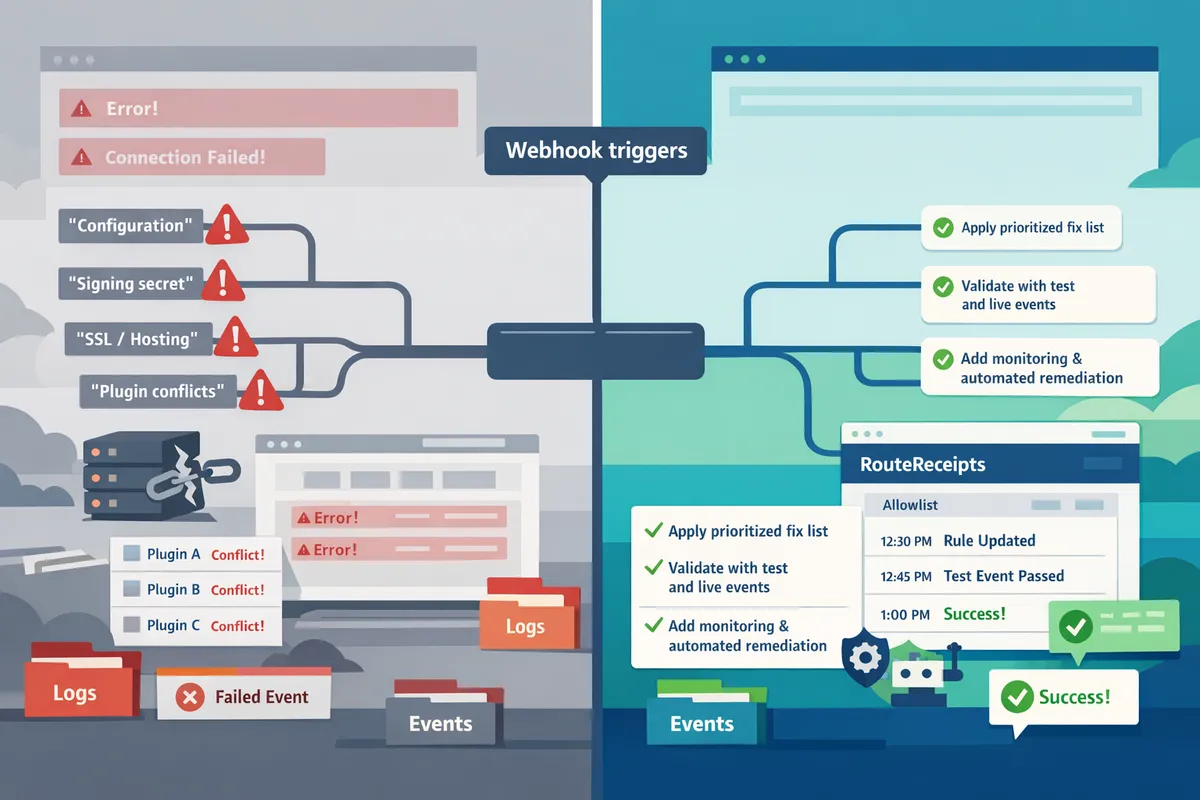
How do I implement fixes, test thoroughly, and prevent recurrence?
Apply a prioritized fix list, validate each change with controlled test and live events, and add monitoring and automated remediation to catch future failures before customers notice. This reduces time spent chasing duplicates, missing receipts, and reconciliation errors caused by a single webhook fault. Below are step-by-step actions, test cases, and monitoring recommendations you can run today.
Implementation checklist: Gravity Forms, Stripe, and hosting actions
Follow a prioritized checklist that covers Gravity Forms settings, Stripe dashboard actions, and hosting checks. This sequence narrows causes quickly so technicians do not repeat work.
- Verify webhook URL and site URL. Confirm the webhook URL listed in Stripe exactly matches your site URL (including https and trailing slash rules). Check Gravity Forms > Settings > Stripe Add-On for the webhook endpoint the plugin expects.
- Update the signing secret and test it. Rotate the Stripe signing secret if compromised and update it in Gravity Forms. Document the change and test using a replayed event. Include "stripe endpoint secret rotation gravity forms" in your runbook for future rotations.
- Confirm API mode and keys. Ensure Gravity Forms uses matching test or live API keys to avoid mode mismatches that cause deliveries to fail or be ignored.
- Disable duplicate plugins and filters. Deactivate any duplicate Stripe or receipt plugins and confirm no custom hooks (gform_stripe_webhook filters) block delivery.
- Verify SSL and server response times. Test the TLS certificate for chain issues and measure endpoint response time; keep responses under 1 second for most shared hosts.
- Check receipt routing settings. If RouteReceipts is installed, confirm you have disabled Stripe automatic receipts and that your allowlist rules match expected customer IDs. See the RouteReceipts documentation for setup details.
💡 Tip: Keep a one-line runbook entry for each checklist item (location, expected value, who changed it) so fixes are repeatable across teams.
How to test webhook fixes and interpret Stripe events 🔍
Validate fixes by running controlled charges in Stripe test and live modes, tracking event IDs, and confirming Gravity Forms created the expected entries. Using the same event IDs across systems makes root-cause proof easy.
- Run a test charge in Stripe test mode and note the event ID. Replay that event in Stripe to simulate retries and confirm Gravity Forms receives the same event ID and creates one entry.
- Repeat a small live charge. Use a dedicated test customer in live mode to confirm production behavior without affecting real customers.
- Match Stripe event IDs to Gravity Forms entries. Open the Gravity Forms entry and record the Stripe event ID and charge ID. This proves the webhook and add-on processed the event.
- Use Stripe’s event replay to confirm remediation. If an event failed previously, replay it after fixes and confirm a 2xx response and receipt behavior.
- Test secret rotation effects. After rotating a signing secret, run test events immediately to confirm Gravity Forms accepts the new signature.
💡 Tip: Simulate a failed delivery by temporarily blocking the webhook endpoint in a staging host, then replay events to observe retries and Gravity Forms behavior.
Setting up monitoring and automatic remediation
Set up delivery logging, webhook delivery alerts in Stripe, and uptime checks on the webhook endpoint so outages trigger actionable alerts. Automated remediation reduces mean time to resolution and limits customer impact.
- Enable Stripe delivery failure alerts in the Stripe Dashboard and route those alerts to an on-call channel or ticketing system.
- Add endpoint uptime checks with a monitoring service (UptimeRobot, Pingdom, or Datadog) that hits the exact webhook URL and validates a 200 response.
- Record detailed webhook logs in Gravity Forms and your host logs for every event ID; rotate logs weekly for easier searches.
- Implement automated remediation for common fixes. Examples: a script that re-enables an endpoint after manual verification, or a safe secret rotation job that updates Gravity Forms and notifies the team.
- Use RouteReceipts’ audit log to see routing decisions and reduce debugging time for receipt duplicates or suppressions. The audit log helps you trace whether Stripe or RouteReceipts sent a receipt.
⚠️ Warning: Schedule secret rotations during low-traffic windows and notify the team. Blind rotations without testing cause failed deliveries and customer support incidents.
When to adopt RouteReceipts for receipt routing reliability
Adopt RouteReceipts when you need selective receipt distribution and an audit trail for routing decisions to prevent duplicate or unwanted receipts. RouteReceipts installs from the Stripe Marketplace and provides a dashboard-native allowlist and decision log.
- Use RouteReceipts if you manage enterprise customers who must receive receipts while other customers should not. This avoids custom webhook branching and reduces manual reconciliation.
- After installing RouteReceipts, disable Stripe automatic receipts to prevent duplicates and configure your allowlist in the RouteReceipts dashboard. Refer to the RouteReceipts documentation for step-by-step setup and the FAQ for plan and usage questions.
- RouteReceipts’ audit log simplifies post-mortem work. When a receipt is missing or duplicated, the log shows which system made the routing decision so you can fix rules rather than chase webhooks.
For background on why this approach matters, see Why Did We Build Route Receipts? for the product rationale and implementation playbook.
Post-fix validation: customer-facing tests and support checklist
Run targeted customer-facing tests and update support scripts to confirm receipts and suppression behave as intended. These checks prevent reopened tickets and ensure finance teams receive exactly the receipts they expect.
- Verify allowlisted enterprise accounts. Use a sample enterprise account to confirm the invoice receipt arrives and that the RouteReceipts audit log records the decision.
- Verify suppressed accounts. Confirm opted-out or non-allowlisted customers do not receive receipts and that Stripe automatic receipts remain disabled to avoid duplicates.
- Update support templates. Add a short checklist for support agents that includes the Stripe event ID, Gravity Forms entry ID, and RouteReceipts audit entry to attach to tickets. Link to RouteReceipts support for escalation details.
- Run monthly smoke tests. Schedule a small set of automated or manual transactions that validate end-to-end behavior across Gravity Forms, Stripe, and RouteReceipts.
For setup guides and troubleshooting steps, consult the RouteReceipts documentation and our FAQ, or contact support with your Stripe account ID and affected event IDs.
Frequently Asked Questions
This FAQ answers the most common causes and quick fixes for gravity forms stripe webhook failing and related receipt delivery issues. Use the short actions and links below to reproduce failures, apply the minimal fix, and verify results quickly.
Why are Gravity Forms Stripe webhooks failing only in live mode? ⚠️
Live-mode webhook failures usually indicate incorrect live API keys, a webhook URL registered for test mode only, or a payment method mismatch. Check Gravity Forms' Stripe settings to confirm you pasted the live secret and publishable keys rather than test keys. Next, run a controlled live charge (use a low-value card or a real card you manage) and inspect Stripe's Event Delivery section for 4xx or 5xx responses. If Stripe shows successful delivery but Gravity Forms shows no entry, look for mode-restricted webhooks or a staging site URL still configured in Stripe.
How do I handle Stripe endpoint secret rotation in Gravity Forms? 🔑
Update the webhook signing secret in Gravity Forms immediately after Stripe rotates an endpoint secret. Copy the new secret from Stripe's webhook settings and paste it into Gravity Forms > Settings > Stripe (or the Stripe Add-On webhook section). After updating, replay the most recent events from Stripe to confirm Gravity Forms accepts the signature and creates entries.
💡 Tip: After updating the signing secret, replay the last 5 events in Stripe and watch Gravity Forms logs to verify signature validation and entry creation.
Refer to our Documentation for step-by-step setup and webhook signing guidance.
What should I do if receipts are not sending from Gravity Forms to customers? ✉️
Confirm Stripe recorded the payment event and Gravity Forms created the entry before changing receipt settings. First, open the payment's event in the Stripe dashboard to verify the invoice or charge exists. Then check Gravity Forms entries and the Add-On's notification/receipt mappings. If events and entries exist, inspect any receipt-suppression rules or plugins that alter notifications. If you use Route Receipts, verify the allowlist or suppression rules in our dashboard and confirm Stripe's automatic receipts are disabled to avoid conflicts.
See our Documentation on installing Route Receipts and disabling Stripe automatic receipts for precise instructions.
Can duplicate receipts come from Stripe or Gravity Forms? 🔁
Duplicate receipts most often come from two places at once: multiple webhook handlers and Stripe retrying an event while the handler is non-idempotent. Isolate the source by temporarily disabling third-party integrations and replaying a known event. Check Gravity Forms logs for multiple entry creations tied to the same Stripe event ID. If you use Route Receipts, our app centralizes receipt decisions and can stop duplicates caused by parallel custom handlers if you disable Stripe's built-in receipts and route from one place.
For diagnosis templates and examples, see our blog post on why we built Route Receipts and the Documentation troubleshooting section.
How do I test webhook retries and failed payment scenarios? 🧪
Use Stripe's test cards and the Event Replay feature to simulate retries and failed payments and then observe Gravity Forms and receipt behavior. Steps: 1) Create a test charge using a Stripe test card that forces a specific failure (for example, a declined card). 2) In Stripe, locate the failed event and use Event Replay to resend it to your webhook endpoint. 3) Monitor Gravity Forms logs, the entry state, and any receipt generation rules. 4) If you use Route Receipts, confirm the routing decision in our app's audit log to see whether a receipt would have been sent.
If the replay triggers duplicate entries or missing receipts, capture the event ID and contact our Support with that ID for quicker troubleshooting.
Will Route Receipts stop missing receipts caused by webhook failures? 🧭
Route Receipts does not repair webhook delivery failures; our app controls which customers receive receipts once Stripe successfully delivers events. Route Receipts reduces routing complexity by replacing custom receipt code with an allowlist and a dashboard-native decision log, which lowers the chance of logic errors that create missing or duplicate receipts. However, fix server-level delivery issues first (SSL, correct API keys, webhook URL reachability). After delivery is reliable, use Route Receipts to manage allowlists and prevent unnecessary emails.
Read Why Did We Build Route Receipts? for the design rationale and the Documentation for installation and allowlist configuration. If you need help diagnosing delivery errors before enabling routing, contact Support and include the Stripe account ID and the failing event IDs.
Next steps to stop receipt failures
Run the checklist, apply the targeted fixes, and verify your Stripe receipt settings to prevent missing or duplicate emails.
If your logs show gravity forms stripe webhook failing because Stripe's automatic receipts were still enabled or the endpoint secret rotated, the playbook shows exactly which toggles, logs, and retries to inspect.
RouteReceipts is a specialized application designed to enhance the way businesses manage their Stripe receipt distribution. This app addresses a limitation in Stripe's native receipt options by letting teams selectively send receipts using an allowlist through a dashboard-native UI, backed by a decision audit log and a simple Stripe Marketplace install.
Get started by following the RouteReceipts Stripe setup in our Documentation to install the app, disable Stripe automatic receipts, and create an allowlist. For background on why selective routing matters, see Why Did We Build Route Receipts? and consult the FAQ if you hit a snag. Subscribe to our newsletter for concise implementation tips and updates.
As an event approaches, it is worth considering how details related to heat resistant cosplay wigs will affect the complete look. When comparing costume options, a comparison of details related to cosplay costume sets can clarify differences in colour and construction. To review details related to convention planning before the event, character costumes for character accuracy can help narrow the options for a specific purpose. To preserve the character's visual identity, it is useful to check details related to women's cosplay costumes against the wearer's own needs.