Gravity Forms Stripe Webhook Receipts: Setup Guide
Missing or duplicate receipts from gravity forms stripe webhook receipts cost small vendors hours correcting invoices each week. Gravity Forms Stripe webhook receipts is a webhook-driven notification method that sends Stripe payment confirmations when customers pay through Gravity Forms. This best-practices guide teaches how to set up and troubleshoot receipt delivery for Gravity Forms + Stripe webhooks, covering webhook configuration, receipt routing, and verification steps. Our RouteReceipts app is a Stripe app that controls which customers receive invoice emails by using an allowlist, a dashboard-native interface, and a decision audit log, so you avoid custom webhook code and costly manual fixes. See the RouteReceipts Stripe setup documentation and the RouteReceipts FAQ for installation and plan details. Later we highlight the single Stripe setting that causes most missing or duplicate receipts and how to fix it without developer time.
How do Gravity Forms, Stripe webhook events, and receipts interact?
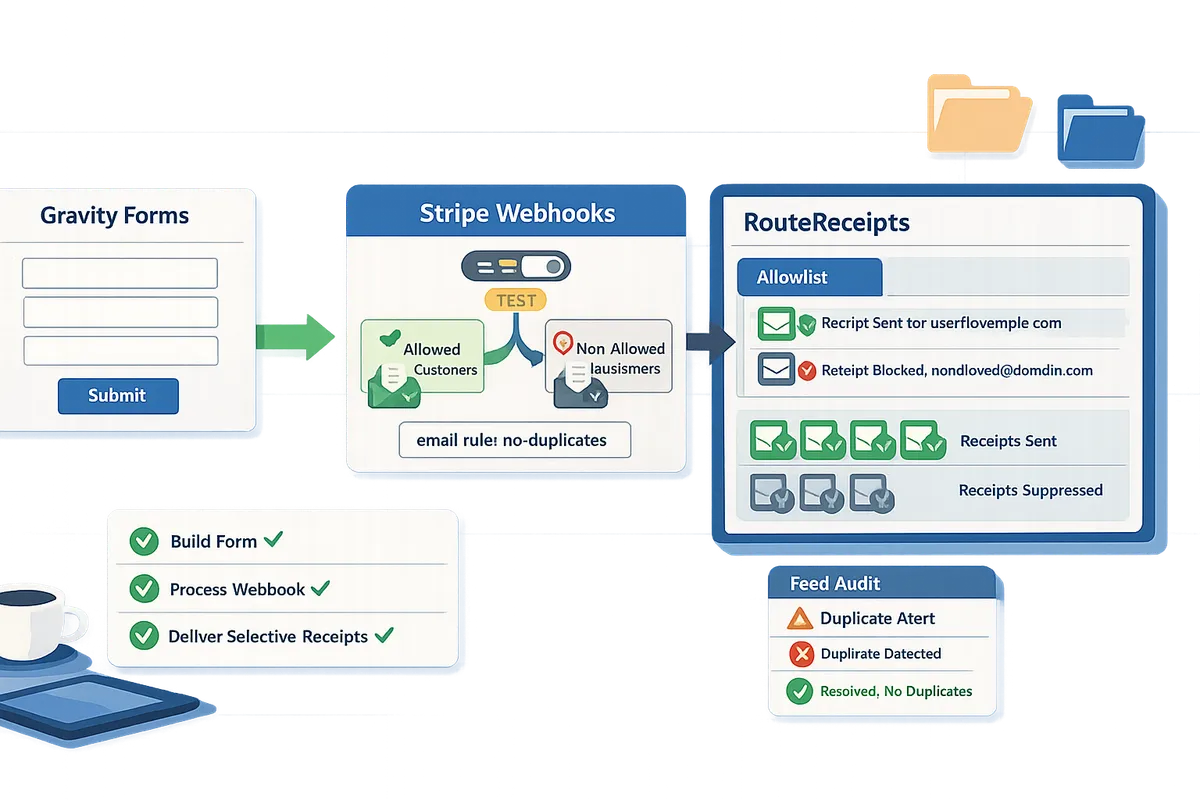
Gravity Forms submits payment data to Stripe, Stripe emits webhook events for payment and invoice lifecycle changes, and receipts are delivered either by Stripe or by Gravity Forms notifications depending on your settings. That flow determines who receives a transactional email, when support teams must reconcile duplicates, and which system owns receipt content. RouteReceipts operates inside your Stripe account to apply an allowlist and record routing decisions so teams can control receipt delivery without changing Gravity Forms.
Which Stripe webhook events trigger receipts? 🤖
Stripe emits events like payment_intent.succeeded, charge.succeeded, invoice.payment_succeeded, and invoice.finalized that are directly relevant to receipt delivery. Subscribe your webhook endpoint to those exact names so you receive the notifications that map to receipt generation. For example, a one-time card payment using PaymentIntents will surface payment_intent.succeeded or charge.succeeded depending on your integration; subscription invoices use invoice.finalized and invoice.payment_succeeded. If Gravity Forms creates a PaymentIntent for SCA flows, ensure your webhook listens for payment_intent.succeeded so you do not miss the confirmation that typically triggers a receipt. See the RouteReceipts documentation for recommended webhook subscriptions and test-mode guidance.
How do Gravity Forms notifications differ from Stripe receipts? 📧
Gravity Forms notifications are email messages generated from form entry fields, while Stripe receipts are transactional emails sent from Stripe using the Stripe customer object and payment or invoice events. Gravity Forms gives you granular control over content (you can include form answers, custom wording, and attachments), but it uses the form entry email rather than the Stripe customer object. Stripe receipts use the email on the customer or charge and include canonical invoice details and a Stripe-hosted invoice link.
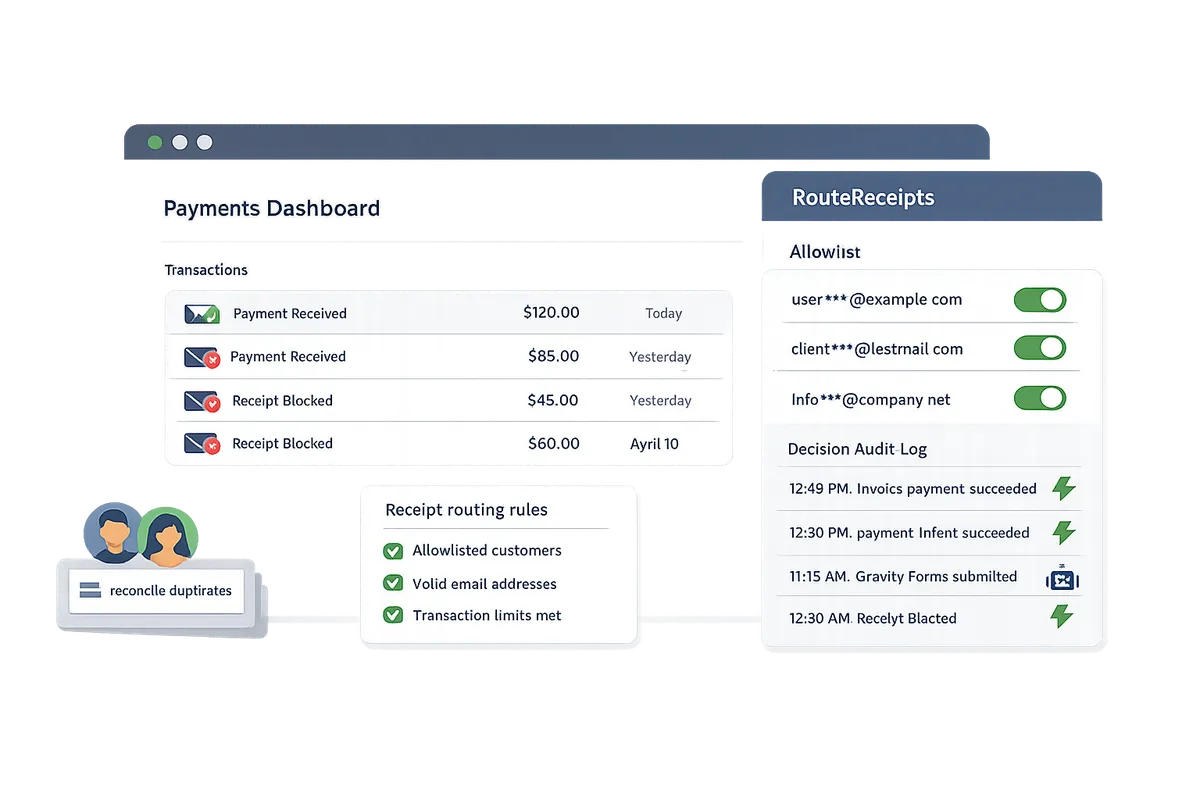
Using both channels without coordination causes duplicate emails and extra support work. For example, a customer who pays a subscription could receive a Gravity Forms confirmation and a Stripe invoice receipt within seconds, which leads to confusion and ticket volume. RouteReceipts lets you centralize receipt decisions on the Stripe side so you can keep Gravity Forms notifications for internal confirmations while preventing customer-facing Stripe receipts when not needed.
⚠️ Warning: Disable one receipt channel before going live to avoid sending duplicate receipts and creating support overhead.
Receipt channel comparison table (Stripe, Gravity Forms, RouteReceipts)
The table below compares trigger events, control points, data sources, and auditability for Stripe receipts, Gravity Forms notifications, and RouteReceipts.
| Channel | Trigger events | Control point | Data source | Auditability | Best for |
|---|---|---|---|---|---|
| Stripe automatic receipts | invoice.finalized, invoice.payment_succeeded, charge.succeeded | Stripe Dashboard Billing settings (on/off) | Stripe customer/email and invoice/charge objects | Stripe logs receipts; limited per-customer routing | Standard transactional receipts for all customers |
| Gravity Forms notifications | Form submission and add-on result | Gravity Forms notification settings per form | Form entry fields and payment add-on feed | Gravity Forms entry history; no Stripe invoice link unless included manually | Custom confirmation emails containing entry data or internal alerts |
| RouteReceipts | Intercepts Stripe invoice events before sending | RouteReceipts allowlist and dashboard rules | Stripe customer ID or email, invoice metadata | Decision audit log in RouteReceipts for each routed receipt | Selective delivery to customers that require receipts (enterprise clients, expense policies) |
Where does RouteReceipts integrate into the flow?
RouteReceipts installs as a Stripe app and intercepts Stripe's receipt decision point so you can control which customers receive invoice emails without changing Gravity Forms. Install RouteReceipts from the Stripe Marketplace, then configure these steps:
- Install RouteReceipts and grant access via Stripe Marketplace following the instructions in the RouteReceipts documentation.
- Disable Stripe automatic receipts in your Stripe Dashboard Billing settings if you plan to use Gravity Forms notifications as the primary customer-facing channel.
- Create an allowlist in RouteReceipts by customer ID or email. For example, add enterprise clients who require PDF invoices to the allowlist and leave consumer customers out to reduce inbox clutter.
- Monitor the RouteReceipts audit log to confirm routing decisions and troubleshoot any missing or duplicate receipts.
If you prefer a no-code path, see our beginner's no-code guide to selective delivery for step-by-step examples of allowlist rules and audit-log review. For troubleshooting and plan details, consult the RouteReceipts documentation and FAQ.
How do you stop duplicate or missing receipts with proven feed and webhook strategies?
Stop duplicate or missing receipts by auditing Gravity Forms Stripe feeds, validating webhook endpoints and signatures, and using separate test versus production email rules. RouteReceipts is an application that controls which Stripe customers receive invoice receipt emails by maintaining an allowlist. Follow the checklist and fixes below to eliminate the usual causes of double or absent receipts.
Audit Gravity Forms Stripe feeds to eliminate duplicate sends 🔍
Run a feed audit that ensures only one active Stripe feed handles each payment path. Start with a list of active feeds in each form and mark which feed handles card charges, subscriptions, and off-site payments. Common problems include duplicate feeds on the same form, two feeds triggered by overlapping conditional rules, and legacy feeds left active after form cloning.
Auditing steps:
- Open Forms > select a form > Settings > Stripe and export or copy the active feed names.
- Confirm only one feed per payment type (one for one-time charges, one for subscriptions) per form.
- Review conditional rules; if two rules can both evaluate true for the same submission, tighten the conditions or merge into a single feed.
- Re-save corrected feeds to re-register field dependencies and clear stale mappings.
Example: a donation form with both "Amount" and a promo field can trigger two feeds if one condition checks only for a nonzero amount and another checks promo codes. Merge logic into a single feed or add a promo-specific exclusion. RouteReceipts integrates at the Stripe level, so after you finish the feed audit, follow the installation guide in the RouteReceipts documentation to disable Stripe automatic receipts and prevent downstream duplicates.
Exact fixes for the 'Feed required to use the stripe field' Gravity Forms error ⚙️
Reassigning or recreating the Stripe feed and re-mapping the Stripe field fixes the "Feed required to use the stripe field" error. That error means Gravity Forms lost the association between the Stripe feed and the Stripe payment field on your form, often after a form copy, plugin update, or corrupted feed row.
Step-by-step fix:
- Open the affected form and go to Settings > Stripe > Feed Settings.
- If no feed exists, create a new Stripe feed and map the Stripe payment field explicitly.
- If a feed exists, open it, re-select the Stripe payment field in the feed mapping, and save the feed.
- If the error persists, duplicate the form, create a new feed on the duplicate, then reassign users or embed the new form.
Example: After migrating a form, a site owner recreated fields but not the feed mapping; reassigning the Stripe field in the feed and saving resolved the error immediately. Also verify your webhook configuration for gravity forms stripe webhook events for receipts so hook-triggered notifications remain aligned with feed behavior. If you plan to selectively route receipts rather than rely on Gravity Forms notifications, consult the RouteReceipts FAQ for guidance on disabling Stripe's automatic receipts.
Common webhook errors and how to resolve them (405, signature failures, missing events) ⚠️
Fix webhook failures by making sure the endpoint accepts POST requests, verifying the Stripe signing secret for signature checks, and subscribing to the invoice/payment events that generate receipts. Each failure mode points to a specific misconfiguration you can correct quickly.
Common fixes by error type:
- 405 Method Not Allowed. Ensure your endpoint URL is configured to accept POST. Confirm host-level rules or a plugin firewall are not blocking POST requests.
- Signature verification failures. Copy the webhook signing secret from your Stripe dashboard and paste it into the integration that validates signatures. If you test with the Stripe CLI or test keys, use the test signing secret.
- Missing events. Verify the webhook subscription includes invoice.payment_succeeded, invoice.finalized, and payment_intent.succeeded depending on the receipt flow you use.
Example: A payments manager saw failing webhooks after a hosting migration; their host blocked POST at the application firewall. After enabling POST and re-saving the endpoint in Stripe, webhooks resumed. For webhook-driven receipt routing and diagnostics, see the RouteReceipts documentation on webhook troubleshooting and event subscriptions.
⚠️ Warning: Disable Stripe's automatic receipts before enabling an external router like RouteReceipts to avoid sending duplicate emails from both Stripe and the routing app.
Test-mode email rules that prevent test receipts from hitting customers 🧪
Stop test-mode events from reaching real customers by disabling automatic receipts in test, routing test events to a sandbox list, or using a test-customer allowlist. Test-mode events still travel through webhooks unless you separate routing logic for test and production.
Practical steps:
- Turn off Stripe automatic receipts in your test account settings so test charges do not generate emails.
- Create a test-only routing rule or allowlist (for example, only @example.com addresses) and apply it to test webhooks.
- In Gravity Forms, set notification routing rules that check payment status and environment; use a hidden "environment" field if needed to distinguish test submissions.
Example: A marketing team ran test transactions and accidentally emailed 50 customers because test receipts remained enabled. They fixed this by disabling receipts in Stripe test mode and adding a test-only allowlist to their receipt router. For a no-code approach to selective delivery and step-by-step setup, consult the RouteReceipts installation guide and the beginner's no-code routing guide.
How do you implement metadata-to-receipt mapping and monitor delivery effectively?
Metadata mapping is the process that maps Gravity Forms fields into Stripe charge or invoice metadata so receipts display the correct customer and invoice details. Route Receipts is a Stripe app that controls which customers receive invoice emails by using an allowlist and a decision audit log. Mapping key fields into Stripe metadata plus monitoring webhook delivery closes the loop between form submission and the receipt the customer sees.
How do you map Gravity Forms fields to Stripe metadata for receipts? 🧾
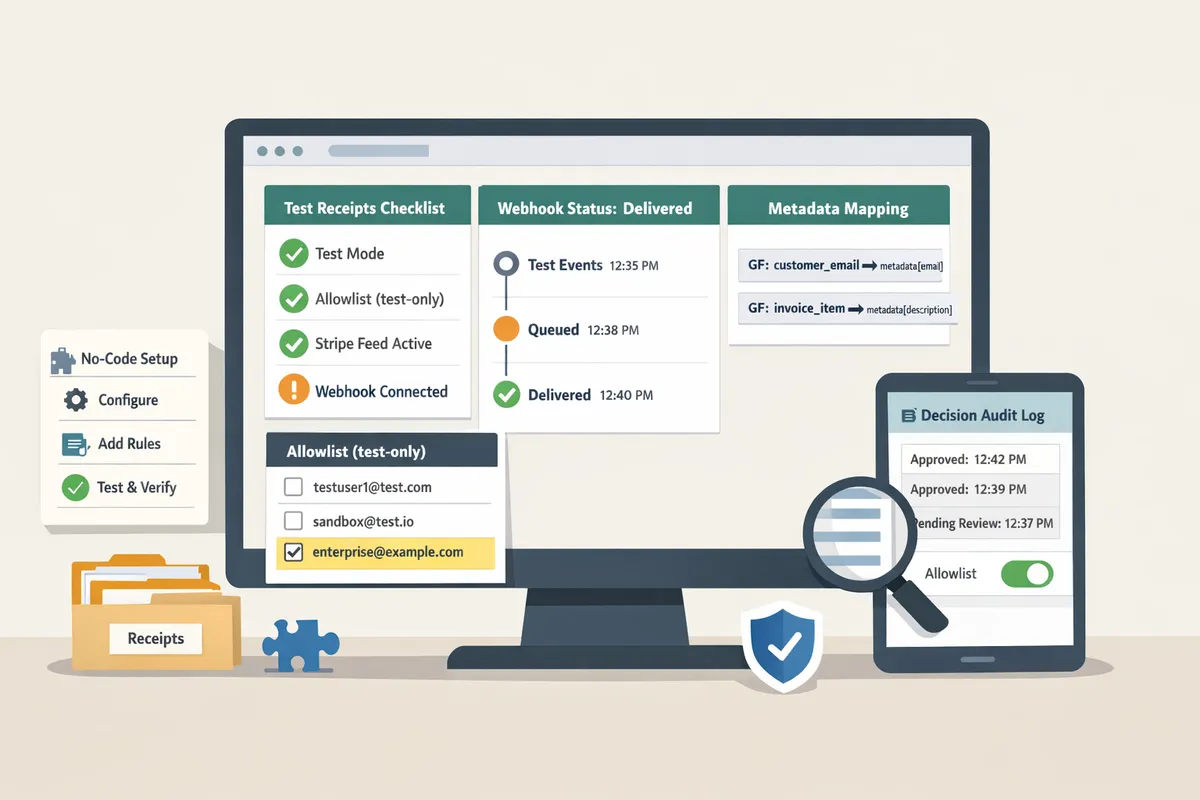
Map key Gravity Forms fields into Stripe charge or invoice metadata by configuring field-to-metadata pairs in your Gravity Forms Stripe feed. Set these pairs in the Stripe feed settings for each form, not in a separate webhook script.
Step-by-step mapping.
- Open the Gravity Forms Stripe feed for the form and edit the payment feed.
- Under Advanced or Metadata (feed UI varies by plugin version) add field-to-key pairs.
- Use these example mappings:
- customer.email -> map to the email field used for Stripe customer creation.
- metadata.company -> map to the Company or Billing Company field.
- metadata.expense_code -> map to an expense code or GL field on the form.
- metadata.invoice_reference -> map to your order ID or invoice reference field.
Why this matters. Incorrect or missing metadata forces support staff to match payments to invoices manually and increases refund errors. Mapping email and an invoice_reference prevents ambiguous receipts and speeds reconciliations.
💡 Tip: Test mappings in Gravity Forms' test mode and inspect the resulting charge in the Stripe Dashboard before enabling real traffic.
How do you set up Route Receipts allowlist and inspect the decision audit log? 🔒
Install Route Receipts from the Stripe Marketplace, create an allowlist of customer identifiers or metadata rules, and review each routing decision in the app's audit log. Route Receipts records why a receipt was allowed or blocked so you can trace routing mistakes back to a specific rule or metadata value.
Setup and allowlist creation.
- Install Route Receipts from the Stripe Marketplace and grant the requested account permissions.
- In Route Receipts, create allowlist entries by customer email, customer ID, or by matching metadata keys (for example metadata.expense_code == "REIMBURSABLE").
- Optionally disable Stripe's automatic receipts to prevent duplicates; Route Receipts' docs explain this step in detail.
Inspecting the decision audit log. Each event shows the timestamp, matched rule, customer identifier, and the app's action (allowed or blocked). Use this log to find missed receipts, see false negatives, and adjust allowlist rules without touching your webhook code.
⚠️ Warning: Do not enable Route Receipts while Stripe automatic receipts remain on for the same events; you will create duplicate emails. See the Route Receipts Documentation for the recommended disable flow.
See the Route Receipts Documentation for installation and allowlist examples and the Frequently Asked Questions for policy and usage limits.
How do you test receipts and monitor webhook delivery with replays, retries, and dashboards? 🧪
Test receipt routing by replaying Stripe webhook events, verifying delivery in Stripe request logs, and cross-checking each event against Route Receipts' decision entries. This confirms the end-to-end path from Gravity Forms submission to the actual email delivered (or blocked).
Testing checklist.
- Submit a test payment in Gravity Forms using Stripe test keys.
- In the Stripe Dashboard, find the webhook event and use "Replay event" to force delivery to your endpoint.
- Confirm the webhook response shows a 2xx status in Stripe's request logs and that Route Receipts recorded the event in its audit log.
Monitoring KPIs to track.
- Webhook success rate (percent of events with 2xx responses).
- Receipts allowed vs blocked (counts from Route Receipts audit log).
- Time-to-resolution for routing errors (time from detection to rule fix).
Use Stripe's event replay and request logs together with Route Receipts' audit CSV export to build a weekly dashboard showing these KPIs. Flag failures where retry count exceeds your SLA or where audit entries show unexpected "blocked" outcomes.
When should you use Route Receipts versus manual webhook filtering? ⚖️
Choose Route Receipts when ongoing rule maintenance, accidental customer emails, or lack of an audit trail create operational risk; keep manual filtering for one-off, highly custom transformations not supported by the app. Route Receipts centralizes receipt decisions in the Stripe UI and reduces the need for engineering time.
Decision checklist.
- Use Route Receipts if you need dashboard-based allowlists, transparent audit logs, or to avoid repeated developer requests for rule updates.
- Consider manual webhook filters only if your business requires complex business logic that must run before any Stripe action and cannot be represented by metadata rules.
Practical example. A company billing both enterprise clients (who require receipts) and consumers (who do not) can add enterprise emails or a metadata.company rule to the Route Receipts allowlist and avoid custom webhook scripts. For background on the product rationale and operational trade-offs, see Why Did We Build Route Receipts? and the no-code guide in our blog.
For step-by-step installation and troubleshooting, consult the Route Receipts documentation and the No-Code guide.
Frequently Asked Questions
This FAQ answers the most common questions about receipt routing, webhook events, and troubleshooting when using Gravity Forms with Stripe and RouteReceipts. RouteReceipts is a Stripe app that controls which customers receive invoice emails by maintaining an allowlist and making routing decisions inside the Stripe dashboard. Read the answers below for practical steps you can apply during setup, testing, and live operations.
Can Stripe still send receipts when I use RouteReceipts? 📧
Yes. RouteReceipts works inside Stripe to allow or block receipt sends per customer while Stripe remains the sender. RouteReceipts evaluates each invoice or charge against an allowlist and then instructs Stripe whether to send the receipt for that customer. Configure RouteReceipts alongside Stripe's automatic receipt setting so only customers on your allowlist receive Stripe's emails. For details on installation and allowlist behavior, see the RouteReceipts documentation.
Why am I getting duplicate receipts after a Gravity Forms payment? ❗
Duplicate receipts usually happen because both Stripe automatic receipts and Gravity Forms notifications are active or because multiple Stripe feeds overlap. Audit Gravity Forms feeds first: confirm only one active feed is creating a charge for a given form. Then decide which system will be the single source of truth for emails and disable the other channel. Steps to fix duplicates:
- Open the form and list active Stripe feeds in Gravity Forms.
- Disable or delete redundant feeds that create the same charge.
- Turn off Stripe automatic receipts for customers you do not want emailed, or use RouteReceipts to block sends per customer.
RouteReceipts can stop Stripe from emailing certain customers so you avoid toggling Gravity Forms notifications for every form. See troubleshooting guidance in the RouteReceipts FAQ if duplicates persist.
How do I test receipt routing without emailing real customers? 🧪
Use Stripe test mode, test-customer emails, and an allowlist of test accounts in RouteReceipts so replayed events do not reach real customers. Create a short list of test customer emails (for example, test+1@yourdomain.com) and add those addresses to RouteReceipts' allowlist while leaving production customers off the list. Also disable production automatic receipts for the duration of testing so accidental production sends cannot occur.
💡 Tip: Run all receipt routing tests in Stripe's test mode and replay webhook events from the Stripe dashboard to validate behavior before switching to live mode.
For a step-by-step testing checklist and common test scenarios, follow the RouteReceipts documentation on test-mode setup.
Which Stripe webhook events should I subscribe to for receipts? 🔔
Subscribe to invoice.payment_succeeded, invoice.finalized, charge.succeeded, and payment_intent.succeeded depending on whether you use invoices or direct charges. If your customers are billed via Stripe Invoices (subscriptions or hosted invoices), prioritize invoice.finalized and invoice.payment_succeeded so you catch invoice creation and successful payment. If you accept one-time payments through Payment Intents, include payment_intent.succeeded or charge.succeeded. Example: a subscription workflow typically needs invoice.finalized and invoice.payment_succeeded; a single checkout form using Payment Intents needs payment_intent.succeeded.
How do I fix 'Feed required to use the stripe field' in Gravity Forms? 🛠️
Rebind the Stripe feed by opening the affected form, verifying the Stripe payment field maps to an active feed, and resaving or creating a new feed if necessary. Common repair steps:
- Edit the form and find the Stripe payment field.
- Open the Gravity Forms Stripe feeds page and confirm a feed targets that form and includes the payment field.
- Re-save the feed to rebind field dependencies; if the error persists, create a new feed and map the fields again.
Corrupted feed bindings often result from plugin updates or deleted fields. Recreating the feed resolves persistent corruption and restores receipt and charge behavior.
Do I need to change my Gravity Forms setup to use RouteReceipts? 🔧
No. RouteReceipts installs as a Stripe app and manages receipt routing inside Stripe without requiring code changes to Gravity Forms. The only setup detail to consider is metadata: if you want receipts to include form context (for example, form ID, entry ID, or customer type), make sure Gravity Forms passes that metadata into the Stripe charge or invoice so RouteReceipts can read it for routing decisions. For non-technical teams, the RouteReceipts dashboard provides an allowlist UI and a decision audit log so you can operate without touching Gravity Forms.
Where can I find step-by-step installation and troubleshooting for RouteReceipts? 📚
See the official RouteReceipts documentation and FAQ for installation steps, allowlist setup, plan management, and troubleshooting for duplicate or missing receipts. The documentation walks through installing the app from the Stripe Marketplace, disabling Stripe automatic receipts when appropriate, configuring an allowlist, and interpreting the decision audit log. For product rationale and implementation templates, read Why Did We Build Route Receipts? and the no-code beginner's guide to selective delivery.
- RouteReceipts documentation: RouteReceipts documentation.
- Product background and design trade-offs: Why Did We Build Route Receipts?.
- Beginner's no-code guide: The No‑Code Way to Route Customer Receipts.
Use RouteReceipts to control which customers receive Stripe receipts.
Selective receipt routing stops duplicate or unwanted emails and keeps finance teams focused on exceptions. This guide showed how to wire Gravity Forms webhooks, disable Stripe's automatic receipts, and map webhook events so receipts deliver only when intended. If you still see errors with gravity forms stripe webhook receipts, follow the troubleshooting checklist and verify feed and webhook mappings.
RouteReceipts is a specialized application designed to enhance the way businesses manage their Stripe receipt distribution. It integrates into the Stripe dashboard, uses an allowlist and decision audit log for transparency, and installs from the Stripe Marketplace so teams avoid custom webhook work. RouteReceipts offers a tiered pricing model, starting with a free plan that includes 20 receipts per month, with upgrade options for higher volume needs.
When planning a cosplay look, it is worth considering how details related to cosplay props will affect the complete look. During a long convention day, a comparison of details related to men's cosplay costumes can clarify differences in colour and construction. For combinations connected with details related to fabric and comfort, heat resistant cosplay wigs for portrait photography can help narrow the options for a specific purpose. To stay comfortable throughout the event, it is useful to check details related to convention planning against the wearer's own needs.
💡 Tip: Disable Stripe’s automatic receipts before enabling RouteReceipts to prevent duplicate emails.
Start by following the getting-started steps in the RouteReceipts Documentation to complete setup and allowlist configuration. For common questions, see the FAQ. Subscribe to our newsletter for implementation tips and updates.