
Stop Duplicate Receipt Emails (2026): Stripe + Shopify, WooCommerce, Zoho, CiviCRM, Storeganise — Exact Toggles to Flip and Where to Find Them
Duplicate Stripe receipt emails create dozens of support tickets and extra reconciliation work for midsize stores. stripe receipt control stops those duplicates by letting admins choose which customers receive Stripe-issued invoice emails instead of sending receipts to everyone. RouteReceipts is an application that provides an allowlist-based receipt routing layer inside the Stripe dashboard, so finance and ecommerce teams can selectively deliver receipts without custom webhook coding. It installs from the Stripe Marketplace, offers a dashboard-native interface, and maintains a decision audit log for troubleshooting and compliance. This integration guide walks finance and ecommerce admins through exact toggles for Stripe, Shopify, WooCommerce, Zoho, CiviCRM, and Storeganise and links to our setup resources at the RouteReceipts homepage. You may be surprised which toggle fixes months of duplicates.
What do you need before changing receipt settings across Stripe and your commerce platforms?
You need admin-level access in Stripe and each commerce platform plus RouteReceipts installed so you can safely change receipt behavior without sending unexpected customer emails. Confirm which platforms you use (Shopify, WooCommerce, Zoho, CiviCRM, Storeganise) and whether those platforms send their own order or invoice emails before you flip any toggles.
Which Stripe and platform permissions are required? 🔐
You need Stripe Administrator or Developer access and administrator accounts on each commerce platform to change receipt settings and run safe tests. Stripe Administrator access is required to install apps from the Stripe Marketplace and to disable Stripe's automatic customer receipts. Developer-level access may allow changing webhook and API-related settings but may not permit app installation; verify you have an Administrator role if you will install RouteReceipts.
On each commerce platform confirm you have an account that can: view and edit notification templates, toggle transactional email settings, and run test orders. Typical locations to check permissions:
- Shopify: store Owner or Staff account with full admin rights.
- WooCommerce: WordPress Administrator role.
- Zoho: Commerce or Books admin with access to email templates and invoice settings.
- CiviCRM: CMS admin plus CiviCRM Administrator role for Contributions and Notifications.
- Storeganise: account admin with access to order notification settings.
If any platform requires a separate API key or 3rd-party integration admin, add that account to your pre-change checklist.
How to audit which systems already send receipts? 🔎
Map every checkout, subscription flow, and connected tool that can trigger a receipt so you can spot duplicates before changing settings. Create a simple table that lists each source (Stripe automatic receipts, platform plugins, email services, and automation tools) and the specific event that triggers the message (payment succeeded, invoice paid, subscription renewal).
Follow these steps to build the map:
- Run one test transaction per platform in test mode and capture the emails sent and their headers (From, Subject, and Message-ID).
- Check platform notification pages: Shopify Admin > Settings > Notifications, WooCommerce > WooCommerce > Settings > Emails, and each platform's notifications or invoice settings page for Zoho, CiviCRM, and Storeganise.
- Inspect any middleware: Zapier, Make, CRMs, ERPs, or SMTP services that may send order confirmations.
- Note duplicate triggers (for example, Stripe invoice email plus WooCommerce order email) and mark which messages contain the official receipt data finance needs.
Record where receipts currently originate and who needs them; this will guide which toggles to disable and which customers to allow via RouteReceipts. For a how-to on installing and configuring routing rules, see the RouteReceipts documentation.
Which RouteReceipts plan and account settings do I need? 🧾
You can start with RouteReceipts' free plan but verify its monthly receipt allowance against your projected volume to avoid hitting limits. RouteReceipts offers a free starter tier (20 receipts per month) and paid tiers for higher volume; check plan limits in the RouteReceipts FAQ or the RouteReceipts documentation before you rely on it for production traffic.
Also confirm the Stripe account you will connect to RouteReceipts is the same account that processes the transactions you want to control. During setup you will grant the app permission to read customer and invoice objects and to make routing decisions in your Stripe Dashboard. Assign a finance owner as the primary RouteReceipts admin and ensure at least one backup admin can access the Stripe Marketplace installation.
Pre-change checklist for safe testing 🛡️
Create test customers, capture current behavior, and schedule a short maintenance window so you do not send accidental live emails while toggling settings. Follow this step-by-step checklist before changing any live toggles:
- Inventory platforms. List every storefront, plugin, CRM, and middleware that touches receipts for Shopify, WooCommerce, Zoho, CiviCRM, and Storeganise.
- Create sandbox/test accounts. Use Stripe test mode and each platform's staging environment or a test store account and a test customer email address you control.
- Capture baseline behavior. Run one test payment per platform and save the received emails and timestamps to document current delivery patterns.
- Install RouteReceipts in a test Stripe account first and configure an allowlist rule that targets your test customer. Refer to the RouteReceipts documentation for setup steps.
- Disable Stripe automatic receipts only during your maintenance window and while your test allowlist is active. In Stripe, this setting is in Settings under customer email or receipt preferences; confirm changes in test mode first.
- Run end-to-end tests. Verify the test customer receives exactly one receipt from the intended source and that other customers remain unaffected.
- Monitor and roll back plan. Have a predefined rollback step (re-enable Stripe receipts or restore platform notification settings) and a timeline for monitoring delivery and support tickets.
💡 Tip: Use a dedicated test email domain or mailbox to collect all test receipts so you can inspect headers and detect which system generated each message.
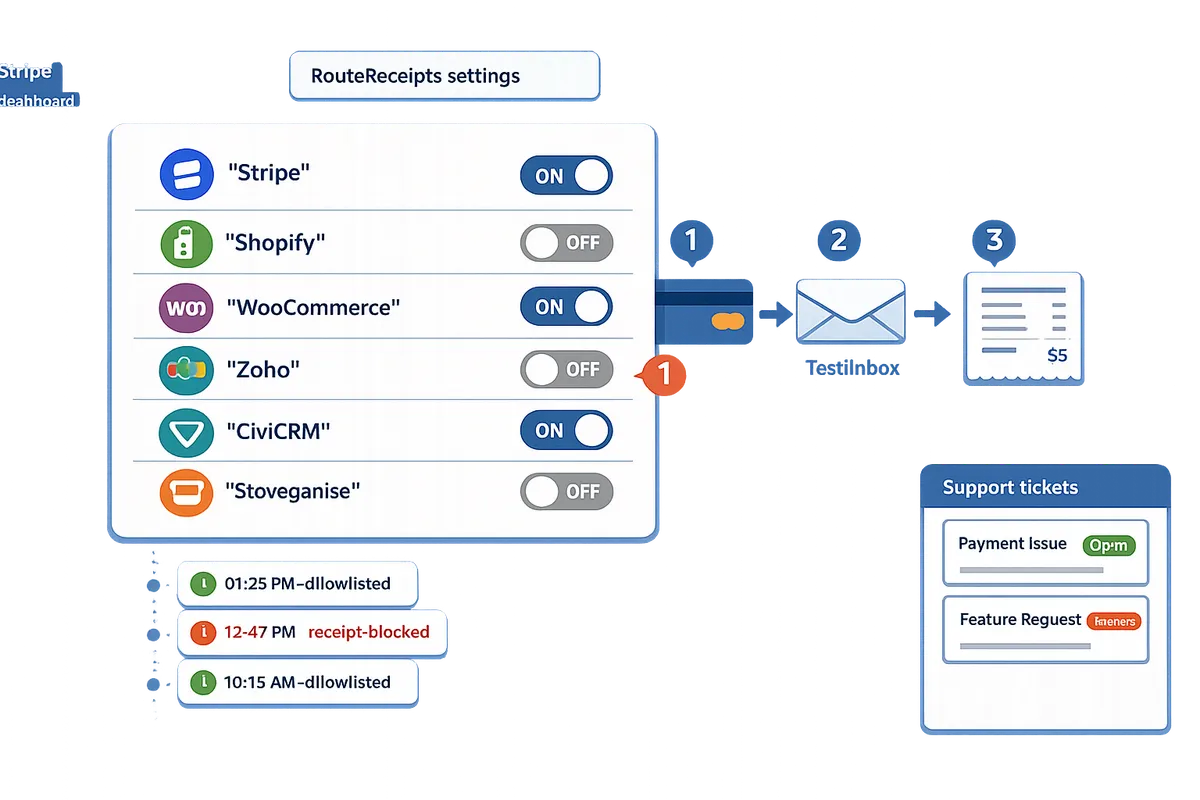
For background on the product rationale and implementation templates, read Why Did We Build Route Receipts? and check the RouteReceipts FAQ for plan and usage details.
How do you set up RouteReceipts and disable Stripe automatic receipts to stop duplicate emails?
Install Route Receipts, turn off Stripe's automatic receipt toggles for payments and invoices, and then configure an allowlist so only selected customers receive receipts. These steps prevent Stripe and your commerce platforms from both sending emails and give you an auditable routing decision log in the Route Receipts dashboard.
Step 1 — Install Route Receipts via the Stripe Marketplace ✅
Install Route Receipts from the Stripe Marketplace with an admin Stripe account and grant the app the requested permissions.
- Sign in to your Stripe account with an admin role.
- Open the Stripe Dashboard and go to Apps > Explore marketplace, then search for "Route Receipts."
- Click Install and authorize the requested scopes (read customers, read invoices, manage app settings).
- After install, confirm Route Receipts appears under Installed apps and open the Route Receipts dashboard to view the Allowlist tab.
Confirm success by seeing the Route Receipts UI inside Stripe and an initial sample audit entry. For step-by-step screenshots and permission details, see the Route Receipts documentation.
Step 2 — Turn off Stripe automatic receipts for payments and invoices ⚙️
Disable Stripe's two customer-email toggles: successful payment emails and invoice finalization emails.
- In Stripe, open Settings (gear icon) > Customer emails.
- Toggle off "Successful payments" (email customers for successful payments).
- Toggle off "Invoices" or "Invoice finalized" (email customers when invoices are finalized).
- Keep other notifications (such as failed payment alerts) enabled if your finance team needs them.
Common pitfalls: some plugins or integration apps re-enable these toggles during updates. After disabling, test a complete payment flow to confirm Stripe does not send any receipt. If a third-party connector re-enables toggles, check that connector's settings or the Route Receipts docs on supported integrations.
Step 3 — Configure the allowlist and routing rules in Route Receipts 📝
Create an allowlist of customer emails or Stripe customer IDs in the Route Receipts app and set the default routing behavior for everyone else.
- Open Route Receipts in your Stripe Dashboard and go to Allowlist.
- Add entries by email or Stripe customer ID. Use metadata filters where you need rules (for example, metadata.client_type = enterprise).
- Set the default action for unmanaged customers to Deny (suppress) or Send depending on your policy.
- Review the Decision Audit Log to confirm routing outcomes and for compliance reviews.
Example: add corporate customers to the allowlist so they get receipts automatically while retail customers are suppressed. See the Route Receipts FAQ for examples of rule formats and the documentation for troubleshooting missing receipts.
Compare approaches: native Stripe receipts vs API-driven customization vs Route Receipts (no-code)
The table below compares control, required engineering time, ongoing maintenance, typical cost, failure risk, and which approach is fastest for non-technical teams.
| Approach | Control level | Engineering time | Ongoing maintenance | Typical cost | Failure risk | Fastest for non-technical teams |
|---|---|---|---|---|---|---|
| Native Stripe receipts | Low to medium (global toggles only) | Minimal | Low | Free (built into Stripe) | Medium (duplicates if other tools send emails) | No |
| API-driven customization | High (per-customer, per-invoice logic) | High (weeks to months) | High (webhook uptime, regression testing) | Medium to high (engineering cost) | Low if built well; higher if not | No |
| Route Receipts (no-code) | High (per-customer allowlist, rules UI) | Low (install + config) | Low (dashboard management) | Low to medium (tiered pricing) | Low (dashboard audit log helps recovery) | Yes |
Platform-specific toggles to check (Shopify, WooCommerce, Zoho, CiviCRM, Storeganise) 🛒
Check each platform's email or payments settings so the platform does not also send payment receipts. The exact places to check are listed below.
Shopify — Admin: Settings > Notifications.
- What to check: Look for "Order confirmation" and any custom payment notification templates. If you want Stripe receipts only for allowlisted customers, keep Shopify order confirmations set for order lifecycle emails but do not rely on them for payment receipts.
- Common pitfall: Disabling Shopify order notifications removes order confirmations for all orders. Test a staging order to confirm desired behavior.
WooCommerce — Admin: WooCommerce > Settings > Emails and WooCommerce > Settings > Payments > Stripe > Manage.
- What to check: Turn off duplicate payment-related email templates (Processing order, Completed order) if you want Route Receipts to be the sole source of payment receipts. In the Stripe payment plugin settings, look for any checkbox labeled like "Send receipt" or "Email customer on successful payment" and disable it.
- Common pitfall: Some themes or plugins send their own transactional emails; run a test purchase to confirm only one email is created.
Zoho (Books/Invoice) — Admin: Settings > Preferences or Settings > Automation > Email Notifications (product names vary).
- What to check: Disable the auto-send option for payment receipts or "Auto send payment receipt when payment is recorded." Keep invoice reminders if you still need billing follow-ups.
- Common pitfall: Manual payments recorded in Zoho can re-trigger receipts; record a test payment to validate suppression.
CiviCRM — Administer > CiviContribute > Contribution Pages and Administer > System Settings > Outbound Email.
- What to check: For each contribution page, uncheck or edit the "Send Confirmation and Receipt" setting if you prefer Route Receipts to control receipts. Confirm system-wide email handlers do not duplicate receipts.
- Common pitfall: CiviCRM extensions that bridge Stripe may still send receipts; check the extension settings after disabling in CiviCRM.
Storeganise — Admin console: Settings > Emails or Integrations > Stripe (UI labels may vary).
- What to check: Disable any "Send payment receipt" or "Email customer on payment" toggle in the Storeganise Stripe integration. If no toggle exists, set Storeganise to record payments without sending transactional emails and let Route Receipts handle receipt delivery.
- Common pitfall: If Storeganise forwards payment webhooks to other services, confirm those services do not independently send receipts.
💡 Tip: Always test with a staging customer in each platform to validate that only one receipt is sent and that Route Receipts logs the decision.
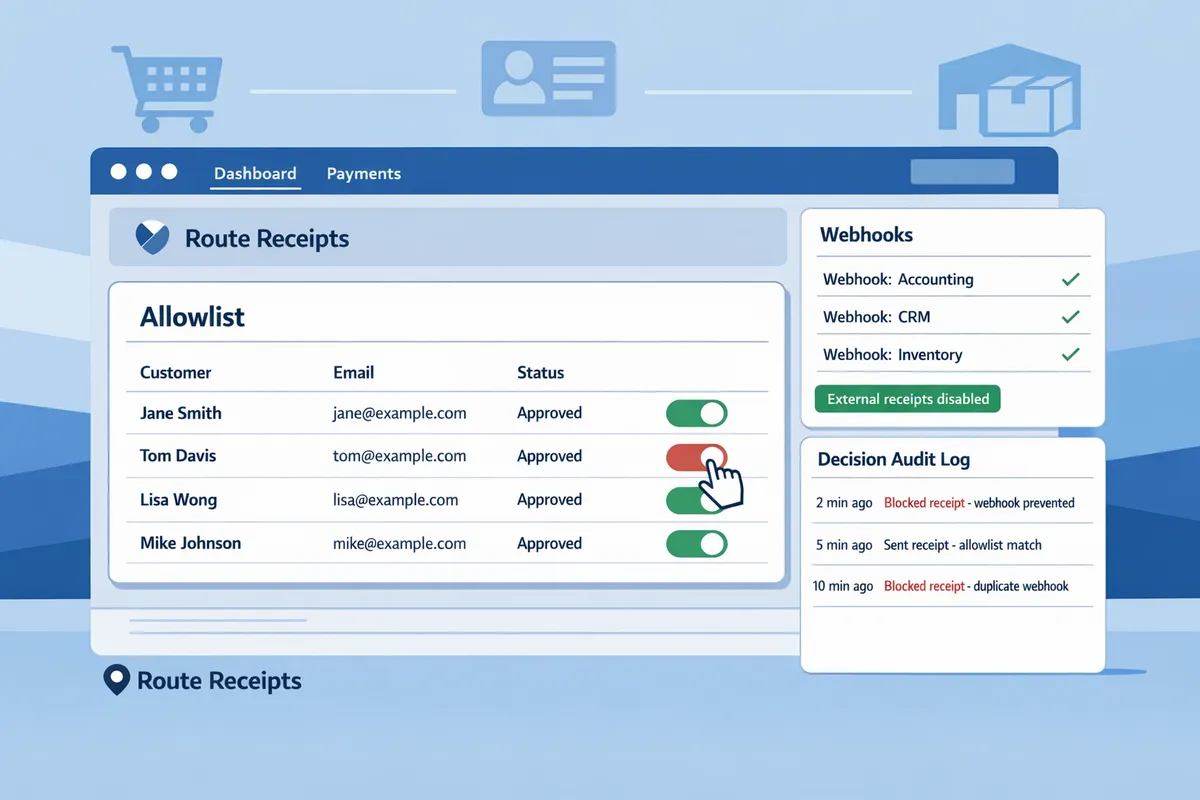
For background on why selective receipt routing matters and the design choices behind Route Receipts, see Why Did We Build Route Receipts? and our full Documentation for configuration examples and troubleshooting steps.
How do you verify the fix and measure success after disabling duplicate receipts?
Run a repeatable set of tests across each commerce platform and measure delivery, duplicate, and resolution KPIs using the Stripe toggles, platform notification settings, and the RouteReceipts audit log. This proves the change worked and surfaces edge cases such as zero-dollar invoices or platform-level notifications still active. Record every result so finance and support teams can sign off before wider rollout.
Test matrix for each platform and payment scenario 🧪
Execute a predefined set of transactions on Shopify, WooCommerce, Zoho, CiviCRM, and Storeganise covering card payments, subscriptions, refunds, and zero-dollar invoices.
Use a simple spreadsheet with these columns: date, platform, transaction ID, scenario (card/subscription/refund/zero-dollar), expected receipt (yes/no), actual receipts received, RouteReceipts decision (deliver/skip), receipt IDs, and notes.
Run the matrix below for each platform. Mark each cell with "Run" and paste receipt headers or screenshots for failed cases.
| Scenario | Shopify | WooCommerce | Zoho | CiviCRM | Storeganise |
|---|---|---|---|---|---|
| Card payment (one-off) | Run | Run | Run | Run | Run |
| Subscription — first invoice | Run | Run | Run | Run | Run |
| Subscription — renewal | Run | Run | Run | Run | Run |
| Refund issued with receipt | Run | Run | Run | Run | Run |
| Zero-dollar invoice / authorization | Run | Run | Run | Run | Run |
- Start with a single platform and one scenario to validate your toggles, then expand.
- For every failed case, capture the Stripe event ID and the RouteReceipts decision log entry.
- Cross-reference platform notification logs (Shopify notification history, WooCommerce email log, Zoho CRM event log) when receipts appear missing or duplicated.
See our documentation for instructions on reading the RouteReceipts audit log and installing the app from the Stripe Marketplace. Refer to Why Did We Build Route Receipts? for the design trade-offs that make a dashboard-based allowlist easier for finance teams than custom webhooks.
How to measure delivery rate and set KPIs 📊
Measure delivery rate as successful_receipts divided by attempted_receipts, and measure duplicate rate as transactions with more than one receipt divided by total transactions over a 7–14 day window.
Export the RouteReceipts audit log and your Stripe email event logs for the same period, then compute:
- Delivery rate = (number of transactions where RouteReceipts marked "deliver" and a receipt was recorded) / total attempted transactions.
- Duplicate rate = (transactions with receipt_count > 1) / total attempted transactions.
Set operational thresholds before broader rollout. For example, aim for a delivery rate that meets your finance SLA and a duplicate rate your support team accepts. Use the 7–14 day window to capture weekly billing cycles and subscription renewals.
Use a single shared sheet or your BI tool to track these KPIs daily. If delivery or duplicate rates miss targets, expand the allowlist or revert platform notification toggles for the affected integration until you identify the root cause. Our FAQ explains common reasons a receipt might be skipped and how RouteReceipts records the reason in the decision log.
Basic troubleshooting checklist for missing receipts 🛠️
Start with a prioritized checklist: confirm Stripe automatic receipts are disabled, review the RouteReceipts decision log for the customer, verify the customer email in both Stripe and the commerce platform, and check platform notification settings.
- Confirm toggles. Verify Stripe's automatic payment and invoice receipt toggles are off. Verify Shopify/WooCommerce/Zoho/CiviCRM/Storeganise aren’t also set to send platform receipts.
- Check RouteReceipts logs. Look for the transaction ID and the decision entry; the log shows whether we delivered, skipped, or deferred a receipt and the reason.
- Validate customer data. Confirm email addresses match exactly between the commerce platform record and the Stripe customer record.
- Reproduce with a controlled test transaction and capture all headers and timestamps.
- Escalate: if RouteReceipts shows "deliver" but no receipt was sent, contact our support with the decision log entry and Stripe event IDs.
💡 Tip: Start troubleshooting from the RouteReceipts decision audit log; it resolves the majority of missing-or-duplicate questions by showing the exact routing decision and reason.
⚠️ Warning: If both Stripe and a commerce platform are still configured to send receipts, customers will receive duplicates. Ensure only one delivery path remains enabled per scenario.
For step-by-step setup and deeper troubleshooting examples, see our install guide in the Documentation and the no-code routing walkthrough in The No‑Code Way to Route Customer Receipts in Stripe: Beginner’s Guide to Selective Delivery.
What advanced configurations and troubleshooting steps prevent duplicates and maintain control long-term?
Advanced configurations combine allowlists, decision audit logs, and platform-specific overrides to stop duplicate sends and retain long-term control. RouteReceipts is a Stripe app that routes receipts using an allowlist and records each routing decision for auditability. Use platform-level toggles plus RouteReceipts rules to make one system the single source of truth for each channel and to keep an auditable trail for finance and compliance.
How to use the RouteReceipts decision audit log for audits and dispute defense 📋
The decision audit log is a chronological record that shows which rule caused a receipt to send or block. The log displays the transaction ID, the matched rule (allowlist, override, or block), the timestamp, and the delivery outcome. Use the audit log to answer questions such as: which customer IDs were allowed this month, which receipts were suppressed, and why a receipt did not go out. Example workflow: search by Stripe charge ID, confirm the rule name, export the entry as CSV for finance, and attach it to the customer support ticket. Our documentation explains how to export logs and map them to your internal dispute fields; see the audit-log section in the RouteReceipts documentation for step-by-step instructions.
Resolving duplicates when both platform and Stripe send receipts ⚠️
Identify the duplicate sender first, then either disable that sender or add a blocking rule in RouteReceipts to prevent parallel sends. Start with these five steps.
- Reproduce the transaction with a test account and note timestamps for each email.
- Inspect email headers to identify the service that sent each copy (Stripe, Shopify plugin, WooCommerce extension, CRM email service).
- If a commerce plugin sent the second email, flip the plugin's receipt toggle or set it to "internal only".
- If you cannot change the plugin quickly, create a RouteReceipts rule to block receipts for that customer or payment type as a short-term fix.
- Record the final change in your finance runbook and verify with 10 live transactions.
⚠️ Warning: Changing receipt toggles without a test plan can accidentally suppress required receipts. Always run tests before releasing changes.
Practical example. If Shopify and Stripe both send receipts, disable Shopify's order-notification email or switch it to merchant-only, then rely on RouteReceipts to selectively allow invoice emails for enterprise customers. If you need platform-specific instructions, see our Shopify, WooCommerce, and platform guides in the docs and FAQ.
Multi-channel receipts: email, SMS, and in-app notifications 🔁
Pick one router per channel and make it the source of truth to prevent cross-channel duplication. RouteReceipts focuses on email receipt routing inside Stripe; use your SMS provider or app notification system as the single sender for those channels. For example: use RouteReceipts to control email receipts, Twilio or your SMS gateway to send SMS receipts, and your app backend to push in-app receipts. Use a single routing service or a central message broker for cross-channel rules to avoid the same transaction triggering email and SMS from different systems.
Example configuration. Create a subscription-level flag in your commerce platform that indicates preferred channels. RouteReceipts evaluates the email flag. Your SMS provider reads the same flag via a webhook or CRM field. This prevents duplicate sends and keeps channel preferences aligned. Track these KPIs weekly: email delivery rate, SMS delivery rate, and time-to-resolve missing notifications.
When to pick an API-driven custom solution versus RouteReceipts 🛠️
Choose RouteReceipts when you need fast, no-code control and auditability; choose a custom API solution when you require highly bespoke routing that your team will actively maintain. RouteReceipts removes the need for a developer project by providing an allowlist UI, audit logs, and dashboard-native installation from the Stripe Marketplace. An API-driven build gives maximum flexibility but requires ongoing engineering time, monitoring, and test coverage for edge cases such as retries, rate limits, and vendor updates.
Decision checklist:
- Use RouteReceipts if your team needs to stop duplicates quickly, does not want to manage webhooks, and needs an auditable trail. See our no-code beginner's guide for setup examples.
- Build custom routing if you need dynamic per-line-item logic, complex CRM enrichment before send, or integration into a bespoke ERP where latency and custom fields drive routing.
Include the operational cost estimate in your decision: number of receipts per month, expected rule changes, and internal SRE hours for monitoring.
Warning: privacy and data handling considerations for receipt routing ⚠️
Only expose the minimum customer fields to RouteReceipts and ensure rules align with your privacy policy. RouteReceipts is a Stripe app that reads customer and invoice metadata to make routing decisions; confirm with your privacy team which fields are permitted to leave Stripe. Avoid including personal health information or other sensitive data in routing conditions. Our privacy policy documents what data RouteReceipts collects and how it is retained; review it before enabling broad rules.
Tip: Use hashed identifiers or customer IDs in rules instead of plain emails when you can, and set short retention windows for exported audit logs.
For background on why selective routing matters and the product design, see Why Did We Build Route Receipts?. For detailed setup steps and platform-specific toggle locations, consult our Documentation and the beginner's no-code guide in the blog.
Frequently Asked Questions
This FAQ answers the most common operational, platform-specific, and product questions teams ask when consolidating receipt delivery using Stripe and RouteReceipts. Use the exact toggles, admin paths, and troubleshooting steps below to stop duplicate emails across Shopify, WooCommerce, Zoho, CiviCRM, and Storeganise.
How do I disable duplicate receipt emails in Stripe and Shopify? 🛒
Turn off Stripe's automatic receipt toggles for payments and invoices, then confirm Shopify's notification and app settings are not also configured to send the same receipt.
- Stripe. Go to Stripe Dashboard > Settings > Email receipts and toggle off "Successful payments" and "Invoices." Confirm the setting change saves and test with a sandbox payment.
- Shopify. In Shopify Admin, open Settings > Notifications and check the "Order confirmation" template and any apps listed under Apps that can send order emails (for example, Shopify Email or third-party receipt apps). Disable Shopify Email sends for payment receipts or remove duplicate templates where RouteReceipts will supply the receipt.
- Check integrations. Inspect installed Shopify apps (Apps > Manage apps) for their own receipt settings; common culprits include order printer apps and third-party notification tools.
For step-by-step setup and a no-code approach to routing receipts, see the RouteReceipts documentation and our beginner's guide to selective delivery.
Can I turn off Stripe customer emails for WooCommerce, Zoho, and CiviCRM? 📧
Yes. Disable Stripe's automatic receipts in Stripe, then use RouteReceipts or each platform's native email controls to manage who receives receipts.
- WooCommerce. Disable Stripe receipts in Stripe, then in WordPress go to WooCommerce > Settings > Emails and turn off or edit the "Processing order" and "Completed order" templates as needed. Also review the Stripe payment gateway plugin settings under WooCommerce > Settings > Payments > Stripe for gateway-level email toggles. Test with a staging order to confirm only the intended system sends the receipt.
- Zoho. In Zoho Books/Commerce, open Settings > Templates or Settings > Automation > Notifications and disable invoice/payment emails that would duplicate Stripe sends. If you use Zoho CRM workflows, check Setup > Automation > Workflow Rules for email triggers tied to payments.
- CiviCRM. In CiviCRM, verify Administer > System Settings > Misc and Administer > Communications for contribution/receipt templates and disable or adjust rules that send payment receipts.
If you rely on RouteReceipts to decide delivery, make sure platform-level templates remain off for the receipt types you control via Stripe. See RouteReceipts documentation for recommended test matrices.
Will RouteReceipts prevent duplicates from third-party plugins and CRMs? 🔗
RouteReceipts prevents duplicates that originate from Stripe by intercepting Stripe's outbound receipt flow, but it cannot stop independent systems from sending their own emails.
To eliminate duplicates you must identify and adjust all sending systems:
- Run a test transaction and capture the email headers to identify the sender domain and message-id.
- Check RouteReceipts' audit log to confirm whether RouteReceipts suppressed or allowed the Stripe-sent receipt.
- If a duplicate still appears, search your platforms for email triggers: app notification settings in Shopify, WooCommerce email plugins, Zoho workflows, and CiviCRM contribution receipts. Disable or scope those triggers to exclude Stripe-originated events.
Use the troubleshooting workflow in our documentation to map which system sent each email and close the gaps quickly.
How do I know a receipt was blocked or sent by RouteReceipts? 📋
The RouteReceipts decision audit log records each decision, including the rule applied, the Stripe event ID, customer identifier, and a timestamp so finance teams can verify whether a receipt was sent or suppressed.
Access the log from Stripe Dashboard > Apps > RouteReceipts > Audit log. Each entry shows: decision (sent or suppressed), rule name or allowlist match, original Stripe event ID, customer email or ID, and timestamp. Export or filter by date and customer ID when reconciling transactions. Use these entries to prove to accounting which receipts were intentionally blocked and why.
Does RouteReceipts offer a free plan and how do I test volume? 💳
RouteReceipts offers a free tier that includes 20 receipts per month so teams can validate flows before upgrading.
To test volume without interrupting production:
- Create a staging account in Stripe and install RouteReceipts from the Stripe Marketplace.
- Build a simple test matrix (rows: transaction type, columns: platforms like Shopify/WooCommerce/Zoho) and run enough transactions to simulate your monthly volume.
- Track RouteReceipts usage in the app dashboard and compare against the free-tier limit to decide whether to upgrade.
See our documentation for a sample staging test matrix and tips for projecting monthly usage from staged runs.
What if I still see duplicates after setup? 🛠️
If duplicates persist, follow a conflict-resolution checklist: confirm Stripe toggles are off, review RouteReceipts audit logs, identify other sending systems, and run targeted test transactions to isolate the source.
- Confirm Stripe. Re-check Stripe Dashboard > Settings > Email receipts and verify both "Successful payments" and "Invoices" remain off.
- Inspect RouteReceipts. Filter the audit log for the transaction in question and note the decision and rule applied.
- Isolate other senders. Run a single test payment and capture the email headers and timestamps to identify which system sent the duplicate.
- Disable or scope offending triggers in the platform that sent the duplicate and re-run the test.
- Measure outcome. Aim for 0 duplicates for the same Stripe event and a time-to-resolution under two hours for urgent customer-impacting cases.
⚠️ Warning: Do not disable platform invoice or receipt sends for customers who require tax or regulatory receipts until you confirm RouteReceipts is properly allowing those customers via your allowlist.
If you need guided assistance, consult the RouteReceipts troubleshooting documentation or the article on why we built Route Receipts for operational context.
Final checklist to stop duplicate Stripe receipt emails across platforms.
The quickest way to stop duplicate receipts is to disable automatic receipts in Stripe and configure routing at the platform level, then confirm each connected app’s receipt toggle. This approach gives you clear stripe receipt control and prevents recurring inbox noise for finance teams. For background on why selective routing matters, see Why Did We Build Route Receipts?.
RouteReceipts is a specialized application designed to enhance the way businesses manage their Stripe receipt distribution. This app addresses a significant limitation within Stripe's native functionality, which traditionally forces businesses to either send receipts to all customers or none at all. RouteReceipts empowers businesses with the flexibility to selectively send receipts to specific customers, thereby preventing unnecessary email clutter for those who do not require them. By integrating directly into the Stripe dashboard, RouteReceipts allows users to manage an allowlist of customers effortlessly, without the need for complex coding or custom webhook integrations. The application features a dashboard-native user interface, a decision audit log for transparency, and a straightforward setup process via the Stripe Marketplace. RouteReceipts offers a tiered pricing model, starting with a free plan that includes 20 receipts per month, with the option to upgrade for higher volume needs. This solution is ideal for businesses seeking to streamline their financial communications and maintain a professional relationship with their clients by ensuring that only necessary communications are sent.
💡 Tip: Disable Stripe's automatic customer emails before testing toggles in Shopify, WooCommerce, Zoho, CiviCRM, or Storeganise to avoid duplicates.
Get started with RouteReceipts by following our RouteReceipts Stripe setup in the Documentation to install the app and create an allowlist. Subscribe to our newsletter for implementation tips and updates and to stay current on Stripe Receipt Settings and related guides in our Blog.
As an event approaches, it is worth considering how details related to beginner costume choices will affect the complete look. With practical wear in mind, it helps to assess details related to short cosplay wigs together with fit and fabric. For choices related to details related to Halloween styling, cosplay costume sets for anime fans offers a useful starting point for practical preparation. Before the preparation is complete, a balanced view of details related to photoshoot preparation can support both detail and comfort.