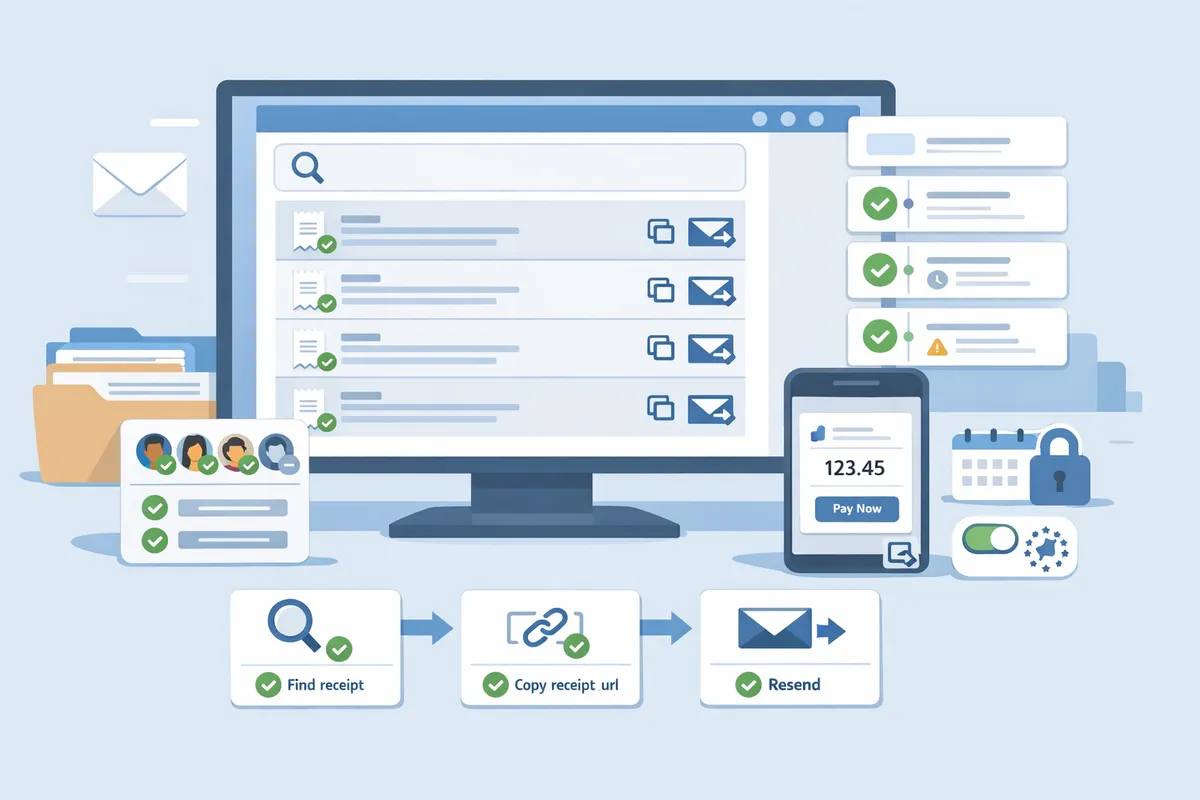
Stripe Receipt Lookup and Resend (2026 Pillar): Search by Receipt Number, receipt_url API Paths, Hosted Invoice Link Fixes, and Region-Aware Email Rules
A single misrouted Stripe receipt can generate 20+ support tickets and cost finance teams hours in reconciliation. Stripe dashboard receipt control number is a unique identifier that locates a specific Stripe receipt for copying, resending, or applying region-aware email rules. This best-practices guide shows step-by-step how to find a receipt by number, copy receipt_url API paths, fix hosted invoice links, and resend receipts without code using Route Receipts. We'll also show a no-code workflow using the RouteReceipts No‑Code (Selective Delivery) guide and the RouteReceipts dashboard allowlist; see setup in our documentation and common questions in the FAQ. One small lookup most teams skip can prevent duplicate receipts and messy accounting.
How do Stripe receipt numbers relate to 'control number' and dashboard fields?
Stripe's receipt number is the canonical Stripe identifier printed on emailed receipts and used for Dashboard lookups, while 'control number' is a nonstandard bookkeeping label that you map to a Stripe field or internal reference. Mapping these identifiers consistently reduces support tickets, speeds reconciliation, and prevents mismatches between your payment platform and accounting system. Our app RouteReceipts helps keep customer-facing receipt routing and the accounting identifiers aligned for auditability.
What is a receipt number and how is it different from an invoice ID? 🔎
A receipt number is the customer-facing Stripe identifier printed on a payment receipt; an invoice ID is a distinct Stripe object used for billing and tax records. Receipt numbers are ideal for quick customer lookups and one-off card payments. For example, a support rep can paste the exact receipt number into the Dashboard global search to pull the payment, charge, and related customer details. Invoice IDs (the invoice object) are required when you bill clients via invoices, apply VAT in the EU, or need an auditable invoice record for accounting systems. If you need selective delivery of receipt emails, our app RouteReceipts (our dashboard-native integration) lets you control who receives the receipt without custom webhooks. See our documentation for installation and allowlist setup: RouteReceipts documentation.
How should I treat 'control number' in my accounting? 🧾
A control number is not a Stripe-defined field and should be treated as an internal bookkeeping label mapped to either the Stripe receipt number or your own reference column. Many finance teams map the external receipt number into the payment reference column in their ledger so bank statement matching finds the Stripe payment immediately. If you use a payment platform invoice for VAT-compliant sales, map the invoice ID to your invoice_number or external_id field instead. For recurring workflows, put your internal control number in an 'memo' or 'internal_reference' field that your ERP preserves during imports.
| Common control label | Recommended Stripe source | Typical accounting destination | Example value |
|---|---|---|---|
| Payment reference | Receipt number (customer email receipt) | bank_statement.payment_reference | RCPT-2026-0921 |
| Invoice reference | Invoice ID | sales.invoices.invoice_number | INV-2026-0456 |
| Internal control number | Your internal ID | transactions.internal_id or memo | CN-42 |
💡 Tip: Store the Stripe receipt number in the payment reference column to cut reconciliation time; RouteReceipts' audit log helps confirm whether a receipt email was actually sent.
For more on how RouteReceipts preserves decision logs and prevents duplicate emails, see our FAQ: RouteReceipts FAQ.
Comparison table: receipt number vs invoice ID vs custom control number 📊
Use this table to decide which identifier to export and where to store it in your accounting system.
| Identifier | Purpose | Dashboard lookup field | Compliance relevance | Typical export column |
|---|---|---|---|---|
| Receipt number | Customer-facing proof of payment for card charges | Global search or Payments list (paste the printed receipt number) | Low for VAT; useful for customer support and bank matching | payment_reference / external_id |
| Invoice ID | Official billing object for billed invoices and VAT reporting | Invoices list and Customers > Invoices | High (required for EU VAT records and accounting exports) | invoice_number / sales.invoices.external_id |
| Custom control number | Internal bookkeeping label used by finance teams | Not a native Dashboard field; searchable only if stored on customer or metadata | Varies by policy; not accepted as legal invoice identifier | internal_id / memo / payment_reference |
Where to search in the Dashboard to look up Stripe receipt by receipt number 🔍
Paste the exact receipt number printed on the emailed receipt into the Dashboard global search or the Payments list search to find the payment fast. Follow these steps:
- Copy the receipt number exactly as printed on the customer's email (case and punctuation matter for fast matching).
- Open Stripe Dashboard and paste the receipt number into the global search box at top, or go to Payments and paste into the Payments search field.
- If the receipt number contains spaces or special characters, enclose it in quotes to force an exact match. Filter results by date range or customer email to narrow hits.
- If the global search returns the invoice object instead of a payment, open that invoice to see linked payments and the receipt number field.
- If you use RouteReceipts and have disabled Stripe's automatic receipts, check the RouteReceipts decision audit log to confirm whether the receipt was routed or withheld and to copy the routed receipt_url. Our documentation shows where the audit entries appear in the dashboard: RouteReceipts documentation.
⚠️ Warning: 'Control number' is not a native Stripe search field; always search for the mapped receipt number, invoice ID, or the customer email instead.
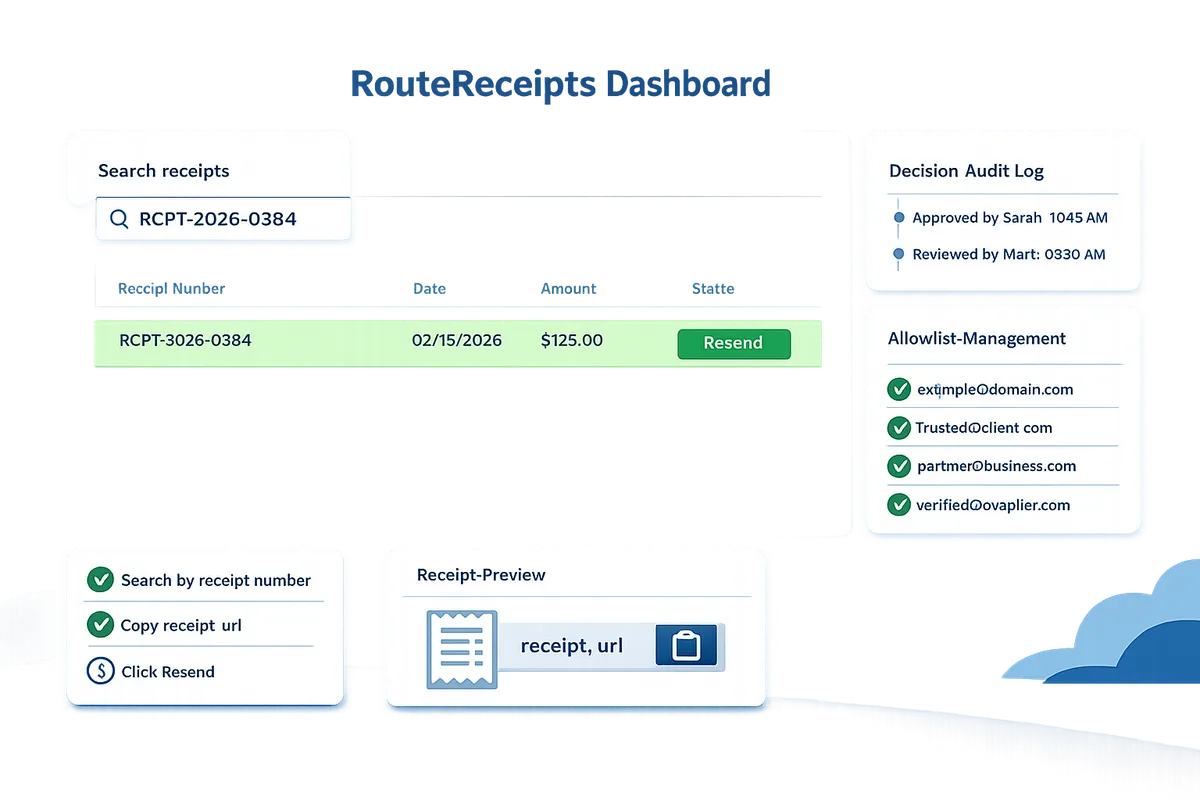
How do I find, copy, and resend a Stripe receipt from the Dashboard or via API?
You can find, copy, and resend a Stripe receipt by searching the Dashboard for the receipt number, copying the receipt_url from the Charge or PaymentIntent, and using Stripe's resend UI or your own email with that URL. receipt_url is a field on the Charge and PaymentIntent objects that points to Stripe's hosted receipt page. RouteReceipts is an app that lets you selectively send receipts from the Dashboard so you avoid sending emails to customers who do not need them.
Dashboard lookup, copy, and resend ✅
Search the top-left Dashboard box for the receipt number, open the matching Payment or Charge record, then click the Resend receipt button or copy the receipt_url from the record to paste into an email. Follow these ordered clicks to avoid mistakes:
- Click the main Dashboard search box and paste the full receipt number (example: R-00012345). Limit the search to Payments if you get noisy results.
- Open the matching Payment or Charge record from the results.
- Confirm the customer email in the 'Receipt sent to' or 'Customer' field.
- If Stripe shows a Resend receipt or Email receipt button, click it and confirm the recipient. If not present, click the vertical menu (more actions) and choose 'Copy receipt URL'.
- Paste the receipt_url into the internal email template or RouteReceipts' manual resend action.
For teams that use a separate bookkeeping 'control number,' map it to Stripe's receipt number or invoice ID in your support notes so agents can run this search consistently. For setup and routing options, see the RouteReceipts documentation for how to disable Stripe auto-receipts and avoid duplicates.
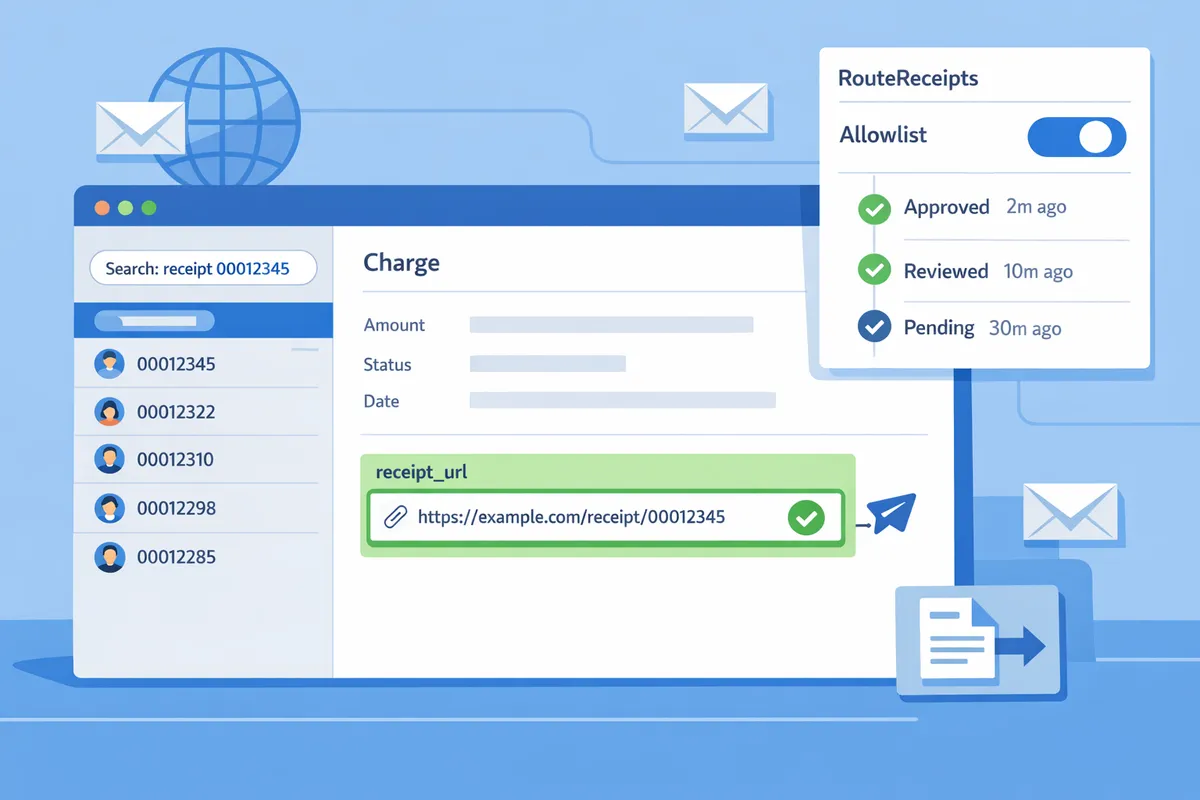
Find and resend receipt_url via API 🛠️
The receipt_url appears on the Charge or PaymentIntent object and you retrieve it with a read call to include in an email. receipt_url is a field on the Charge and PaymentIntent objects that points to Stripe's hosted link for receipts; fetch the Charge or PaymentIntent object and read its receipt_url field before sending.
Safe, no-code-friendly pattern support teams should follow when using the API result:
- Use a read-only API call or Dashboard object view to fetch the Charge or PaymentIntent.
- Verify the receipt_url exists on the returned object and note the customer email stored on that object.
- Confirm the recipient is allowlisted in your internal policy or in RouteReceipts before sending. RouteReceipts can accept the receipt_url and handle selective delivery so you do not send emails to customers off the allowlist.
- Paste the receipt_url into your company email template or trigger your secure email service. Do not publish receipt_url in public or shared channels.
For configuration steps and how routing decisions are made, see the RouteReceipts documentation and the FAQ on allowlists.
Common pitfalls and troubleshooting ⚠️
Missing receipt_url, refunded payments, and EU invoice rules cause most resend failures, and each requires a different fix. Quick troubleshooting steps:
- Missing receipt_url. Older or manually created charges may have receipts disabled. Check the Charge metadata and payment settings. If receipts were disabled account-wide, copy the payment details and use the Dashboard to generate a printable record or create an invoice when the customer needs a formal document.
- Refunded payments. Partial or full refunds may change receipt behavior. Check the Charge timeline for refund events and, if necessary, resend the original receipt_url and attach refund details from the Refund record.
- EU / VAT requirements. Stripe receipts are not the same as invoices for VAT reporting. If a customer requires an invoice for VAT compliance, create and send an Invoice object from the Dashboard instead of resending a receipt.
⚠️ Warning: Do not paste receipt_url into public or shared issue trackers. Treat hosted receipts as customer-sensitive links.
If you still cannot locate a receipt, confirm whether your account has automatic receipts disabled and consult the RouteReceipts troubleshooting guide for duplicate or missing receipts.
No-code script-free workflow support agents can use ✅
Support agents can follow a four-step, no-code sequence to safely resend receipts without writing scripts. Use this checklist every time to avoid duplicates and wrong recipients:
- Search by the stripe dashboard receipt control number in the Dashboard search box. Confirm the search result matches the customer and amount.
- Verify the customer email on the Payment or Charge record and check whether the customer is on your allowlist (use RouteReceipts' allowlist view or your internal CRM).
- Copy the receipt_url from the Charge or PaymentIntent record.
- Use the internal email template or RouteReceipts' manual resend action to send the receipt. If you use RouteReceipts, its audit log records the decision.
💡 Tip: Always confirm the customer email visible on the payment record before resending to avoid exposing receipts to the wrong address.
For step-by-step setup to install Route Receipts and configure allowlists from the Stripe Marketplace, consult the RouteReceipts documentation. For answers to common setup and policy questions, see the RouteReceipts FAQ and our post on Why Did We Build Route Receipts?
How do you implement selective receipt delivery with Route Receipts and measure success?
Route Receipts implements selective receipt delivery by evaluating an allowlist and logging every delivery decision inside the Stripe Dashboard. This saves finance and support teams hours by preventing unnecessary emailed receipts and giving auditors a searchable decision trail.
How to install and configure Route Receipts in the Stripe Dashboard 🔧
Install Route Receipts from the Stripe Marketplace and authorize it to evaluate receipt delivery for your account. Start from the Marketplace entry, grant the app the requested Dashboard scopes, and confirm the connected account. After installation, disable Stripe's automatic receipt emails in the Dashboard under Settings > Customer emails > Receipts to prevent duplicate messages. Then open Route Receipts' setup flow and configure these essential settings:
- Allowlist mode: choose match-first or match-all behavior.
- Default action: suppress or deliver when no rule matches.
- Rule sources: enable matching by customer ID, customer email, subscription plan, or customer metadata.
- Admin users: add team members who can edit the allowlist and view the audit log.
Follow our Documentation for step-by-step screenshots and a checklist for Marketplace installation and toggling Stripe receipt settings. Our FAQ explains common permission questions during installation.
⚠️ Warning: If you do not disable Stripe's automatic receipts, customers may receive duplicate emails. Confirm the Dashboard receipt toggle before enabling Route Receipts.
How do allowlist rules and the decision audit log work? 📜
Allowlist rules are business-defined criteria that Route Receipts evaluates for each payment and then records the decision in an audit log. Typical rules include matching a customer ID for enterprise clients, matching an email domain for customers who require receipts for expenses, or matching a subscription plan to send receipts only for paid tiers. Each incoming payment is compared against your allowlist in order; when a rule matches, Route Receipts applies the configured action (deliver or suppress) and logs the outcome.
The decision audit log records timestamp, payment identifiers (payment_intent or charge), rule matched, rule owner, and decision outcome. Finance and support teams can filter audit entries by customer email, receipt number, or date range and export the log to CSV for offline review. See our Documentation for examples of exported audit schemas and search recipes. Our blog post on why we built Route Receipts explains the audit log design and operational trade-offs.
How to reconcile receipts: linking receipt number to accounting exports 🔢
Map the Stripe receipt number to a dedicated payment reference column in your accounting export so automated reconciliation matches receipts to bank deposits. Treat the Stripe receipt control number as the canonical receipt_number field in exports. Use the following recommended CSV schema when exporting payments from Stripe or your reporting tool:
- receipt_number (Stripe receipt id).
- payment_intent_id.
- charge_id.
- customer_email.
- amount.
- currency.
- settled_at (Stripe settled timestamp).
- bank_deposit_date (your bank posting date).
- accounting_reference (GL code or invoice id).
Checklist for accounting teams:
- Confirm exports include receipt_number before running reconciliation.
- Align export date ranges with bank deposit dates, not only payment timestamps.
- Standardize timezone to UTC for both Stripe exports and bank statements.
- Mark suppressed receipts from the Route Receipts audit log to explain missing customer emails during inquiries.
Use the audit log export alongside your payment CSV when a support ticket asks "how do I look up Stripe receipt by receipt number" so the support agent can match the receipt_number to the audit entry and confirm whether the receipt was suppressed or delivered.
💡 Tip: Add receipt_number as the first column in your CSV export so lookup functions and spreadsheet VLOOKUPs return results faster for reconciliation.
Which metrics to monitor and how to report ROI 📊
Track suppressed receipts, monthly allowlist additions, and support time saved to measure Route Receipts' impact. Suppressed receipts equals total eligible receipts minus delivered receipts. Count allowlist additions per month to show policy growth and review why entries were added. Measure support time saved by comparing average time to resolve receipt-related tickets before and after Route Receipts deployment.
Recommended KPIs to display on a weekly dashboard:
- Suppressed receipts (line chart by week).
- Deliveries per allowlist rule (table showing rule and delivered count).
- Allowlist additions and removals (trend).
- Receipt-related support tickets and average resolution time (pre/post comparison).
Simple weekly report template for finance ops:
- Week range and total payments processed.
- Suppressed receipts and percent of total.
- New allowlist entries and reason summary.
- Receipt-related support tickets and estimated hours saved this week.
- Any audit log anomalies and follow-up actions.
Include these KPIs in your finance operations playbook to translate suppressed receipts into time-saved estimates for leadership.
Where to find Route Receipts help: documentation, FAQ, and privacy details ❓
Find setup, troubleshooting, and privacy details on our Documentation, FAQ, and Privacy Policy pages. Our Documentation contains the install walkthrough, allowlist rule examples, webhook behavior, and troubleshooting steps for duplicate or missing receipts. The FAQ answers common questions about plan limits, disabling Stripe receipts, and how routing interacts with invoices. The Privacy Policy explains what account data Route Receipts accesses, retention rules, and third-party services used.
Add these links to your internal support playbooks so agents can reference authoritative guidance when customers ask about routing decisions, suppressed receipts, or data handling. For background on the product rationale and operational templates, see our blog post explaining why we built Route Receipts.
Documentation Frequently Asked Questions Why Did We Build Route Receipts?
Frequently Asked Questions
This FAQ answers operational questions finance and support teams ask about locating, copying, and resending Stripe receipts. Route Receipts is an application that controls selective delivery of Stripe receipts by maintaining an allowlist inside the Stripe Dashboard, which helps teams avoid duplicate or unwanted receipt emails.
How do I look up a Stripe receipt by receipt number in the Dashboard? 🔎
Search the Dashboard search box with the receipt number to open the Payment or Charge record that contains the receipt_url and customer details. Enter the full receipt number into the global search field; results return the Charge, PaymentIntent, or Customer record that printed that number on the emailed receipt. Once the record opens, copy the receipt_url from the Charge or PaymentIntent and confirm the customer email and metadata before resending. If you use Route Receipts, check the decision audit log on the payment record to see whether the receipt was routed or suppressed; see the RouteReceipts documentation for screenshots and the install checklist.
Is 'control number' a Stripe field or the same as receipt number? 🧾
'Control number' is a bookkeeping term and not a native Stripe field. Map your control number to the Stripe receipt number or store it as custom metadata on the Charge or Customer so it appears in Dashboard search results and exports. Adding a consistent metadata key prevents ambiguous lookups across finance systems and makes reconciliation simpler when you export transactions to your accounting package. For implementation steps and recommended metadata keys, see the RouteReceipts documentation and our blog post on why we built Route Receipts.
Can I resend a receipt if the customer email bounced or is missing? ✉️
You can resend only when the payment record includes a valid, deliverable customer email or by sharing the receipt_url manually. Validate the address first to avoid additional bounces; if the address bounced, confirm the correct email with the customer before resending. Use Route Receipts to restrict automatic resends to allowlisted recipients so you avoid creating spam complaints or duplicate messages.
💡 Tip: Validate the customer email with a one-click confirmation link before bulk resends and keep a short audit note on the payment to record the confirmation.
How does Route Receipts decide who receives a receipt? ✅
Route Receipts evaluates your configured allowlist rules for each payment and then consults the decision audit log before allowing or suppressing the receipt send action. The allowlist can match on customer ID, email, or other criteria you set in the dashboard, and Route Receipts records every routing decision for later review. If a payment has no allowlist match, Route Receipts suppresses the automatic send so you avoid sending receipts to customers who do not need them. See the RouteReceipts FAQ for plan limits, UI screenshots, and the audit-log behavior.
Are Stripe receipts valid invoices for EU VAT purposes? 🇪🇺
Stripe receipts are generally not official invoices for EU VAT compliance; you must issue a Stripe Invoice object when a customer needs a VAT-compliant invoice. Create a Stripe Invoice for the transaction, include the required VAT fields, and export the invoice ID into your accounting system so auditors can cross-check payments and VAT reports. For country-specific requirements, consult your tax advisor and attach the invoice ID in metadata so your finance team can reconcile VAT returns.
How do I find and resend a receipt_url via API for bulk support follow-up? 🔁
Retrieve the Charge or PaymentIntent via a read call to fetch the receipt_url, then include that URL in your support email template rather than regenerating a new receipt. When running bulk resends, filter your list to confirmed, allowlisted customers and add a short throttle to avoid mass-bounce incidents. Use Route Receipts for no-code selective delivery so you only send receipts to approved customers; the RouteReceipts documentation contains the recommended export and throttling workflow for support teams.
Final steps to find, copy, and resend Stripe receipts by receipt number.
Following the steps in this guide keeps your team from spending hours hunting receipts and reduces the chance of sending duplicates or wrong documents. Record the Stripe dashboard receipt control number when you look up Stripe receipt by receipt number so you can match entries reliably and avoid misrouting.
💡 Tip: Disable Stripe's automatic receipts before resending to prevent duplicate emails. Check the allowlist and audit log after each change.
Route Receipts is a specialized application designed to enhance the way businesses manage their Stripe receipt distribution. Use Route Receipts when selective delivery matters: it saves finance teams time and removes the need for custom webhook plumbing. For setup details and troubleshooting, follow our step-by-step Documentation or review common questions in the Frequently Asked Questions. If you want the design reasoning and operational playbook, see Why Did We Build Route Receipts and the No-Code selective delivery guide.
Create your first allowlist with Route Receipts by following the getting-started setup in our Documentation. Subscribe to our newsletter for implementation tips and product updates.
When choosing a first cosplay outfit, it is worth considering how details related to cosplay costumes will affect the complete look. When the final look will be photographed, it helps to assess details related to beginner costume choices together with fit and fabric. For choices related to details related to long cosplay wigs, cosplay shoes with delivery information offers a useful starting point for practical preparation. To reuse the pieces at future events, it is useful to check details related to wig colour selection against the wearer's own needs.