
Stripe Receipt Lookup Without the Original Email: Customer Portal + Hosted Invoice Page Setup and Route Receipts ‘Receipt‑on‑Demand’ Blueprint (2026)
Support teams often spend 3–5 hours weekly handling customer requests for missing invoices and receipts. Stripe receipt lookup is a process that lets customers find and download Stripe receipts without the original email using the Stripe customer portal, hosted invoice pages, and the RouteReceipts app. This integration guide connects the Stripe customer portal and hosted invoice pages with Route Receipts to enable receipt-on-demand for selected customers, reducing support load and inbox clutter. Expect the end-to-end setup to take about 20–45 minutes for most accounts. Our website's setup documentation walks through creating an allowlist, disabling Stripe's automatic receipts, and testing hosted invoice links. A simple no-code tweak covered in our RouteReceipts No‑Code guide keeps enterprise receipts available while keeping other customers' inboxes quiet.
How does Stripe receipt lookup work without the original email and why add Route Receipts?
Stripe receipt lookup without the original email uses the hosted invoice page or the Stripe customer portal to let authenticated customers find and download invoice PDFs. Our website recommends adding Route Receipts to stop sending blanket receipt emails while keeping on-demand PDF access for allowlisted customers. Combining the portal and Route Receipts reduces inbox noise for most customers and preserves a simple self-serve path for finance teams who need receipts.
What is Route Receipts and how does it differ from Stripe's native options? 🧾
Route Receipts is a Stripe app that controls which customers receive emailed receipts by using an allowlist and a dashboard-native interface. This definition explains the product category and the differentiator: selective receipt routing instead of a global on/off setting. Route Receipts installs from the Stripe Marketplace and provides an allowlist UI, a decision audit log for transparency, and a simple way to stop automatic receipt sends for customers who do not need them. For example, a small SaaS billing team can stop blanket receipt emails to 90% of customers while continuing to email enterprise clients who require PDFs for expense reporting. See our post on Why Did We Build Route Receipts? for the product rationale and installation patterns.
How Stripe's customer portal and hosted invoice page enable receipt lookup 🔎
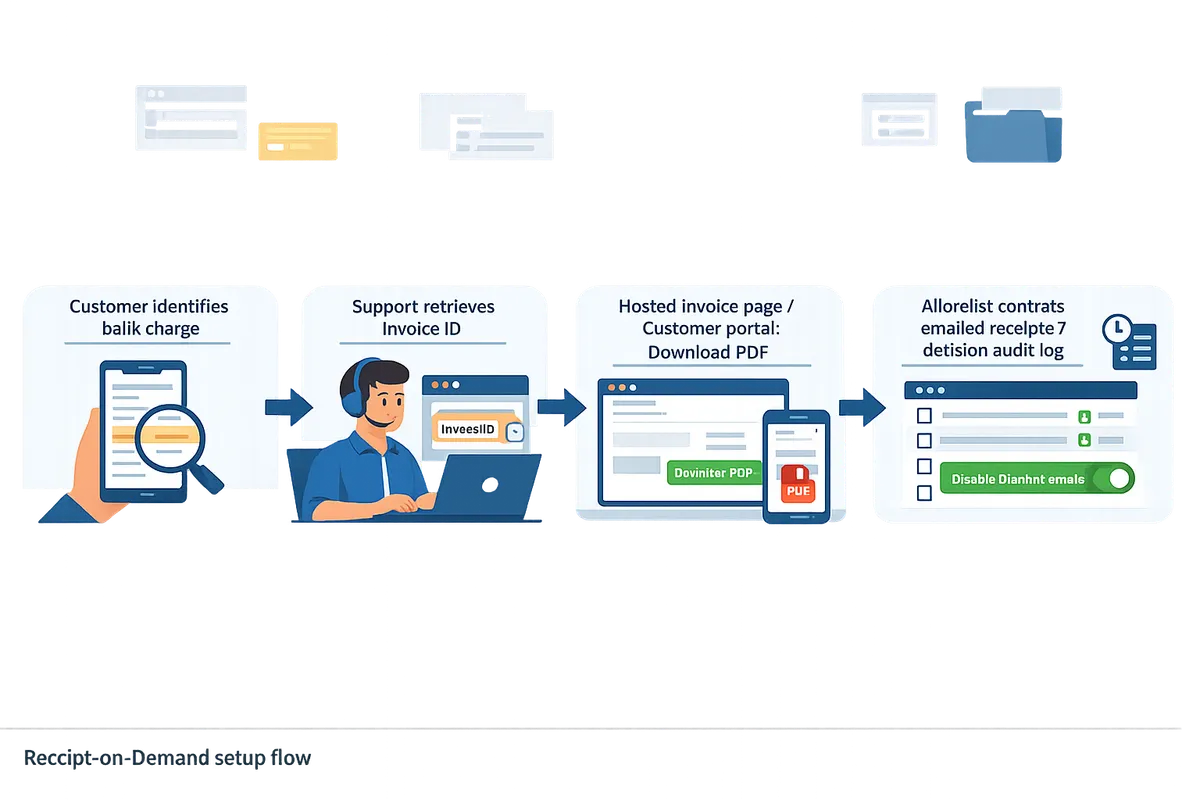
Stripe's hosted invoice page and the customer portal let authenticated customers find and download invoice PDFs without the original email. This is the common flow for how to find a Stripe receipt without email: customer identifies a charge or invoice number, authenticates in the portal or uses the hosted invoice link, and downloads the PDF. Typical steps are:
- Support or billing team confirms the invoice ID or charge descriptor from the bank statement.
- Provide the customer a customer portal link or a hosted invoice URL (or instruct them to sign into the portal).
- Customer selects the invoice and uses stripe customer portal receipt download to save the PDF.
According to Stripe's docs, hosted invoice pages generate a stable PDF per invoice, which makes this flow reliable for finance teams that need receipts on demand. ⚠️ Warning: If you disable Stripe's automatic receipts, test the flow with a sandbox customer before rolling changes live to avoid missing required receipts.
Quick comparison table: native Stripe vs customer portal vs Route Receipts 📊
The table below compares native Stripe receipt emails, the Stripe customer portal/hosted invoice page, and Route Receipts across delivery control, self-serve access, setup effort, and auditability.
| Option | Receipt delivery control | Customer self-serve | Setup effort | Auditability |
|---|---|---|---|---|
| Native Stripe receipt emails | Global on/off only (no per-customer rules) | Low (receipts arrive by email) | Minimal (toggle setting) | Low (no decision log) |
| Stripe customer portal + hosted invoice page | Per-customer access via authentication or hosted links | High (customers can download PDFs directly) | Moderate (enable portal, configure URLs) | Moderate (portal activity not tied to a tie-stamped routing decision) |
| Route Receipts (app) | Per-customer allowlist and routing decisions | High (allowlisted accounts still receive emails; all customers can use portal if enabled) | Low-to-moderate (install from Marketplace, create allowlist) | High (decision audit log records why a receipt was sent or suppressed) |
Our website recommends using the portal for stripe customer portal receipt download needs and adding Route Receipts when you want to stop blanket emails but keep receipts for specific customers. For setup specifics and policy details, see the Route Receipts documentation and the Route Receipts FAQ.
How do I set up Stripe customer portal receipt download and Route Receipts for receipt-on-demand?
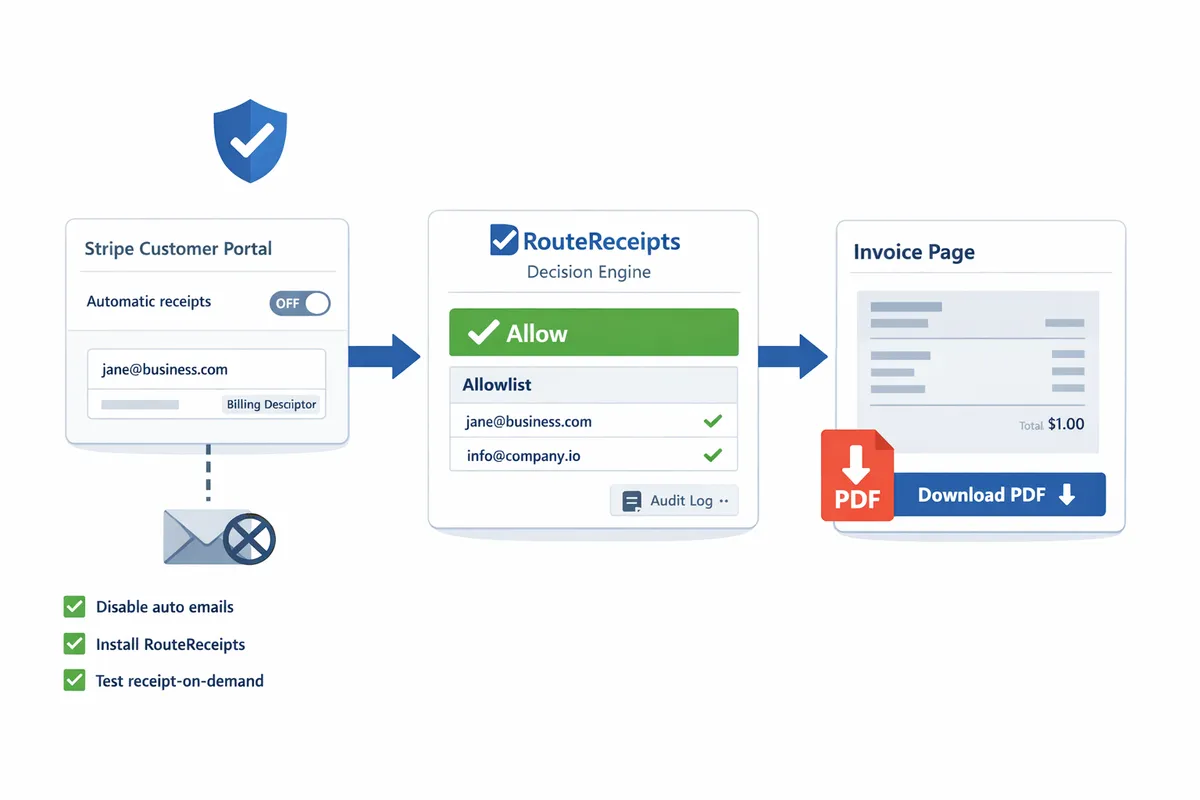
This section shows the exact steps to enable Stripe hosted invoices and the customer portal, disable Stripe automatic receipt emails, install Route Receipts, and test a receipt-on-demand workflow. Follow the checklist to stop duplicate emails, allowlist recipients, and ensure customers can download PDF receipts without the original email.
Prerequisites and account settings to check ✅
Confirm you have Stripe admin permissions, the customer portal or hosted invoice page feature enabled, and a published business email and billing descriptor. Our website recommends verifying these before making changes to avoid partial configurations that leave customers without access.
- Admin Stripe role. Ensure your user can change Settings and install Marketplace apps.
- Published business email. Check Stripe Dashboard > Settings > Public business information so portal support links and receipts reference a monitored inbox.
- Billing descriptor. Verify the statement descriptor under Settings > Account details matches your brand; mismatches increase charge lookup requests.
- Customer records. Confirm customer emails or Stripe customer IDs are accurate for allowlist matching.
For installation and permission details, see Route Receipts documentation and the Route Receipts FAQ.
Step 1 — Disable Stripe's automatic receipt emails and why you should ⚙️
Turn off Stripe's automatic receipt emails to prevent duplicate messages once Route Receipts makes delivery decisions. Disable the receipt toggles in the Stripe Dashboard (Settings > Email receipts or Billing > Email receipts) for successful payments and successful invoices before enabling Route Receipts.
Steps to toggle safely:
- Make changes in Stripe test mode first, not live mode.
- In Dashboard > Settings > Email receipts, switch off "Successful payments" and "Successful invoices."
- Save settings and run a test charge in test mode to confirm no automatic email is sent.
Rollback plan if you need immediate restoration: re-enable the same toggles and re-run the failed test case to confirm receipts return. Our website recommends keeping a short internal note (who changed what and when) for auditability.
💡 Tip: Use a separate staging Stripe account or test mode so finance and support can verify behavior without impacting live customers.
Step 2 — Enable hosted invoice pages and configure customer portal links 🔗
Enable the hosted invoice page and customer portal so customers can retrieve and download invoices directly without the original email. Turn on the portal in Stripe Dashboard > Billing > Customer portal and populate branding, support link, and login options.
Configuration checklist:
- Branding. Upload logo and set primary color so customers recognize the invoice source.
- Support link. Use a monitored help email or ticket URL in the portal footer.
- Login/auth options. Choose email-only lookup or require customer account login based on your security needs.
- Post-purchase navigation. Add a "View invoices" link on the order confirmation page and in your site’s account area so customers know where to find receipts.
Sample help text for your site and portal: "How to find a Stripe receipt without email: Visit our Billing page, enter the email used at checkout, or log into your account and select Billing > Invoices to download the PDF." Include this exact phrasing in your portal FAQ so customers can self-serve.
See our No‑Code guide to RouteReceipts for examples of where to place portal links on your site.
Step 3 — Install and configure Route Receipts from the Stripe Marketplace 🛒
Install Route Receipts from the Stripe Marketplace and create an allowlist that controls which customers receive an emailed receipt. Route Receipts is a Stripe app that routes invoice emails based on an allowlist you manage in the dashboard, so you avoid sending receipts to customers who do not need them.
Install and configure:
- In the Stripe Dashboard, open Marketplace and search for Route Receipts. Click Install and authorize access.
- Grant the app permission to read customers, invoices, and related metadata. Route Receipts requires these to evaluate allowlist rules.
- In the Route Receipts dashboard, create an allowlist using customer email or customer ID. Use exact-match rules for finance teams and wildcard rules for domains (for enterprise clients).
- Enable the decision audit log in Route Receipts so each routing decision stores the customer ID, rule matched, and timestamp for compliance reviews.
How Route Receipts reduces errors: it eliminates the all-or-none receipt choice in Stripe, prevents duplicate emails when Stripe remains enabled by mistake, and centralizes allowlist management without custom webhooks. See the Route Receipts documentation for screenshots of the allowlist UI and decision log.
⚠️ Warning: Keep Stripe automatic receipts disabled before flipping Route Receipts live. If both systems send receipts, customers will receive duplicates.
Step 4 — Test the full flow and validate receipt downloads 🧪
Run allowlisted and non-allowlisted test orders in Stripe test mode to confirm emailed receipts, portal access, and Route Receipts audit logging behave as expected. Use this matrix to cover common scenarios.
| Test case | Customer allowlist status | Expected email behavior | Expected portal download behavior | Expected Route Receipts audit entry |
|---|---|---|---|---|
| One-time purchase (card) | Allowlisted | Receipt email sent by Route Receipts | Customer can download invoice PDF from portal | Decision logged: allowed, rule id, timestamp |
| One-time purchase (card) | Not allowlisted | No receipt email sent | Customer can download invoice PDF from portal | Decision logged: blocked, rule id, timestamp |
| Subscription invoice | Allowlisted | Receipt email sent by Route Receipts | Invoice available in portal and downloadable | Decision logged: allowed, invoice id |
| Subscription invoice | Not allowlisted | No receipt email sent | Invoice available in portal and downloadable | Decision logged: blocked, invoice id |
Validation steps:
- Run each test in Stripe test mode and note the invoice number.
- Confirm no automatic Stripe email is received for blocked cases.
- Log into the customer portal using the test customer and download the invoice PDF.
- Check the Route Receipts decision audit log for an entry matching the invoice and customer.
Testing checklist and rollback plan 📝
Use this checklist to verify the integration and a clear rollback path if trouble appears. Follow the numbered rollback steps exactly to restore prior behavior quickly.
Testing checklist:
- Confirm Stripe automatic receipts are disabled in live mode (or remain disabled while testing in staging).
- Confirm Route Receipts is installed and allowlist rules exist for at least one test customer.
- Execute test charges and subscriptions in test mode covering allowlisted and non-allowlisted cases.
- Verify emailed receipts only for allowlisted customers and portal PDF download for all customers.
- Confirm Route Receipts audit log entries match each test case.
Rollback plan:
- If critical failures occur, re-enable Stripe automatic receipts (Settings > Email receipts) to restore immediate delivery.
- Disable Route Receipts or remove recent allowlist changes in the Route Receipts dashboard.
- Communicate the temporary change to finance and support with invoice numbers for manual re-sends if needed.
- Use the Route Receipts decision log to diagnose the change before reattempting the controlled rollout.
For step-by-step screenshots and troubleshooting tips, see our Route Receipts documentation and the FAQ. If you want a guided, no-code walkthrough, read The No‑Code Way to Route Customer Receipts in Stripe: Beginner’s Guide to Selective Delivery and Why Did We Build Route Receipts? for the product rationale and operational playbook.
When should you use Route Receipts and how can you optimize receipt lookup for customers?
Use RouteReceipts when you want to send invoice PDFs only to customers who need them while keeping hosted invoice access available to everyone. This reduces inbox clutter for low-touch customers, preserves auditability for enterprise clients, and keeps hosted invoice URLs available for self-service stripe receipt lookup and stripe customer portal receipt download. The following subsections show concrete scenarios, copy you can reuse, automation patterns for finance teams, and a short troubleshooting checklist.
Common business scenarios that benefit from selective receipt routing 💼
Selective receipt routing suits mixed customer bases where some accounts legally or operationally require PDFs while others prefer fewer emails. For example, a SaaS company can add only accounts with expense reporting enabled to the RouteReceipts allowlist so enterprise users automatically get receipts while freemium and low-touch subscribers do not. Marketplaces benefit when sellers require receipts but buyers do not; RouteReceipts lets you route receipts to the payee while keeping buyer inboxes clean. Another scenario is testing: add a small set of beta customers to the allowlist to validate receipt content before broad rollout. For implementation patterns, see the no-code walkthrough in The No‑Code Way to Route Customer Receipts in Stripe: Beginner’s Guide to Selective Delivery and follow the setup steps in the RouteReceipts documentation.
How to write customer-facing instructions for receipt lookup and downloads ✍️
Provide two short, searchable instructions: one for "how to find a stripe receipt without email" and one for "stripe customer portal receipt download." Example search phrases to publish in support docs: "find receipt by invoice number," "download Stripe receipt from customer portal," and "how to get invoice PDF without original email." Then give a three-step snippet customers can follow: 1) Sign in to the customer portal, 2) Open Billing or Invoices, 3) Click the invoice and choose Download PDF. Use exact, copy-ready support script for chat or email: "If you did not receive the receipt email, sign into the customer portal, go to Billing > Invoices, select the invoice with ID [invoice_id], and choose Download PDF. If you still cannot find it, reply with the invoice ID and we will locate the hosted invoice URL." Mention RouteReceipts in your internal support notes so agents know allowlist decisions may prevent receipt emails from being sent even though hosted invoices exist.
💡 Tip: Put the exact search phrases in your help center headings so customers searching for "how to find a stripe receipt without email" find the article quickly.
Automation and accounting workflows that reduce manual reconciliations 🤖
Automations cut manual work by exporting receipts or using the hosted invoice URL pattern to attach PDFs to accounting records. For teams without engineering resources, schedule a daily or weekly CSV export from Stripe (invoice ID, customer email, hosted_invoice_url) and then use a no-code automation tool such as Zapier or Make to: 1) Download the hosted invoice PDF from hosted_invoice_url, 2) Match invoice_id to the accounting system invoice, 3) Attach the PDF to the invoice record in QuickBooks Online or Xero. For higher volume, run the export hourly and mark processed rows using a Google Sheet column to avoid duplicates. RouteReceipts helps because the hosted invoice URL remains predictable and the app provides an audit log you can reference when a PDF is missing. For step-by-step setup, follow the automation patterns in the RouteReceipts documentation and pair exports with your accounting tool's file-attachment action.
Troubleshooting checklist for missing or duplicate receipts 🛠️
Start with a short checklist to resolve missing or duplicate receipts quickly: verify allowlist settings, confirm Stripe automatic receipt emails are disabled to prevent duplicates, ensure the hosted invoice page is enabled, and check the RouteReceipts decision audit log for the specific invoice. To verify a receipt exists: search Stripe for the invoice ID, open the invoice record, and confirm hosted_invoice_url is present. To locate the hosted invoice: paste the hosted_invoice_url into a browser while authenticated or use the customer portal link. To confirm RouteReceipts decisions: open the RouteReceipts audit entry for that invoice and confirm whether the app prevented or allowed the receipt email. If you see duplicates, check that Stripe automatic receipts are turned off in your Stripe settings and that no secondary notification app is forwarding receipts. If a hosted_invoice_url is missing, verify the invoice was finalized and not in a draft state.
⚠️ Warning: Do not disable the hosted invoice page when using RouteReceipts; disabling hosted invoices removes the self-service route customers use for stripe receipt lookup and stripe customer portal receipt download.
For configuration and edge-case guidance, consult the RouteReceipts FAQ and the installation and troubleshooting pages in the RouteReceipts documentation. For planning selective delivery policies and auditability best practices, see Why Did We Build Route Receipts?
Frequently Asked Questions
This FAQ answers the most common questions about how customers find and download Stripe receipts without the original email and how Route Receipts fits into that flow. Read each Q&A for a direct answer first, followed by concise, actionable details you can use in support scripts and portal copy.
How can I find a Stripe receipt without the original email? 🔎
You can locate a Stripe receipt using the hosted invoice page or the Stripe customer portal by searching with email, invoice number, or payment card last four. Support teams should ask the customer for the invoice number, the email used to pay, or the last four digits of the card to match against Stripe. If the invoice is finalized, the hosted invoice URL will show a downloadable PDF and a unique receipt number that you can share. Route Receipts does not remove hosted invoice access; it only controls whether an emailed copy is sent, so portal lookup remains the primary fallback for customers.
💡 Tip: When a customer contacts support, request the invoice number or last four of the card first—this cuts lookup time to under two minutes for most accounts.
Can I let customers download receipts from the customer portal even if I stop sending emails? 📥
Yes. Enabling the Stripe customer portal or hosted invoice pages allows customers to download receipts even when automatic receipt emails are disabled. In Stripe settings, enable hosted invoices and confirm the portal's download option. Then disable Stripe's automatic receipt emails to avoid duplicates and install Route Receipts to selectively send emailed PDFs to only allowlisted customers. See the RouteReceipts documentation for step-by-step setup and to validate portal public access rules before disabling automated emails.
Will Route Receipts prevent receipts for some customers while allowing others? ✅
Yes. Route Receipts uses an allowlist to send emailed receipts only to selected customers while leaving hosted invoice access available to everyone. You manage the allowlist from the Route Receipts dashboard-native UI in the Stripe Marketplace install. The app records each routing decision in an audit log for compliance and troubleshooting, which helps finance teams reconcile who received emailed PDFs versus who used the portal. For a beginner-friendly walkthrough of the allowlist concept and audit-log considerations, see our No‑Code guide to selective delivery.
What should I check if a customer cannot download a receipt from the portal? 🧭
First, confirm the invoice exists, is finalized, and the customer identifier matches the invoice record. Next, verify hosted invoice pages and the customer portal are enabled in Stripe and that the invoice status is paid or finalized; drafts and open invoices often lack a downloadable receipt. If those checks pass, review Route Receipts routing rules and the decision audit log to see whether an emailed copy was intentionally blocked or if a duplicate-prevention rule prevented re-sending. If you still cannot locate the invoice, ask the customer for the exact email used to pay and the last four digits of the card for cross-checking.
Does this setup require code or webhooks to work? 🔌
No. The recommended blueprint uses Stripe's built-in hosted invoice pages and the Route Receipts dashboard-native install so you can configure receipt-on-demand without custom webhooks or code. Install Route Receipts from the Stripe Marketplace, create your allowlist, and follow the UI prompts to disable Stripe automatic receipts safely. If you prefer an automated, webhook-driven flow later, RouteReceipts documentation explains how to add programmatic hooks, but the basic receipt-on-demand pattern requires only configuration.
How do I handle multi-merchant or multi-language receipt requests? 🌐
Use separate allowlists or separate Stripe Connect accounts per merchant and document portal access rules per merchant to handle multi-merchant setups. For languages, provide localized help text in the customer portal and your support KB that explains how to find a Stripe receipt without email and how to perform a stripe customer portal receipt download. Maintain a short support script per region that lists the required identifiers (invoice number, payer email, last four digits) and link to localized portal guidance to reduce back-and-forth.
For deeper configuration steps and troubleshooting, see the RouteReceipts documentation and our No‑Code guide to selective delivery for examples of allowlist rules and audit-log workflows.
Finish setup so customers can find and download receipts without the original email.
The setup you just followed lets customers perform a reliable stripe receipt lookup from the Customer Portal or hosted invoice page without needing the original email. This reduces support tickets and saves accounting teams time by putting receipt access where customers already log in. For step-by-step allowlist examples, see our No‑Code Way to Route Customer Receipts in Stripe: Beginner’s Guide to Selective Delivery.
RouteReceipts is a specialized application designed to enhance the way businesses manage their Stripe receipt distribution. It fixes a common limitation in Stripe by letting you send receipts only to customers who need them, keeps an audit log of decisions, and installs from the Stripe Marketplace without custom webhooks. For background on why selective routing matters, read Why Did We Build Route Receipts? and check common setup questions in the FAQ.
Install Route Receipts from the Stripe Marketplace and follow the getting-started guide in our documentation to create your first allowlist and confirm routing rules. Subscribe to our newsletter for implementation tips and product updates. After subscribing, finish by verifying receipt delivery from the Route Receipts dashboard to ensure customers can find receipts when they need them.
When accuracy matters for a costume, it is worth considering how details related to shoes and accessories will affect the complete look. With practical wear in mind, reviewing details related to photoshoot preparation also makes comfort and movement easier to judge. To compare practical details about details related to men's cosplay costumes, cosplay costume sets for long events offers a useful starting point for practical preparation. Before the preparation is complete, a balanced view of details related to wig colour selection can support both detail and comfort. betika withdrawal