
Stripe Receipt Setup FAQ (2026): Snippet Answers on Credit Notes vs Refunds, Required Fields, VAT Boxes, and Email Rules
A single VAT misclassification on a receipt can trigger weeks of reconciliation and potential HMRC queries. This stripe receipt setup faq is a concise reference that explains how to configure Stripe receipts with RouteReceipts, distinguish credit notes from refunds for UK VAT, set required receipt fields, and apply email delivery rules. RouteReceipts is our Stripe app that controls which customers receive invoice receipt emails through an allowlist and a dashboard-native interface. You will get snippet-style answers and step-by-step links to the RouteReceipts setup guide and the RouteReceipts FAQ to disable Stripe automatic receipts, create an allowlist, and audit routing decisions. One specific VAT box causes the most repeated errors, knowing which one can save you hours of cleanup.
How do I set up Stripe receipts with RouteReceipts?
Install RouteReceipts from the Stripe Marketplace, authorize the account, import or create an allowlist, and disable Stripe's automatic customer receipts so RouteReceipts handles delivery. This section gives a non-developer, step-by-step checklist, links to our documentation, and the minimal Stripe changes you must make to avoid duplicate emails.
What is RouteReceipts? 🤔
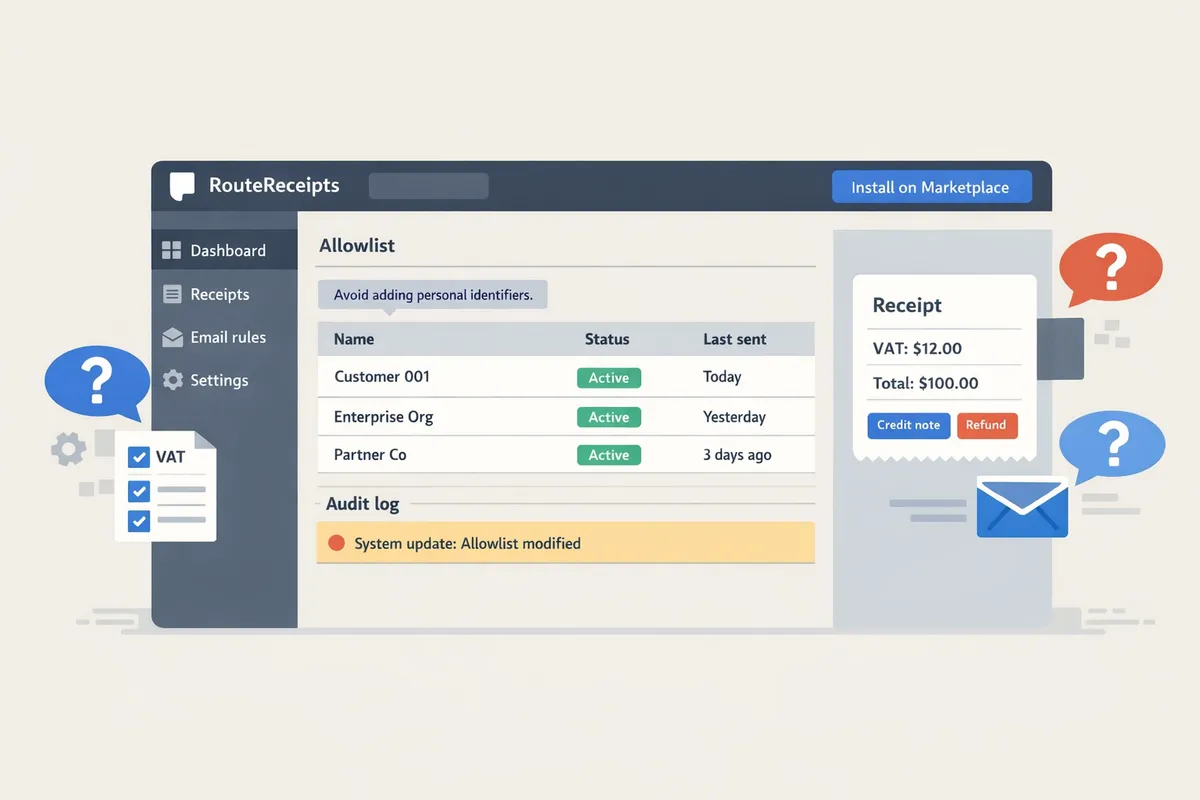
RouteReceipts is a Stripe app that lets merchants selectively send receipt emails by managing an allowlist inside the Stripe dashboard. The app offers a dashboard-native UI, a decision audit log for every routing action, and a no-code installation path via the Stripe Marketplace. See the RouteReceipts FAQ for a concise feature summary and common use cases.
How do I install RouteReceipts on Stripe? 🛠️
Install RouteReceipts from the Stripe Marketplace, grant the requested permissions, run the initial allowlist import, and verify with a test customer. Follow these steps:
- Open the Stripe Marketplace and search for RouteReceipts.
- Click Install and authorize the Stripe account you want RouteReceipts to manage.
- Confirm the correct Stripe account if you manage multiple accounts.
- Run the initial allowlist import (manual CSV or sync selected customer metadata).
- Send a test payment to a test customer on the allowlist and confirm a single receipt is delivered.
Each step includes screenshots and troubleshooting tips in the RouteReceipts documentation.
How do I disable Stripe's automatic receipts to avoid duplicates? ⚠️
Turn off Stripe's automatic customer receipt emails in Dashboard > Settings > Customer emails so only RouteReceipts sends receipts. Specifically, disable "Email customers for successful payments" and "Email customers for invoices" (or the matching invoice/payment toggles in your Stripe account). After toggling, create a real test transaction and check the customer inbox to confirm only one receipt arrives.
💡 Tip: Run the test with a live-style customer email in Stripe test mode and view the routing decision in the RouteReceipts audit log to confirm no duplicate messages.
The installation guide in our documentation lists the exact toggle locations and what to verify after you change each setting.
How do I create and manage an allowlist in RouteReceipts? ✅
Create an allowlist in the RouteReceipts dashboard by adding customer emails, Stripe customer IDs, or rule-based metadata and import batches via CSV for existing customers. Common examples:
- Enterprise client rule: add corporate email domains (example@clientco.com) so all receipts for that domain are allowed.
- Subscription-based rule: allow receipts only for customers with active subscription metadata (e.g., "send_receipt:true").
- Small batch import: upload a CSV of 200 customer emails, map the CSV columns to Stripe customer IDs or emails, and run a preview before activating.
Edit entries at any time, view recent routing decisions in the audit log, and export the allowlist for accounting reviews. The documentation shows the import format, sample CSV, and step-by-step screenshots.
What privacy and data-handling checks should I run? 🔒
Confirm that RouteReceipts only reads the Stripe objects required for routing and stores minimal routing metadata, then review our privacy policy and run a short audit before going live. Your checklist should include:
- Scope verification: confirm the app only requests customers, invoices, and minimal metadata.
- Retention check: confirm how long routing metadata is stored and where.
- Third-party processors: review any processors listed in the privacy policy and their locations.
- Least privilege: ensure the connected Stripe role matches the minimal permissions described in our docs.
- Test data deletion: remove a test customer from the allowlist and confirm metadata updates in Stripe.
⚠️ Warning: Avoid adding sensitive personal identifiers to allowlist metadata to reduce compliance risk.
You can read full details in the RouteReceipts privacy policy and contact RouteReceipts support if you need a permissions or data-scope review.
How should I handle credit notes, refunds, and VAT boxes on receipts?
Handle credit notes as invoice adjustments and refunds as returns of funds; receipts must label the action and include the VAT details that affect your VAT return. Clear labeling prevents reconciliation errors and HMRC queries, especially when the credit alters taxable amounts. RouteReceipts can send the correct updated document only to the customers who need it and avoid duplicate Stripe emails.
Credit notes vs refunds: which should appear on a receipt?
Issue a credit note on a receipt when you correct or reduce a previously issued invoice's taxable amount; issue a refund receipt when you return money to the customer. A credit note is a document that corrects or reduces a previously issued invoice's taxable amount. Use a new credit note document when the correction changes VAT or the invoice total materially; annotate the original receipt only for small clerical notes that do not affect VAT. Wording examples: use "Credit Note: [CN-12345] against Invoice [INV-678] — Net -£200, VAT -£40" for credit notes and "Refund issued: Transaction [ch_...] — Amount refunded £240" for refunds. RouteReceipts lets you send credit note emails selectively to your allowlist and disable Stripe's automatic receipts to avoid duplicate communications. See the Documentation for templating guidance and the Frequently Asked Questions for delivery behavior.
Does a credit note need VAT UK?
A credit note needs VAT details in the UK when it alters VAT on a previously taxed supply and therefore affects the VAT return. Include the supplier VAT registration number, the taxable amount per VAT rate, the VAT amount per rate, the credit note reference, date, and a clear reason linked to the original invoice. If the supplier was not VAT registered at the time of supply or the original supply was outside the scope of UK VAT, show the credit reason but omit VAT fields. RouteReceipts templates support adding or omitting VAT fields depending on whether the document is a credit note or a simple refund; test templates before sending live documents. For implementation steps and common templates, review the Documentation and the beginner setup in The No‑Code Way to Route Customer Receipts in Stripe: Beginner’s Guide to Selective Delivery.
How should a credit note be shown in a UK VAT return?
Record a credit note as an adjustment in the VAT period when the correction arises and show the negative VAT in the same box used for the original supply (typically Box 1 for output tax and Box 6 for net values). For example: original sale net £1,000 and VAT £200; a credit note reducing net by £200 and VAT by £40 should be recorded in the same return period as Box 1: -£40 and Box 6: -£200. Do not move the VAT adjustment to a different box; HMRC expects the negative VAT in the box corresponding to the original supply. If you issue a refund that reverses the supply, treat it the same as a credit note for VAT purposes; if you refund without reversing a supply (for example, a goodwill refund where VAT remains due), consult your accountant. RouteReceipts can tag documents as "credit note" in exports so your accounting system or finance team receives the correct document type for VAT reporting. If you need help mapping outputs to your accounting feed, contact Support.
Which receipt fields are required for UK VAT and MTD compatibility?
Receipts that support UK VAT and MTD must show supplier name and address, VAT registration number, unique invoice or credit note reference, taxable amount per VAT rate, and VAT amount per rate. Required fields checklist:
- Supplier name and address.
- Supplier VAT registration number.
- Customer name (recommended) and invoice or credit note reference.
- Invoice date and supply date (if different).
- Description of goods or services.
- Taxable net amount per VAT rate.
- VAT rate and VAT amount per rate.
- Total amount (including VAT) and payment status.
- Original invoice reference for credit notes and a clear reason.
Map these to HMRC boxes: VAT amounts per rate feed Box 1 (output tax) and taxable net totals feed Box 6. Ensure your digital records keep unique references for MTD compliance. ⚠️ Warning: Always include the original invoice reference on the credit note and keep the credit note reference visible; missing references create reconciliation delays and MTD mismatches. RouteReceipts allows you to use template fields for all required headers so every sent receipt includes MTD-compliant data. See our Documentation for a downloadable field checklist.
Quick comparison table: credit note vs refund vs partial refund
Use this table to decide between issuing a credit note, a full refund, or a partial refund by comparing purpose, accounting treatment, receipt wording, VAT impact, and routing guidance.
| Item | Credit Note | Full Refund | Partial Refund |
|---|---|---|---|
| Purpose | Adjust or cancel a previously invoiced taxable supply | Return funds to customer and typically reverse the charge | Return a portion of funds while leaving remainder as a sale |
| Accounting treatment | Negative invoice; reduces net sales and output VAT in same boxes | Reverse the transaction; if reversing a supply, adjust VAT like a credit note | Net down the original sale; reduce VAT proportionally and record as partial credit in same boxes |
| Receipt wording (example) | "Credit Note CN-123 against INV-456: Net -£200, VAT -£40" | "Refund issued: Transaction ch_abc — Amount refunded £240" | "Partial refund for INV-456: Amount refunded £120 (partial) — VAT -£24" |
| VAT implication | Reduces VAT on VAT return (Box 1/Box 6 as applicable) | Only affects VAT if it reverses the taxable supply; otherwise no VAT change | Reduces VAT proportionally; record negative VAT in the same box as original supply |
| When to issue new document | Issue a new credit note document when VAT or totals change | Send a refund receipt; issue a credit note if you also need to reverse VAT | Issue a credit note or annotated credit depending on accounting policy and materiality |
| RouteReceipts routing guidance | Send to customers who need accounting records; use allowlist to target recipients | Send receipt only to customers who require proof of refund; avoid bulk sends | Use selective routing so only affected customers receive the partial refund receipt |
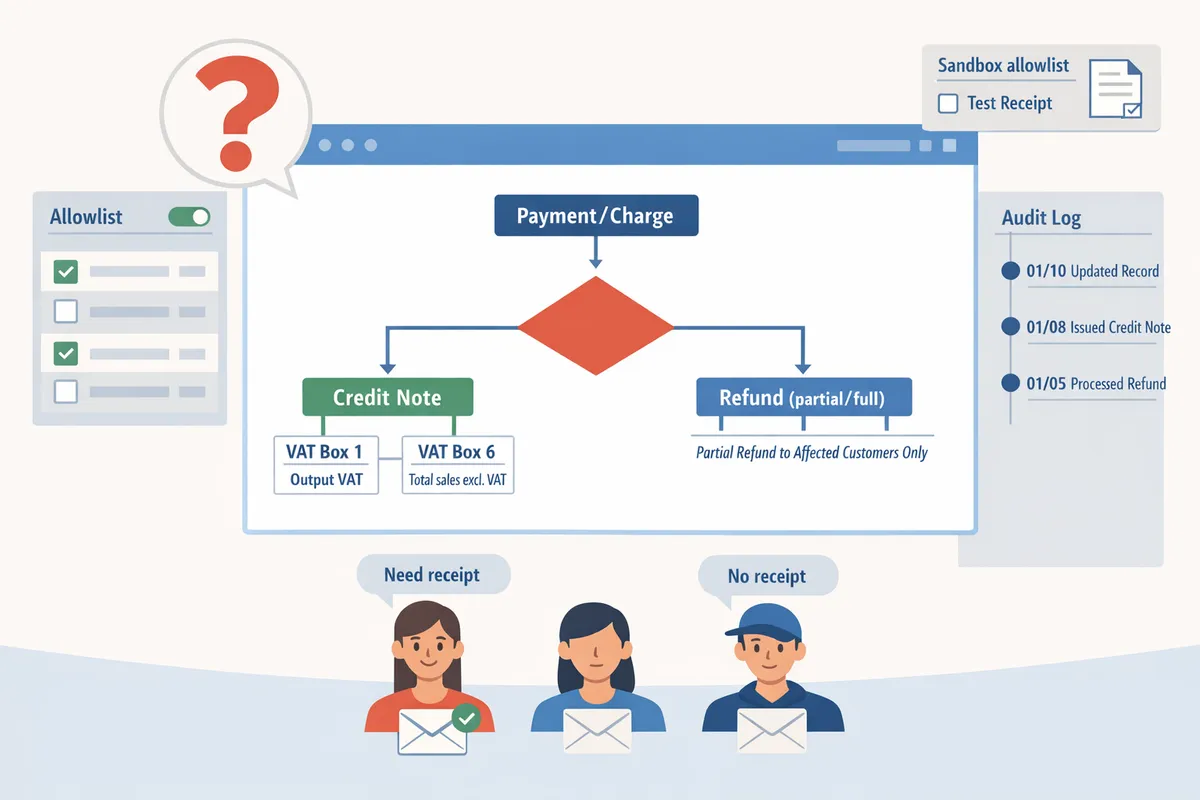
💡 Tip: Use RouteReceipts' sandbox allowlist to send test credit notes and refund emails before updating live customer records to confirm wording and VAT fields match your accounting system.
How do I test, troubleshoot, and manage receipt delivery and re-sends?
Use Stripe test mode with a dedicated test customer and RouteReceipts' decision audit log to verify routing before enabling production traffic. RouteReceipts' decision audit log is an audit feature that records each routing decision (who would have received a receipt and why). Test-run scenarios in sandbox to avoid sending incorrect or duplicate receipts to live customers and confirm VAT fields for your target markets.
How do I test receipts in sandbox? 🧪
Test receipts by using Stripe test mode, a dedicated test customer on your RouteReceipts allowlist, and the RouteReceipts decision audit log to confirm routing. An allowlist is a configuration that lists customer IDs or emails RouteReceipts uses to determine who receives receipts.
- Create a test customer in Stripe and add that customer to your RouteReceipts allowlist.
- Generate a test invoice or payment in Stripe test mode using a Stripe test card.
- Use the RouteReceipts dashboard to preview the outgoing email and check the decision audit log entry to confirm the routing reason.
- Validate VAT fields for UK formatting: include VAT amount per line, VAT registration number, and VAT-exclusive and VAT-inclusive totals in the preview.
For step-by-step setup and sandbox examples, see the RouteReceipts documentation for guided screenshots and common test cases.
How do I re-send receipts after issuing a refund or credit note? 🔁
Re-send corrected receipts from the RouteReceipts dashboard by selecting the transaction, attaching the credit note or refund note, and confirming the recipient on the allowlist before sending. This ensures only authorized customers receive updated documents and prevents accidental public re-sends.
- Find the original transaction in the RouteReceipts dashboard or via the decision audit log.
- Choose "Resend receipt" and attach the credit note or refund note PDF or invoice adjustment.
- Confirm the recipient email matches the allowlist entry and inspect the email preview for correct VAT labels and totals.
- Send to a test address first if this is the first time you resend that document type.
⚠️ Warning: Disable Stripe's automatic receipts before re-sending from RouteReceipts to avoid duplicate emails. See the FAQ for guidance on disabling Stripe's automatic receipts.
If you need help with a specific refund flow, our support page lists the details to include when you contact us.
How do I troubleshoot missing or duplicate receipts? 🕵️
Troubleshoot missing or duplicate receipts by checking Stripe email settings, reviewing RouteReceipts' decision audit log, and inspecting recent routing history for conflicting sends. Use a short diagnosis checklist to isolate the cause quickly.
Diagnosis checklist:
- Confirm the customer email exists and is correct in Stripe.
- Verify the customer is on (or not on) the RouteReceipts allowlist depending on intended behavior.
- Check Stripe's automatic receipt setting to ensure it is disabled when using RouteReceipts.
- Review the RouteReceipts decision audit log for duplicate routing entries or suppressed sends.
Most common fixes:
- Missing receipts: add the customer to the allowlist or correct the email in Stripe, then resend from RouteReceipts.
- Duplicate receipts: disable Stripe automatic receipts and resend the correct version from RouteReceipts after confirming only one send path exists.
For detailed troubleshooting steps and examples of audit-log entries to look for, consult the RouteReceipts documentation and, if needed, open a ticket via our support page with your Stripe account ID.
Branding and localization: currency, VAT formatting, and sample templates 🎨
Customize receipt templates in RouteReceipts to show local currency formats, UK VAT boxes, and brand elements using prebuilt invoice-style, printable, and short email templates. RouteReceipts templates let you control currency symbol placement, decimal separators, date format, and VAT label conventions per template.
Template choices and when to use them:
| Template | Best for | Must-have fields |
|---|---|---|
| Invoice-style (detailed) | B2B clients and expense reporting | Itemized lines, VAT per line, VAT registration number, invoice number |
| Printable receipt | Point-of-sale or in-person fulfillment | Payment method, total paid, date, business address |
| Short email receipt | Low-touch digital purchases | Transaction summary, total (VAT-inclusive), link to printable invoice |
Localization tips: place the currency symbol before or after the amount according to local convention, use comma or period for decimals as appropriate, and format dates to the region (e.g., DD/MM/YYYY for UK). For UK VAT, show VAT-exclusive and VAT-inclusive totals, VAT rate per line item, and your VAT registration number on invoice-style receipts.
See the RouteReceipts documentation for downloadable sample templates and the blog post on why we built RouteReceipts for context on routing decisions and template design.
Frequently Asked Questions
RouteReceipts is a Stripe app that controls which customers receive invoice receipt emails by maintaining an allowlist. This FAQ gives concise, snippet-style answers to the most common RouteReceipts and Stripe receipt questions so you can act quickly. For step-by-step setup and troubleshooting, see the RouteReceipts Documentation and the RouteReceipts FAQ.
Can I send receipts only to enterprise clients? 🤝
Yes — RouteReceipts lets you target receipts to specific customers by email, customer ID, or metadata. Use an allowlist to include enterprise domains, subscription customer IDs, or a metadata flag (for example, company_type=enterprise). Example: add all customer records with billing_email ending in @bigclient.com to the allowlist so finance teams receive receipts while end-users do not. See the No‑Code guide to selective delivery for a beginner-friendly setup and sample allowlist strategies.
How do I stop Stripe from sending receipts to every customer? 📴
Turn off Stripe's automatic customer receipt emails in the Stripe Dashboard and let RouteReceipts handle selective delivery. Disable receipts in both test and live mode, then install RouteReceipts and import or create your allowlist; this prevents duplicate emails and lost auditability. Use the RouteReceipts decision audit log to confirm which receipts RouteReceipts routed before you flip production traffic.
💡 Tip: Always disable Stripe's automatic customer receipt emails in test and live mode before enabling RouteReceipts to avoid duplicate emails.
What is the difference between a credit note and a refund? ⚖️
A credit note adjusts an invoice balance while a refund returns funds to the customer. Credit notes amend accounting documents and must show corrected VAT lines and invoice references; refunds create a separate payment reversal and may require a refund receipt for the customer's bank reconciliation. Example: if a customer returns goods and you need to correct VAT reporting, issue a credit note and re-send an updated receipt that references the credit note so accounting teams match the VAT box entries correctly. For implementation notes, check the RouteReceipts Documentation.
How should receipts show VAT for Making Tax Digital? 📦
Receipts must present VAT per rate, include the supplier VAT registration number, and reference invoice or credit note IDs to support Making Tax Digital submissions. Show each VAT rate with its net value and VAT amount (for example, 20%: net £100, VAT £20), then include the total, supplier VAT number, and invoice reference on the same document. RouteReceipts templates can include those fields by default; consult the Documentation for template fields and examples that make HMRC reconciliation straightforward.
Will RouteReceipts store customer payment data? 🔒
RouteReceipts reads the Stripe objects required for routing and stores only minimal metadata for audit and delivery decisions. The stored metadata typically includes customer_id, routing decision, and delivery timestamp; RouteReceipts does not store full card numbers or raw payment instrument details. For details on retention, third-party processors, and deletion requests, review the RouteReceipts Privacy Policy or contact RouteReceipts Support with your Stripe account ID.
What happens if I exceed my RouteReceipts plan limit? 📈
The dashboard shows usage and prompts upgrade or mitigation options as you approach or exceed plan limits. Immediate steps include pausing nonessential routing, narrowing the allowlist to priority enterprise customers, or contacting RouteReceipts Support for temporary relief. Use the decision audit log to identify any missed sends and reconcile them with accounting processes; see plan management in the Documentation for upgrade paths and alerts.
Can I re-send a receipt after issuing a credit note? 🔁
Yes — RouteReceipts can send an updated receipt that references the credit note so customers and accounting teams receive the corrected document. In the dashboard, locate the original transaction, select send updated receipt, and ensure the notice includes the credit note ID and adjusted VAT lines. Always test the flow in Stripe test mode and confirm the routed email content in the RouteReceipts decision audit log.
Related resources: see the RouteReceipts FAQ for quick answers, the RouteReceipts Documentation for setup and testing steps, the No‑Code guide to selective delivery for a beginner walkthrough, and Why Did We Build Route Receipts? for product rationale and common trade-offs.
Clear next steps for Stripe receipt setup.
This stripe receipt setup faq gives concise, snippet-style answers so you can finish routing receipts, handle credit notes versus refunds for UK VAT, confirm required fields and set email rules without guesswork. If you searched "does a credit note need VAT UK" the article's tax snippet clarifies when credit notes affect VAT boxes and return reporting.
As an event approaches, it is worth considering how details related to convention planning will affect the complete look. With practical wear in mind, it helps to assess details related to character accuracy together with fit and fabric. For combinations connected with details related to women's cosplay costumes, women's cosplay costumes with matching shoes can help narrow the options for a specific purpose. To preserve the character's visual identity, it is useful to check details related to heat resistant cosplay wigs against the wearer's own needs.
RouteReceipts is a specialized application designed to enhance the way businesses manage their Stripe receipt distribution. This app addresses a significant limitation within Stripe's native functionality, which traditionally forces businesses to either send receipts to all customers or none at all. RouteReceipts empowers businesses with the flexibility to selectively send receipts to specific customers, thereby preventing unnecessary email clutter for those who do not require them. By integrating directly into the Stripe dashboard, RouteReceipts allows users to manage an allowlist of customers effortlessly, without the need for complex coding or custom webhook integrations. The application features a dashboard-native user interface, a decision audit log for transparency, and a straightforward setup process via the Stripe Marketplace. RouteReceipts offers a tiered pricing model, starting with a free plan that includes 20 receipts per month, with the option to upgrade for higher volume needs. This solution is ideal for businesses seeking to streamline their financial communications and maintain a professional relationship with their clients by ensuring that only necessary communications are sent.
💡 Tip: Disable Stripe's automatic receipts before enabling RouteReceipts to avoid duplicate emails.
Install RouteReceipts from the Stripe Marketplace and follow the getting-started steps in our Documentation (https://routereceipts.app/docs). Check the RouteReceipts FAQ (https://routereceipts.app/faq) for common questions or reach out via Support (https://routereceipts.app/support). Subscribe to our newsletter for implementation tips and product updates.