Stripe Terminal Printer Compatibility 2026
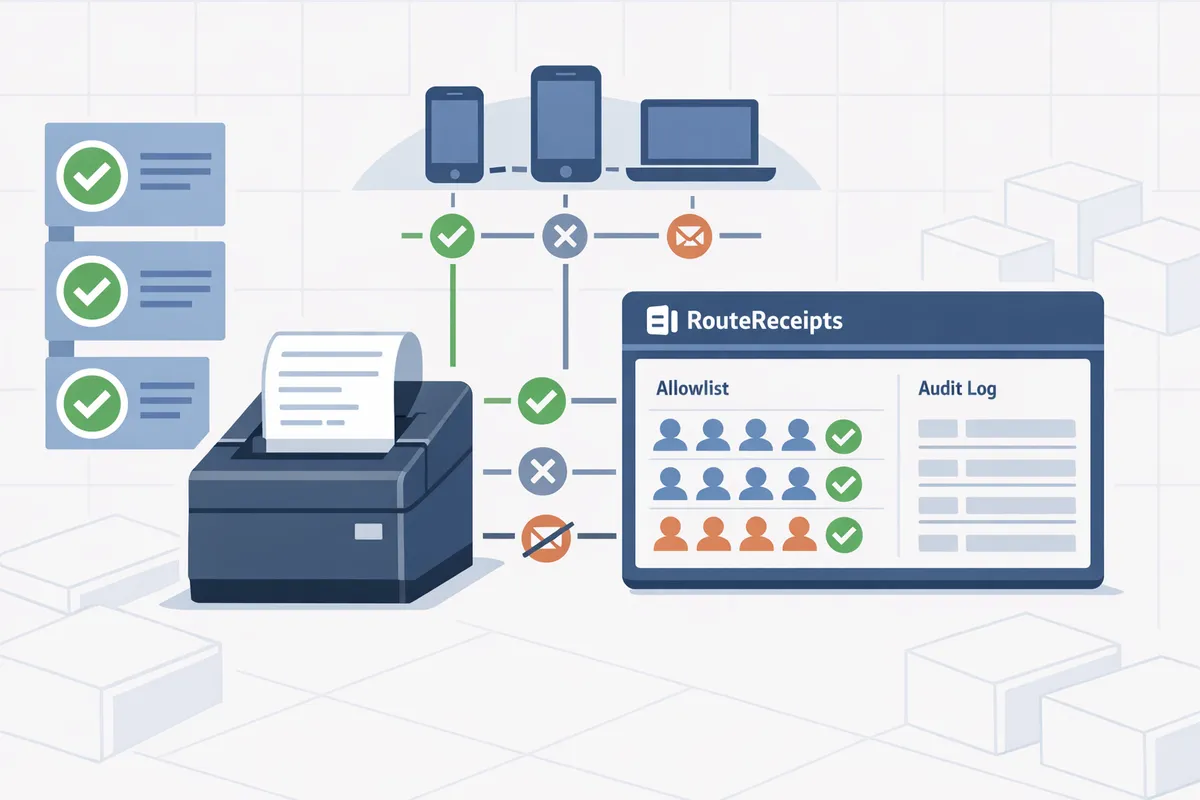
Three common compatibility problems, unsupported connection types, mixed receipt formats, and firmware mismatches, cause frequent failures with Stripe Terminal printers. Stripe Terminal printer compatibility 2026 is a buyer's guide that compares printers, connection types, and receipt workflows for Stripe Terminal. This article shows which printers work best for USB, Ethernet, and Bluetooth setups, and how printing choices affect receipt routing and customer experience. RouteReceipts is a Stripe app that controls which customers receive invoice and receipt emails and its dashboard-native allowlist changes how you design terminal receipt workflows. See the RouteReceipts setup guide and FAQ for installation steps and plan details. One surprising printer feature we found can upend common receipt workflows and deserves a close look.
Which printers and connections are compatible with Stripe Terminal in 2026?
Stripe Terminal supports printing via embedded printers on some readers and external printers connected through the host device using Bluetooth, USB, or Ethernet, with exact support varying by reader model and platform. Use this compatibility layer to shortlist hardware that fits your POS workflow before scheduling an on-site pilot. RouteReceipts complements physical printing by handling selective email receipt delivery so teams avoid duplicate notifications when using printed receipts.
What does the printer compatibility matrix show? 🧾
The compatibility matrix lists popular receipt printers, the connection types they support (Bluetooth, USB, Ethernet), platform behavior for iOS/Android/web, reader compatibility (embedded or external), required host app behavior, and special notes such as kitchen-printing or shared-network setups. External printer is hardware that connects to a host device or a network and handles receipts for one or more stations; embedded printer is hardware built into a reader and prints locally without forwarding through a host. Use the matrix as a shortlisting filter: pick printers that match your POS host's supported connection types and your multi-lane or kitchen routing needs before buying.
| Printer model (examples) | Connections (Bluetooth / USB / Ethernet) | Platform behavior (iOS / Android / Web) | Reader compatibility (embedded / external) | Host app behavior required | Notes |
|---|---|---|---|---|---|
| Star Micronics TSP series | Bluetooth, USB, Ethernet | Works via host POS app on iOS/Android; web printing requires network or a print server | External | Host forwards print jobs or uses driver/SDK on mobile POS | Common for single-lane retail; check paper width |
| Epson TM-m30 series | Bluetooth, USB, Ethernet | Mobile apps on iOS/Android connect via host; web works over Ethernet or cloud print bridge | External | Host must support Epson ESC/POS or use cloud print bridge | Good for compact countertop setups |
| Citizen CT-S310II | USB, Ethernet | Mobile POS apps via USB or network; web via Ethernet | External | Host app uses network printing or USB passthrough | Robust for food-service kitchen printers |
| Zebra ZD420 (thermal) | USB, Ethernet, optional Bluetooth | Mobile apps via USB or Bluetooth; web via network | External | Host must map print jobs to Zebra driver/profile | Useful where large-format or label printing is needed |
| Countertop readers with embedded printers (vendor specific) | Built-in | Prints locally from the reader without host forwarding | Embedded | Host app sends print instruction to reader rather than a separate printer | Best for single-station retail counters |
For step-by-step guidance on configuring receipt routing that works alongside physical printing, see our Documentation on installing and configuring RouteReceipts. If you want a no-code approach to handling which customers receive emailed receipts while keeping local print flows, read our beginner's guide to selective delivery.
Can Stripe Reader M2 print receipts? 🤔
The Stripe Reader M2 does not include an embedded printer; it requires an external printer connected through the host device or POS bridge app. Most M2 deployments pair a mobile POS on iOS or Android that forwards print jobs to a Bluetooth or network printer. Before purchasing printers for M2 setups, document which connection types your host device and POS app support (Bluetooth classic vs BLE, USB host mode, or Wi-Fi/Ethernet).
Using RouteReceipts alongside M2 setups reduces inbox clutter by letting you control which customers get emailed receipts while keeping physical receipts for in-person customers. If your POS app already has an Epson or Star plugin, verify the plugin supports your chosen printer model and check for mobile OS permission quirks that can block Bluetooth pairing.
Which readers include embedded printers and when to prefer them? 🔌
Some countertop Stripe Terminal readers include embedded printers, which are devices that combine the card reader and a built-in receipt printer to print locally without a separate external printer. Embedded readers simplify wiring and reduce points of failure for single-station retail counters; examples include specific countertop models sold with integrated printers (confirm model availability with the vendor before purchase).
Choose embedded printers when you need guaranteed local printing and minimal setup time, such as single-counter retail shops where each station issues one receipt per transaction. Choose external printers when you need shared printers across multiple lanes, kitchen printing, wider paper rolls, or centralized maintenance. External printers let multiple readers and POS terminals print to a single networked device, which lowers paper and service overhead in multi-lane or restaurant environments.
⚠️ Warning: Verify spare-parts availability and onsite servicing for embedded models before committing. Replacing an embedded printer can require swapping the entire reader, which increases downtime and replacement cost.
If you plan to use embedded printing and still want selective emailed receipts, our RouteReceipts app runs in the Stripe dashboard and keeps your email and physical receipt flows separate. For common business scenarios and recommended pilot tests, see our blog post on why we built RouteReceipts and the no-code beginner's guide to selective delivery.
How should businesses choose and configure printers for reliable Stripe Terminal receipt printing?
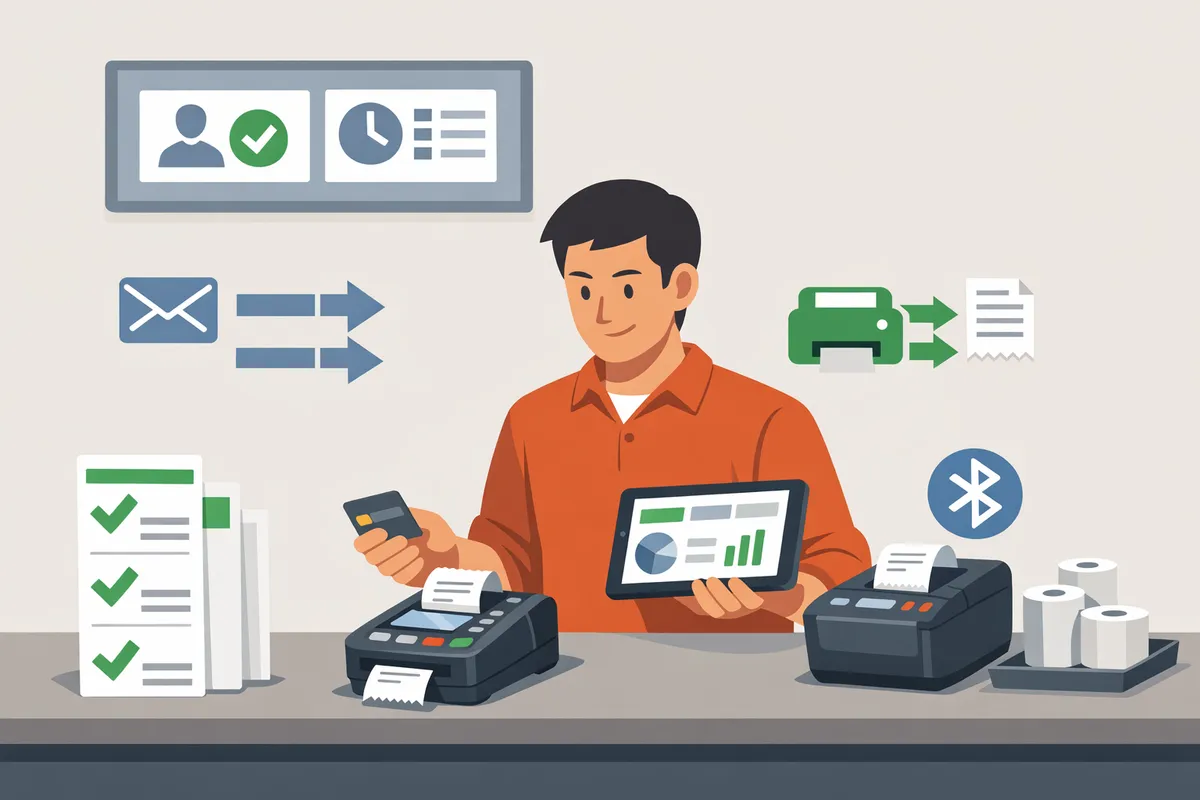
Choose printers that match your host device connection, OS support, and expected receipt volume, then apply a short configuration checklist to avoid the three common failure modes: unsupported connections, mixed receipt formats, and firmware mismatches. Matching those three factors to your POS workflow reduces rollout time and support tickets. The guidance below gives checklists by use case, platform-specific setup steps, and a proven pattern for preventing duplicate emailed receipts when printing is primary.
Printer selection checklist for retail, food service, and field service 📋
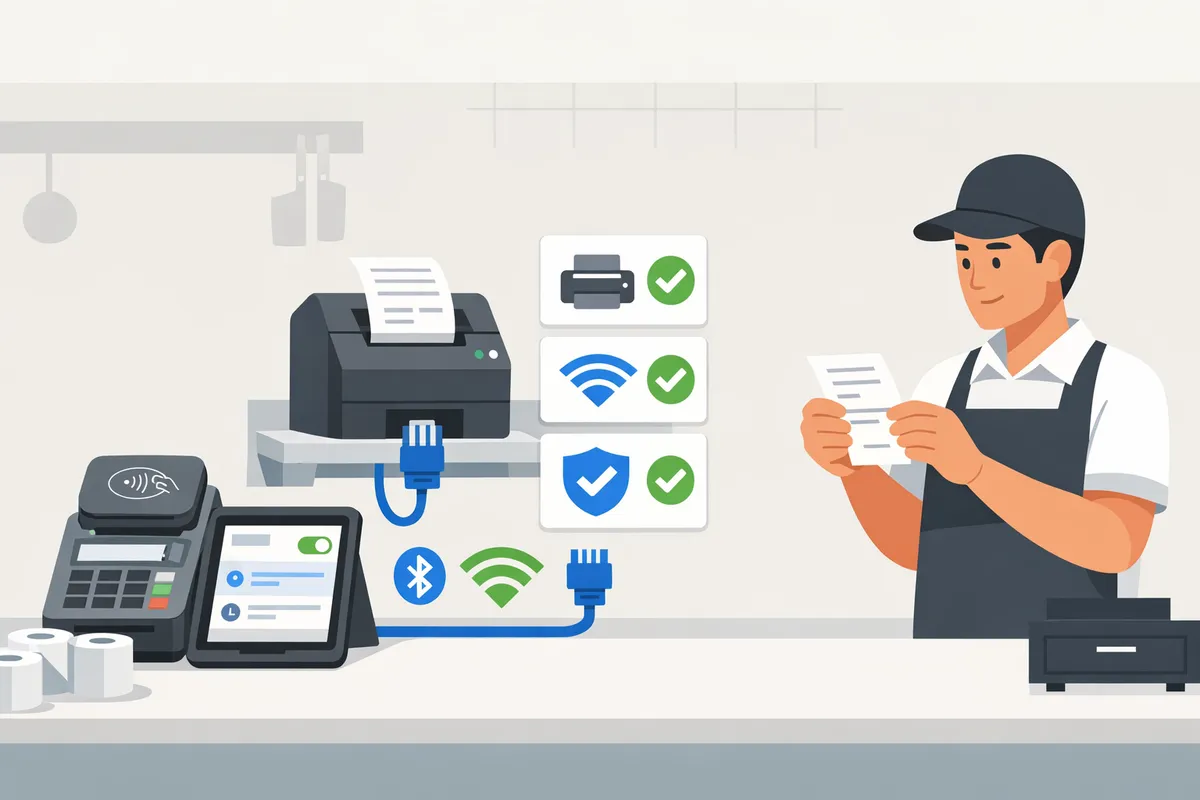
Choose printers that match host connection type, daily receipt volume, paper width, and POS or SDK support.
- Connection type. Match the printer to the host: Bluetooth for mobile POS, USB (OTG) for tethered Android tablets, Ethernet or Wi-Fi for fixed countertop or kitchen printers.
- Volume and speed. Score printers on receipts per day and time-to-first-print. Example: high-volume retail needs 250+ receipts/day and a 200mm/s thermal head; food service needs fast heat printing and splash-resistant casings.
- Paper width and formats. Verify 58mm vs 80mm paper, logo placement, and line-wrapping behavior with your receipt template before buying.
- Durability and replaceable parts. Prioritize models with user-replaceable paper roll holders and accessible print heads for serviceability.
- Vendor support and lead times. Score vendors on support response SLA and replacement lead times; a retailer with 10+ outlets should require 48-hour replacement or local stock.
- POS and SDK support. Confirm your POS or Stripe Terminal host app lists the printer or supports generic ESC/POS commands. If you need a consolidated reference, build a stripe terminal receipt printer compatibility matrix during procurement to compare models and connection types across iOS, Android, and web hosts.
Can Stripe Reader M2 print receipts? No. The Stripe Reader M2 does not include an embedded printer; businesses must print via an external printer attached to the host device. Some readers, such as the Verifone V660p, do include embedded printers—confirm the reader model before assuming embedded printing.
How to set up external printers on iOS, Android, and web 🔧
Set up external printers by matching the connection method to the host, completing the platform pairing steps, and printing sample receipts from the Stripe Terminal host app before a full rollout.
- iOS (hosted POS apps). Pair Bluetooth or use AirPrint where supported. Give the POS app Bluetooth permissions, then print a sample receipt that includes headers, logo, and totals. Test background wake behavior if your app runs in the background during shifts.
- Android (hosted POS apps). Pair Bluetooth, or attach USB OTG and confirm the host app recognizes the printer. Check that the app exposes paper-width and encoding settings for ESC/POS printers.
- Web (browser-based POS). Use network printers (IPP/HTTP) or a local POS bridge application that receives print commands. Verify firewall rules and local DNS so the browser host can reach the bridge on rollout day.
Step checklist for every platform before staff training:
- Firmware: confirm printer firmware matches vendor-recommended build.
- Template: print a long receipt and a short receipt to verify wrapping and QR-code placement.
- Failover: test a manual email receipt fallback for failed prints.
💡 Tip: Keep a one-page setup sheet at each register with pairing steps, paper width, and the vendor support number. This reduces onboarding time and prevents common restart-and-repair calls.
Preventing duplicate receipts and misrouted emails with Route Receipts 🛡️
Route Receipts prevents duplicate emailed receipts by letting you disable Stripe's automatic emails and send receipts only to an allowlist of customers.
Route Receipts is a Stripe app that controls which customers receive receipt emails by maintaining an allowlist inside the Stripe dashboard. Install Route Receipts from the Stripe Marketplace, follow the simple setup to disable Stripe's automatic receipts, and create allowlist rules for customers who require emailed receipts (for example, enterprise clients or expense-account users). Use the decision audit log when finance or support teams need proof of delivery decisions; that log reduces disputes and support tickets about duplicate or missing receipts.
Operational steps to implement when printing is the primary receipt channel:
- Install and configure: follow the Route Receipts documentation to install and disable Stripe's automatic receipts. See the Route Receipts documentation for step-by-step setup.
- Allowlist rules: add customer emails or IDs who must receive emails; keep the allowlist lean to reduce inbox clutter.
- Test: run a pilot for 200–500 transactions and confirm printed receipts appear while emails only go to allowlisted accounts.
Route Receipts offers a free starter plan that includes 20 receipts per month to test routing rules and audit logging. For setup walkthroughs without code, see our beginner's guide to selective delivery and check the Route Receipts FAQ for common install questions.
For more detailed platform checklists and vendor comparisons, consult the Route Receipts documentation and the No‑Code Way to Route Customer Receipts in Stripe: Beginner’s Guide to Selective Delivery.
How do you implement, test, and measure printing reliability for Stripe Terminal deployments?
Implement a repeatable on-site test plan, track a focused set of operational metrics, and keep a runbook that ties printer failures to Route Receipts for email-routing issues. This prevents last-minute surprises at rollouts and reduces lost sales and finance reconciliation time. Use the stripe terminal receipt printer compatibility matrix when selecting hardware so your test plan matches supported connection types and OS pairs.
Step-by-step on-site testing protocol before go-live 🧪
Run pairing, print-quality, volume, and recovery tests with defined pass/fail criteria and a short log for each location.
- Prepare test cards and receipts: include a normal receipt, a long-line-item receipt, a refund receipt, and a split-payment receipt.
- Pairing test: confirm Bluetooth or USB pairing success and record pairing time.
- Print-quality test: print high-density content including logos and long SKU lines; mark any truncation or font issues.
- Volume load test: simulate peak traffic (example: 200 receipts in one hour) and record average time-to-print.
- Recovery tests: force a paper jam and a network drop, then verify the device recovers in under your target time.
- RouteReceipts checks: toggle an allowlist entry and confirm receipts are emailed or withheld per the decision, then record whether printed receipts still print as expected. Log results in a shared spreadsheet to compare vendor consistency across sites.
Reference Route Receipts setup during testing by following the RouteReceipts documentation to toggle allowlist decisions and avoid duplicate emails.
Key metrics to track and acceptable target thresholds 📈
Track print success rate, average time-to-print, mean time between failures, and the percentage of receipts sent by email versus printed on a monthly dashboard with clear targets. Print success rate is a metric that counts completed prints divided by print attempts. Aim for a print success rate above 98%. For example, a location that prints 1,000 receipts per month should see fewer than 20 failed prints. Average time-to-print should meet your POS flow needs; many retailers set a 3 to 6 second target to keep lines moving. Mean time between failures is measured in days; a target of at least 7 days is a practical minimum for busy sites. Track percentage emailed versus printed so finance can reconcile costs and Route Receipts' decision audit log can be used to explain why a receipt was emailed or withheld. Use a simple dashboard or shared spreadsheet to surface regressions monthly and route recurring hardware issues to procurement.
See the Route Receipts FAQ for configuration notes on disabling Stripe automatic receipts to prevent duplicates.
Troubleshooting common printer failures and escalation paths ⚙️
Document fixes for pairing drops, driver mismatches, paper jams, and network routing errors and keep a runbook that includes Route Receipts troubleshooting for duplicated or missing emailed receipts. Triage flow: 1) Confirm the host device OS and connection type match the stripe terminal printer compatibility matrix. 2) If pairing drops, test with another known-good phone or tablet to isolate host versus printer. 3) If print-quality fails, verify paper type and printer firmware; swap with a spare roll to rule out consumables. 4) For network prints, verify DHCP, static IP, and firewall rules; test with a laptop on the same network. 5) For email duplicates or missing receipts, follow the RouteReceipts troubleshooting steps in the documentation to confirm Stripe automatic receipts are disabled and allowlist rules are correct.
Escalation path: on-site staff follow the runbook first, then contact the printer vendor for hardware or firmware issues, and escalate routing or decision log questions to Route Receipts support with the audit-log entries attached. Keep vendor contacts and links to the RouteReceipts documentation and FAQ in the runbook to speed resolution.
💡 Tip: During go-live, run your first 50 transactions as monitored tests and confirm printed receipts, emailed receipts, and audit-log entries match before opening to walk-in customers.
Frequently Asked Questions
This FAQ answers the procurement and operational questions buyers raise about stripe terminal printer compatibility 2026. Use these concise Q&A entries to speed vendor comparisons, pilot checklists, and point-of-sale decisions across retail, food service, and service industries.
Where can I find a stripe terminal receipt printer compatibility matrix? 📑
A current stripe terminal receipt printer compatibility matrix compiles tested printers, supported connection types, and OS support for iOS, Android, and web. Build one during pilots with these standard columns: printer model, supported connection types (USB, Bluetooth, Ethernet, Wi‑Fi), tested OS (iOS, Android, web), firmware version used in tests, POS app compatibility notes, and known quirks (paper size, encoding, character sets). Use vendor-supplied compatibility lists to populate initial rows, then validate each entry with on-site print tests across your host devices. If you need a pilot checklist and configuration examples, see our guide on pilot setup in the No‑Code receipt routing guide and link your findings to centralized documentation for multi-location rollouts.
Can stripe reader m2 print receipts directly? 🖨️
The Stripe Reader M2 does not include an integrated printer and cannot print receipts by itself. Printing requires an external printer routed through the host POS device or a networked print bridge that accepts jobs from the host. Before purchasing an M2, confirm your POS host app can forward print jobs to the specific external printer model you plan to use and test that pairing across the intended OS (for example, iPad POS vs Android tablet). Failure to validate host-to-printer forwarding is a frequent source of unexpected hardware purchases and pilot delays.
Do embedded-printer readers or external printers cost less to maintain long term? 💵
Embedded-printer readers reduce device count but often increase servicing complexity and replacement costs over time. If a reader with an embedded printer fails, you typically remove the entire payment device from service until repaired or replaced, which raises downtime costs. External printers let you keep spare units on hand, centralize firmware updates, and swap hardware without touching the payment reader; this reduces mean time to repair for high-volume environments. Evaluate warranty terms, local repair options, and the expected receipt volume for each location. For example, quick-service restaurants that print hundreds of receipts per hour usually favor modular external printers, while small boutiques sometimes accept embedded devices for counter simplicity.
Can I use network printers with Stripe Terminal web-based setups? 🌐
Yes, web-based Stripe Terminal setups commonly use network printers or a local print bridge to route browser-initiated print jobs to the receipt printer. For browser-hosted POS apps, a local print bridge or POS server typically translates the print job into the protocol supported by the printer (ESC/POS, PDF, or vendor SDK). Test for network issues that affect printing reliability: firewall rules, mDNS/Bonjour discovery failures, and Wi‑Fi congestion during peak hours. Run a 50-print reliability test during peak conditions and measure time from print command to paper feed for both front-of-house and kitchen workflows to validate acceptable latency.
How does RouteReceipts decide which customers receive emailed receipts? 📬
RouteReceipts is an app that sends emailed receipts only to customers on an allowlist you configure in the Stripe dashboard. After you install RouteReceipts from the Stripe Marketplace and disable Stripe's automatic receipts, RouteReceipts checks each payment or invoice against your allowlist (customer ID or email) and either sends the receipt or suppresses it. Each routing decision is written to an audit log so your finance team can reconcile who received what and when. See the RouteReceipts Documentation for step-by-step installation and the FAQ for common setup questions.
💡 Tip: Disable Stripe's automatic receipt emails before enabling RouteReceipts to prevent duplicate emails.
What are the first troubleshooting steps when a printer won't pair with a Stripe host device? 🔎
Restart the host device and printer, verify the connection type, and test printing from a native OS app before escalating to the POS vendor. Follow these sequential steps:
- Confirm physical connections and power. For Bluetooth, remove and re-pair the device in OS Bluetooth settings. For USB, try a different cable and port. For network printers, confirm IP address and pingability.
- Print a native test page from the host device (Settings or Printer Utility) to isolate OS/printer issues from the POS app.
- Check firmware and driver compatibility notes from the printer vendor and note exact firmware versions for support tickets.
- Record error messages, timestamps, and reproduce the problem while connected to vendor support. Not capturing logs and firmware data adds hours to resolution.
- If email receipts appear missing while troubleshooting physical printers, check the RouteReceipts audit log to confirm whether a receipt was sent or intentionally suppressed; consult the Documentation for audit-log locations.
Choose compatible printers and set selective receipt rules before deployment.
The main takeaway is to match printer connection type, driver support, and receipt workflows to your point-of-sale needs so installations run smoothly and receipts print reliably. This guide on stripe terminal printer compatibility 2026 helps you compare USB, Bluetooth, and Ethernet options and pick the right workflow for busy checkout lanes and mixed-device environments.
RouteReceipts is a specialized application designed to enhance the way businesses manage their Stripe receipt distribution. Use RouteReceipts to keep receipts targeted to the customers who need them and avoid inbox clutter for others. Consult the RouteReceipts documentation for a step-by-step RouteReceipts Stripe setup and the beginner's guide for no-code routing patterns.
Schedule a consultation with our team to map your printer fleet, test receipt flows, and implement selective routing with RouteReceipts. Visit the frequently asked questions if you need quick answers about setup and plan options.
💡 Tip: Test printer pairing and selective receipt rules in a staging environment before going live to catch connection or routing issues early.