
Stripe Terminal Receipts and Printing Guide 2026
A single misconfigured Stripe Terminal printer can stop in-person receipts and force staff into long troubleshooting that delays checkout. stripe terminal receipts and printing guide 2026 is a beginners-guide that explains printer selection, on-device setup, receipt layout, and selective email routing with RouteReceipts. Our RouteReceipts app creates an allowlist in the Stripe dashboard so you send receipts only to customers who need them, without custom webhooks (see our RouteReceipts documentation and RouteReceipts FAQ). The guide also shows compatible printers, step-by-step setup, and how to use the RouteReceipts dashboard and audit log to cut unwanted emails. Which printers reliably print from Stripe Terminal and how will selective routing change your back-office workflow?
What receipt types and printing paths does Stripe Terminal support?
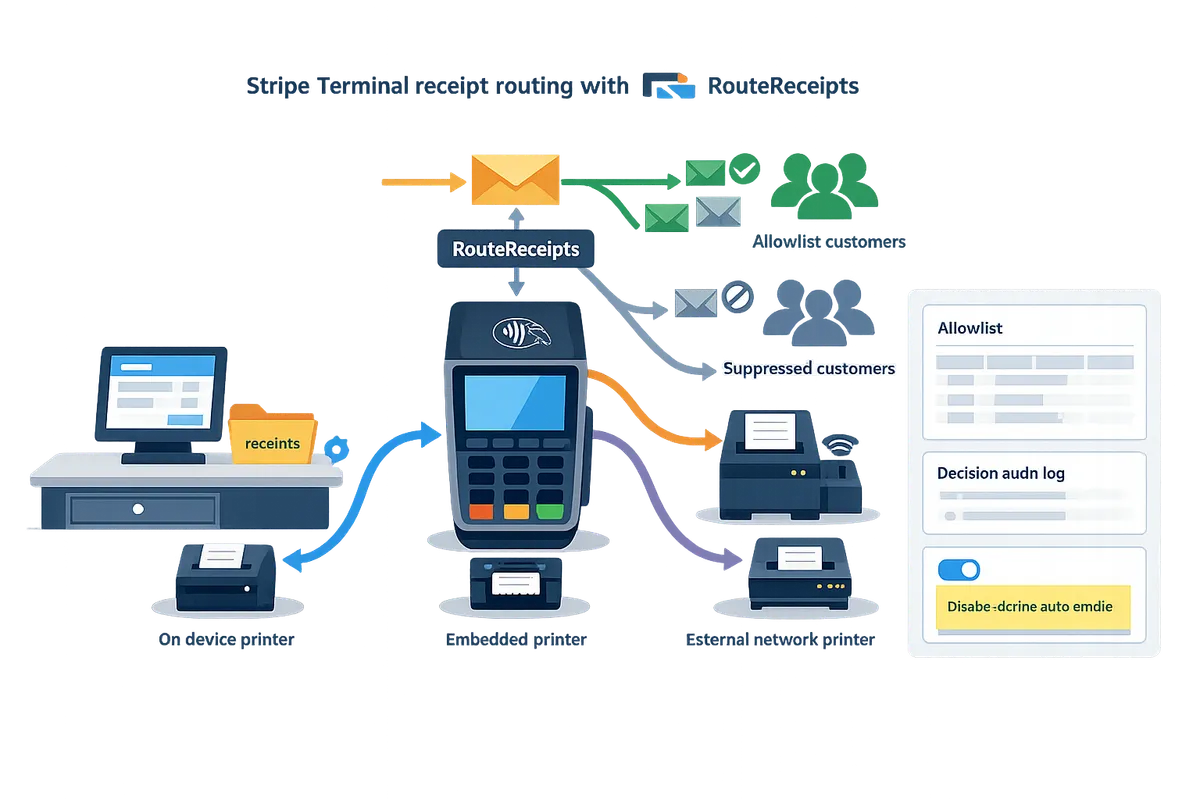
Stripe Terminal supports three primary receipt paths: on-device e-receipts, embedded printer outputs, and external kitchen or countertop printers. Choosing the right mix affects checkout speed, kitchen routing, and customer communications, so pick hardware and workflows that match your front-of-house and back-of-house needs. If you need selective email delivery for invoices, RouteReceipts integrates with Stripe to control who gets email receipts while Terminal continues to print and show on-device receipts.
What is an e-receipt vs a printed receipt? 🧾
An e-receipt is a digital receipt delivered by email or SMS; a printed receipt is a physical paper record produced by a local or networked printer. An e-receipt is a delivery method that reduces paper waste and centralizes expense records. A printed receipt is a physical document that customers often expect at quick-service counters or when a proof-of-purchase is required at the point of sale.
When to use each format. Use e-receipts for enterprise customers who need receipts for expense reconciliation and for customers who prefer digital records. Use printed receipts for quick-service environments, proof-of-purchase for returns, or when local compliance requires a paper copy.
Pros and cons (restaurant vs small retailer).
- Restaurants: Printed receipts help kitchen staff and guests at fast counters; e-receipts simplify corporate tab billing.
- Small retailers: Printed receipts reduce friction at checkout; e-receipts reduce returns fraud and centralize bookkeeping.
Keyword reference: stripe terminal e-receipt vs printed receipt 2026.
Which Stripe Terminal printing paths exist? 📡
Stripe Terminal supports three printing paths: on-device receipts from the reader, embedded printers on countertop terminals, and external printers connected over Bluetooth, USB, Ethernet, or Wi-Fi. Each path fits different workflows and hardware constraints, so match the path to your speed, routing, and physical setup.
| Printing path | Typical use cases | Connectivity | Hardware notes |
|---|---|---|---|
| On-device receipts | Quick checkouts, mobile pop-ups, unattended kiosks | Built into reader (no external connection) | Fast, limited content; depends on reader display and small thermal roll width |
| Embedded countertop printers | Full POS counters where receipts print at the register | Internal to terminal unit | Offers cutters, wider thermal widths, better branding space |
| External kitchen / POS printers | Kitchen tickets, order routing, multi-station printing | Bluetooth, USB, Ethernet, Wi-Fi | Use networked printers for reliability; watch for thermal width and cutter support |
Device constraints to check before buying. Confirm cutter availability for clean ticket separation and thermal print width (e.g., 58mm vs 80mm) for layout needs. Budget printers often skip auto-cutters and use narrower rolls, which can complicate kitchen workflows.
How RouteReceipts fits into Stripe Terminal receipt flows 🔗
RouteReceipts is an app that lets you selectively send Stripe invoice receipt emails while Stripe Terminal continues to handle on-device and physical printing. Install RouteReceipts from the Stripe Marketplace, disable Stripe's automatic receipt emails to avoid duplicates, and maintain an allowlist from the RouteReceipts dashboard to control which customers receive emails.
Integration points and practical steps.
- Install RouteReceipts and follow our Documentation to connect to your Stripe account.
- Disable Stripe automatic receipt emails so the platform does not send duplicates.
- Build an allowlist in the RouteReceipts dashboard for customers who should receive invoice emails.
- Monitor the decision audit log to verify routing behavior.
Operational benefits. Using RouteReceipts reduces inbox clutter for customers who do not need emails and ensures enterprise clients receive receipts for expense reporting without custom webhooks or engineering time. For a no-code walkthrough, see our No‑Code guide to selective receipt delivery. For setup questions and common troubleshooting, consult our Frequently Asked Questions.
💡 Tip: Disable Stripe's automatic receipt emails before enabling RouteReceipts to prevent duplicate emails and simplify testing.
How do I choose printers, set up Stripe Terminal, and limit receipt emails to selected customers?
Choose printers by use case and connectivity, set Stripe Terminal printer options correctly, and use Route Receipts to send receipt emails only to chosen customers. This prevents printed-checkout failures and avoids duplicate or unwanted emails during go-live.
Choosing a printer: embedded, countertop, or kitchen? 🖨️
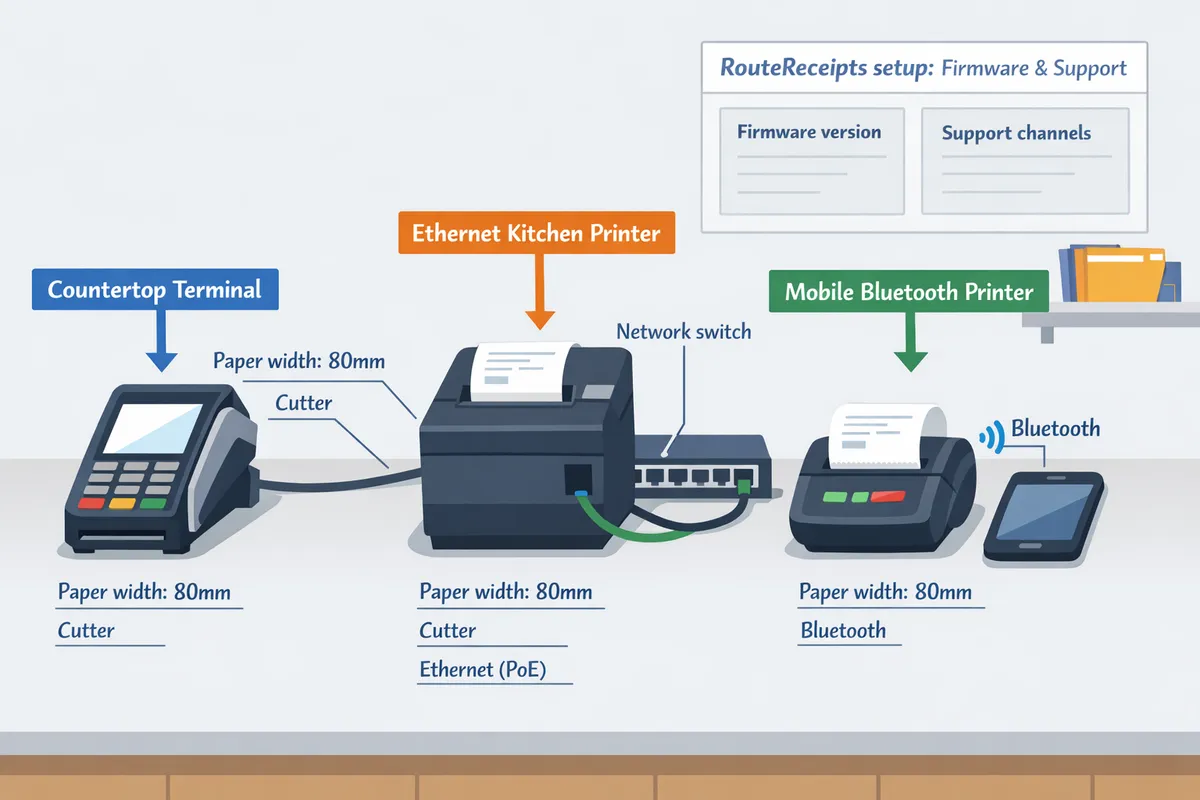
Select a printer by form factor, connectivity, duty cycle, and environment rather than by brand alone. For countertop POS, prioritize stability and paper width (80mm receipts for full logos and itemized lists). For mobile or pop-up merchants choose a Bluetooth mobile printer with fast pairing and swappable batteries. For kitchens pick Ethernet ticket printers with protective housings that tolerate heat and grease.
Specific buyer criteria to evaluate before purchase:
- Paper width. 80mm prints full receipts and logos; 58mm reduces width and cost. Test your receipt layout before locking a size.
- Cutter type. Automatic cutters speed checkout but add a mechanical failure point; tear bars are cheaper to service.
- Duty cycle and MTBF. Check vendor specs for daily print pages and recommended replacement intervals for high-volume shifts.
- Replacement parts and service. Confirm local parts availability and vendor support hours.
Our website recommends validating a merchant’s busiest shift by printing 500 typical receipts in a staging area to reveal cutter and thermal head wear issues.
Step-by-step setup checklist for Stripe Terminal and printers ✅
Set Stripe Terminal to the correct receipt mode, connect the printer (Ethernet, USB, or Bluetooth), then run live test transactions to validate prints and prompts. Follow these steps in order:
- Confirm use case and chosen printer model from the compatibility matrix below.
- Configure the printer on the same network as the reader (assign a static IP for Ethernet models) or pair Bluetooth on the device running your POS app.
- In Stripe Terminal, select the desired receipt mode (on-device e-receipt, embedded printer, or external printer) and enable tipping prompts if needed.
- If you plan to route emails selectively, disable Stripe’s automatic receipt emails now to avoid duplicate messages. See Route Receipts documentation for the exact Stripe settings.
- Install printer credentials and firmware updates from the vendor before first-use.
- Run these test prints: sale, refund, tip, and split payment. Verify branding, tax lines, and tip prompts appear as expected.
- Train staff on paper replacement and basic troubleshooting (cutter jam, offline state).
💡 Tip: Disable Stripe automatic receipts before enabling selective routing to prevent duplicate emails during testing. Refer to the Route Receipts setup guide for step-by-step toggles.
How to limit Stripe receipt emails to select customers using Route Receipts 🛡️
Install Route Receipts from the Stripe Marketplace and use its allowlist to send email receipts only to specified customers. After installation, follow these core actions:
- Disable Stripe's automatic receipt emails in your Stripe Dashboard so Route Receipts can be the single routing authority. The Route Receipts docs show the exact dashboard toggles and installation steps.
- Create an allowlist in the Route Receipts dashboard by adding customer IDs or email addresses. You can group enterprise clients who require invoices separately from walk-in consumers.
- Test routing with sample invoices and check the decision audit log to confirm which receipts were delivered or suppressed. The log provides timestamps and the routing rationale.
Business impact example: a multi-location retailer using selective routing reduced customer support queries about unwanted emails and preserved automated receipts for corporate accounts that need receipts for expense reports. For a no-code walkthrough, see our beginner’s guide to selective delivery and the step-by-step no-code routing article.
Printer compatibility matrix (models, costs, and failure modes) 📊
The table below compares common receipt and ticket printers by connection type, typical Stripe Terminal support path, approximate purchase cost, and common failure modes.
| Model (example) | Connection type | Stripe Terminal support path | Avg. purchase cost (USD) | Common failure modes | Firmware / vendor notes |
|---|---|---|---|---|---|
| Epson TM-m30 (compact countertop) | Ethernet, USB, Bluetooth | Works with Stripe Terminal via network or POS integrations; common for countertop embedded printing | $150 to $350 | Cutter wear, paper feed jams | Update firmware before deployment; compact design may limit serviceability |
| Star TSP143III (desktop) | Ethernet, USB, Bluetooth | Frequently used with cloud-enabled POS flows and Stripe Terminal through network printing | $180 to $320 | Cutter failure, Bluetooth pairing drop | Vendor provides drivers and firmware; ensure latest print spooler settings |
| Brother RJ-4250 (mobile thermal) | Bluetooth (BLE), Wi‑Fi | Used for mobile Stripe Terminal setups where the reader is paired to a tablet or phone | $250 to $450 | Battery aging, Bluetooth pairing issues | Carry spare batteries; validate OS compatibility with POS app |
| Bixolon SRP-350III (kitchen/ticket) | Ethernet, USB | Suited for kitchen ticket printing connected to LAN with a print server | $250 to $500 | Grease/heat damage, paper curl | Choose thermal paper rated for kitchen environments; install splash guards |
Check vendor sites for firmware release notes and contact channels before purchase. For Stripe-specific setup steps and any printer firmware guidance that affects receipt formatting, consult the Route Receipts documentation and the installation guides linked above.
For more setup detail, see the Route Receipts documentation, our beginner’s guide to selective delivery, and the Route Receipts FAQ for installation and troubleshooting guidance.
What advanced receipt workflows, troubleshooting steps, and design best practices should I follow?
Use clear receipt layouts, a short, repeatable troubleshooting checklist, and centralized routing with an auditable log to keep Stripe Terminal printing reliable across locations. RouteReceipts is an application that controls which customers receive Stripe receipt emails by using an allowlist, and our website recommends combining selective email routing with validated printer hardware for predictable operations. The guidance below covers printable layout templates, an ordered troubleshooting flow, operational controls for scale, and why RouteReceipts reduces ongoing engineering effort.
Receipt design and branding tips for Stripe Terminal receipts 🎨
Prioritize merchant name, clear itemization, tax and tip prompts, and a concise return or warranty block so receipts remain legible on thermal rolls. Thermal paper is heat-sensitive paper that prints by reacting to a heated print head; it renders logos and fine detail poorly, so use high-contrast, simplified artwork or skip logos for the smallest printers.
Design rules and templates (practical examples).
- 80mm template (typical for countertop receipts). Start with centered merchant name and address, then date/time and order number. Item lines: quantity, short name, unit price, modifier lines indented. Subtotal, tax lines with tax type, tip prompt line, payment method and card last-4, concise return policy (one or two short lines).
- 58mm template (mobile or compact). Merchant name, date/order ID, condensed itemization (abbreviate long names), subtotal/tax/total, payment method. Limit footer to single-line return policy and contact phone.
Restaurant vs retailer specifics.
- Restaurants: include order modifiers inline (e.g., "Burger +no onion"), server or station ID, table number, and a printed tip prompt or separate tip line. This reduces disputes over modifiers.
- Retailers: include SKU or item code for each line, discount lines clearly labeled ("Promo -10%"), and a tax breakdown to help accounting reconcile sales tax by jurisdiction.
Use phrasing that reduces disputes and aids reconciliation: "Please contact accounts@yourdomain.com within 14 days with receipt and transaction ID for refunds." Prefer explicit, short timeframes and a dedicated refund email to move disputes out of general inboxes.
Common printing failures and a step-by-step troubleshooting workflow 🛠️
A short, ordered checklist—power and paper, network and pairing, configuration, Terminal logs, and a controlled test transaction—isolates most printing failures quickly. Follow these steps in order to save time and avoid repeated site visits:
- Confirm power and paper. Verify the printer has power, the correct paper orientation, and no visible jams. Replace the roll and test feed.
- Validate connectivity. Check whether the printer is paired to the Terminal (Bluetooth) or reachable on the LAN (Wi-Fi or Ethernet). For network printers, confirm the printer's IP or DHCP lease and that the POS network allows printer traffic.
- Check Terminal and printer configuration. Ensure the selected printer model appears in Stripe Terminal settings and that the correct print template is assigned. Mismatched paper width (58mm vs 80mm) causes clipped output.
- Inspect Stripe Terminal logs. Use the Terminal logs in the Stripe Dashboard to see print job errors or timeouts. Logs often show whether the print command reached the reader or if the failure happened at the printer.
- Run a controlled test transaction. Create a low-value test charge and trigger a print from the Terminal to reproduce the failure in a predictable state.
- Escalate when hardware faults appear. If physical errors persist after steps above, contact the printer vendor for hardware service and open a support ticket with the printer serial and firmware version.
💡 Tip: Keep a labeled spare roll of the correct paper width and an extra power adapter at each terminal to resolve the most common onsite failures within minutes.
Include these escalation signals in your runbook: repeated paper sensor faults, persistent network flakiness across devices, or firmware-mismatch messages. For issues tied to Stripe Terminal log errors, link the log excerpt into a support ticket and reference our Documentation for routing-related troubleshooting steps.
Scaling operations, auditability, and compliance for receipts 📁
Standardize on a short list of validated printer models, document allowlist and support policies, and use RouteReceipts' decision audit log to maintain an auditable trail for receipt delivery and disputes. The RouteReceipts decision audit log records which receipts were sent or withheld and why, which supports dispute handling and reconciliations when customers or accounting teams ask for proof of delivery. See the RouteReceipts Documentation for details on how the audit entries are recorded.
Operational rollout checklist for multi-site deployments.
- Pilot: Validate one printer model and template at a single site, confirm print quality and template spacing on both 58mm and 80mm rolls.
- Inventory: Purchase a small fleet of identical printers per site and maintain a kit of spare parts (rolls, adapters, spare network cables).
- Policies: Create an allowlist policy and support playbook (who replaces paper, who reboots devices, escalation path).
- Monitoring: Centralize logs and set alerts for repeated print failures or audit-log anomalies.
Cost and maintenance trade-offs to plan for include spare-part stock, occasional vendor servicing, and staff time for on-site resets. Documenting an allowlist policy and using RouteReceipts' dashboard-native UI reduces configuration drift versus per-location custom scripts. For more on no-code rollout options and allowlist setup, see our No‑Code guide to selective delivery and the RouteReceipts Frequently Asked Questions.
⚠️ Warning: Avoid printing full card numbers, government IDs, or unnecessary personal information on receipts to reduce privacy risk and compliance exposure.
Why using RouteReceipts saves operational time versus DIY routing ⏱️
Using RouteReceipts removes ongoing engineering and operational overhead from receipt routing by providing an allowlist UI, decision audit log, and marketplace installation without custom webhooks. Building custom routing requires developing and maintaining webhooks, test harnesses, and error recovery logic; those projects create recurring hours of work every time Stripe changes webhook formats or your business adds a new customer class.
Business consequences of DIY routing.
- Engineering time. Teams must allocate developer hours to write, test, and maintain routing code and to react when receipts are misrouted.
- Operational risk. Custom integrations increase the chance of duplicate or missing receipts during deployments or outages, which raises support tickets and slows reconciliation.
- Auditability gap. Without a centralized decision log, finance teams spend more time matching receipts to transactions.
RouteReceipts provides a dashboard-native flow to manage an allowlist and a decision audit trail that non-technical staff can use for auditing and dispute resolution. For step-by-step install and how the allowlist logic works, review the RouteReceipts Documentation and the beginner’s no-code walkthrough in our No‑Code Guide to Selective Delivery.
Frequently Asked Questions
This FAQ answers operational and technical questions about Stripe Terminal receipts, printed receipts, and selective email routing with Route Receipts. Each answer gives a concise, actionable response and points to further setup or troubleshooting resources.
How does Stripe Terminal print receipts? 🖨️
Stripe Terminal prints receipts on the reader, sends print jobs to an embedded terminal printer, or forwards jobs to external networked printers depending on your device and configuration. For example, a countertop terminal with an integrated thermal printer prints immediately after payment, while a mobile reader often routes the job to a paired Bluetooth or Wi‑Fi printer. Check the terminal hardware manual for model-specific setup steps and pairing instructions. For printer-specific configuration and Route Receipts considerations, see the Route Receipts Documentation.
Can I send an e-receipt and a printed receipt for the same sale? ✉️🧾
Yes; Stripe Terminal can produce a physical printout while Stripe issues an e-receipt for the same transaction. Route Receipts controls which customers actually receive the email copy by checking your allowlist before sending receipt emails. To avoid duplicate messages, disable Stripe’s automatic receipt emails or follow the installation steps in the Route Receipts documentation. Example: send a printed receipt to a walk-up customer while only emailing receipts to corporate accounts listed in your allowlist. ⚠️ Warning: Disable Stripe's automatic receipt emails to prevent duplicate emails when you use Route Receipts.
What printers work with Stripe Terminal in 2026? 🧾
Supported printers include readers with embedded thermal printers and validated external models optimized for retail and kitchen environments. Key selection factors are connectivity (Ethernet, Wi‑Fi, Bluetooth), supported paper widths (58mm vs 80mm), firmware compatibility, and environmental durability for kitchen heat and humidity. Consult the printer compatibility matrix in this guide and verify firmware requirements in the Route Receipts Documentation before buying. Example: many small retailers choose compact thermal printers for countertop receipts, while restaurants pick rugged kitchen printers with Ethernet or Wi‑Fi for reliable ticketing.
How do I limit Stripe receipt emails to select customers? 🔒
Install Route Receipts from the Stripe Marketplace and create an allowlist in the Route Receipts dashboard to route email receipts only to chosen customers. Steps: 1) Install Route Receipts via the Stripe Marketplace; 2) Disable Stripe's automatic receipt emails (to avoid duplicates); 3) Add customer emails or IDs to your Route Receipts allowlist; 4) Test with sample transactions and verify decisions in the audit log. This approach avoids writing custom webhooks and preserves an auditable routing history. For a step‑by‑step walk‑through, see the beginner guide on How to Limit Stripe Receipts to Chosen Customers (Step‑by‑Step, No Code) and the Route Receipts Documentation. Example: add your enterprise clients to the allowlist so they receive emailed receipts for expense reports while casual retail customers do not.
Are kitchen tickets different from customer receipts? 🍽️
Yes; kitchen tickets focus on order fulfillment and usually omit payment summaries, customer contact details, and return policy language. Kitchen tickets show items, modifiers, quantities, table or ticket numbers, and prep notes; customer receipts include taxes, payment method, and merchant contact info. Route Receipts manages email routing and does not change what the terminal prints, so route kitchen tickets to dedicated kitchen printers and customer receipts to countertop printers. Example: route order items to a kitchen printer while printing a payment receipt at the front counter for the customer.
What should I do if a receipt fails to print? 🛠️
Run a short troubleshooting checklist: confirm the printer has paper and power, verify the reader and printer are on the same network or paired over Bluetooth, check printer status LEDs and error codes, then perform a controlled test transaction. Follow these numbered steps for clarity:
- Check paper roll and power connections.
- Verify network (Ethernet/Wi-Fi) or Bluetooth pairing and signal strength.
- Inspect printer LEDs and consult vendor error codes.
- Print a configuration or test page from the printer menu.
- Run a single test sale on the Terminal to reproduce the issue. If the problem persists, consult the Route Receipts troubleshooting notes in the Documentation and contact the printer vendor. Example: a common failure mode is a mismatched paper width causing jams; the vendor's support article often lists the fix. > 💡 Tip: Keep a spare paper roll and a quick printed checklist at each terminal so staff can resolve common print failures without pulling technical support.
Does Route Receipts keep a record of routing decisions? 📋
Yes; Route Receipts records routing decisions and routing events in a decision audit log within the dashboard. The audit log lets you search by transaction ID or customer to see why a receipt was or was not sent, which helps with accounting reviews and dispute resolution. Example use: finance teams can export decision entries for a given month to reconcile which corporate clients received emailed receipts. For details on what the log records and how to use it, see the Route Receipts Frequently Asked Questions and Documentation.
Finalize your Stripe Terminal receipts and printing setup with clear next steps.
You now know how to pick printers, format receipts, and control delivery so printed and e-receipts behave predictably. This stripe terminal receipts and printing guide 2026 focused on practical choices that reduce manual work and inbox clutter for finance teams.
RouteReceipts is a specialized application designed to enhance the way businesses manage their Stripe receipt distribution. This app addresses a significant limitation within Stripe's native functionality, which traditionally forces businesses to either send receipts to all customers or none at all. RouteReceipts empowers businesses with the flexibility to selectively send receipts to specific customers, thereby preventing unnecessary email clutter for those who do not require them. By integrating directly into the Stripe dashboard, RouteReceipts allows users to manage an allowlist of customers effortlessly, without the need for complex coding or custom webhook integrations. The application features a dashboard-native user interface, a decision audit log for transparency, and a straightforward setup process via the Stripe Marketplace. RouteReceipts offers a tiered pricing model, starting with a free plan that includes 20 receipts per month, with the option to upgrade for higher volume needs. This solution is ideal for businesses seeking to streamline their financial communications and maintain a professional relationship with their clients by ensuring that only necessary communications are sent.
💡 Tip: After installing, disable Stripe's automatic receipts to avoid duplicate emails and use the allowlist for precise routing.
Get started by following the RouteReceipts documentation to install the app and create your allowlist. For a no-code walkthrough, see the No‑Code Way to Route Customer Receipts guide, and consult the FAQ if you run into setup questions. Subscribe to our newsletter for implementation tips and product updates for RouteReceipts.