
Uninstall Stripe App: Update or Remove RouteReceipts
Duplicate receipt emails can flood customer inboxes and create 2–5 hours of extra support work for small merchants each week. If you need to uninstall stripe app or update RouteReceipts, this FAQ-style guide walks through safe removal, cleanup, troubleshooting, and a clean reinstall. RouteReceipts is a Stripe app that lets businesses selectively send receipts to only the customers who need them, avoiding blanket sends. Our step-by-step checklist covers disabling Stripe's automatic receipts, auditing allowlists, removing stored routes, and preserving decision audit logs. Follow the documented steps in the RouteReceipts setup docs to avoid downtime and missing receipts. Which settings cause duplicate sends and what post-uninstall checks reveal hidden routing rules?
How do I update or uninstall RouteReceipts from the Stripe Dashboard?
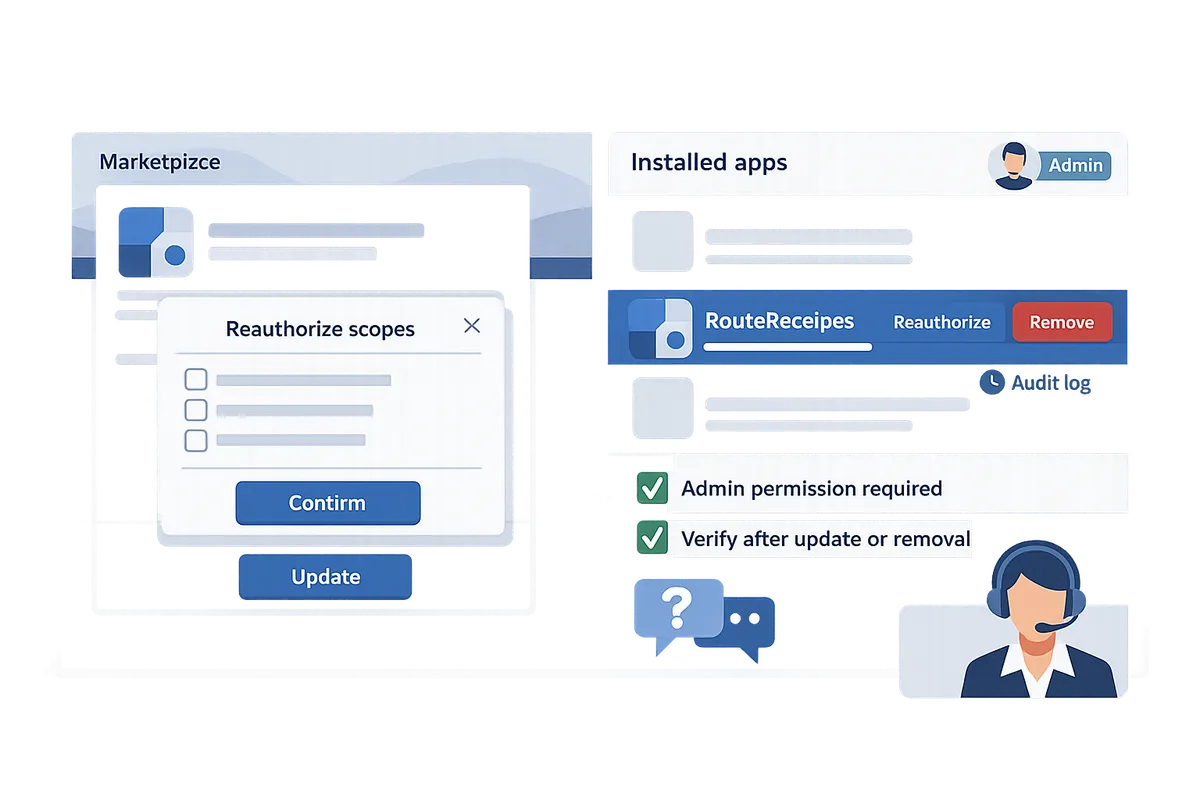
You can update or uninstall RouteReceipts from the Stripe Dashboard using the Installed apps page or the app's Marketplace listing. Use the Marketplace entry to apply new releases or reauthorize permissions; use Installed apps to remove the integration immediately. The steps below list exact UI paths, the admin permissions required, and recommended verification after either action.
How do I update RouteReceipts from the Stripe Marketplace? 💡
You update RouteReceipts in the Stripe Marketplace by opening its Marketplace listing and following the marketplace update flow, which may prompt you to reauthorize new scopes. Start in Stripe Dashboard > Marketplace, search for RouteReceipts, and open the app listing to view change notes and the Update or Manage button. Follow the on-screen prompts to accept scope changes and confirm billing or plan modifications in the RouteReceipts dashboard if the release requires a higher tier.
Steps to update via Marketplace:
- Log into the Stripe Dashboard as an admin.
- Go to Marketplace and open the RouteReceipts listing.
- Review change notes and itemized permission requests.
- Click Update or Manage and follow the reauthorization prompts.
- Confirm any plan changes inside the RouteReceipts billing page.
Check the RouteReceipts documentation for marketplace-specific screenshots and notes about required scopes. For details on how RouteReceipts uses requested scopes, see our security and permissions FAQ in the permissions guide.
How do I uninstall RouteReceipts via Installed Apps in Stripe? 🗑️
You uninstall RouteReceipts by navigating to Stripe > Settings > Installed apps, selecting RouteReceipts, and confirming the removal as an admin. Only users with the account admin role can remove installed apps; Stripe will list the app's connected scopes and webhook access before you confirm. Follow the numbered clicks below to remove RouteReceipts without guessing.
Uninstall steps (Installed apps):
- Sign into Stripe as an account admin.
- Open Settings (bottom-left) > Installed apps.
- Locate RouteReceipts and open the app detail or three-dot menu.
- Click Remove or Uninstall and review the listed scopes.
- Confirm removal and note any messages about remaining webhooks or tokens.
After uninstalling, run one verification: create a small test charge and confirm Stripe's receipt behavior matches your intent. For guidance on test scenarios that catch common mistakes, see the Stripe Terminal SDK Receipts Implementation Mini-Kit 2026. For scope and data questions post-uninstall, consult the RouteReceipts security, permissions, and compliance FAQ.
⚠️ Warning: Only users with the account admin role can complete uninstall. If you do not see Installed apps in Settings, confirm your role before attempting removal to avoid partial disconnects.
Does the uninstall flow differ on web, mobile, or third-party marketplaces? 📱
The uninstall action is conceptually the same across platforms, but the UI and extra marketplace layers create different steps on mobile and third-party platforms like Wix or Shopify. On Stripe web you follow Settings > Installed apps; on the Stripe mobile app the Installed apps area lives under Settings but the screen layout is condensed and some confirmation dialogs may appear on a separate browser window. Third-party marketplaces often require you to remove the app from two places: the marketplace (Wix, Shopify) and the Stripe Installed apps page.
Platform-specific notes and recommended verifications:
- Stripe web: Full controls and change notes display inline; prefer web for updates that request new scopes.
- Stripe mobile: Use for quick checks, but complete updates or reviews on desktop if you need to see full change notes.
- Third-party marketplaces (Wix/Shopify): Uninstall in the marketplace first, then remove the Stripe connection under Installed apps. A residual connection can remain if only one side is removed.
💡 Tip: After uninstalling from any platform, run a single test charge and confirm the expected receipt behavior. If receipts still route incorrectly, check Installed apps and the RouteReceipts dashboard to ensure the connection state is fully cleared.
Related resources: see the RouteReceipts for Stripe: Complete User Guide (2026 Edition) for step-by-step setup and the Frequently Asked Questions for common post-uninstall questions about data and account closure.
What data and access remain after I uninstall RouteReceipts, and how do I revoke access?
Uninstalling RouteReceipts revokes the app's active integration but does not automatically delete the allowlist, decision audit logs, or any backups RouteReceipts stores. Check RouteReceipts' privacy policy and Terms of Service to understand retention windows and the process for data-deletion or export requests. Follow the steps below to confirm what remains and to fully revoke access to your Stripe account.
Does uninstall delete my allowlist or audit logs?
No. Uninstalling RouteReceipts does not delete the allowlist entries or the decision audit logs that RouteReceipts retains. You must remove allowlist entries directly from the RouteReceipts dashboard (Settings > Allowlist) to stop future routing decisions for those customers. If you need a full data purge or an export for compliance, submit a data request per the RouteReceipts privacy policy and Terms of Service; the privacy policy explains the verification steps and expected response timeframe. For procurement and security reviewers, see our RouteReceipts security and permissions FAQ for a list of audit artifacts you can request.
How do I revoke access to my Stripe account and remove webhooks?
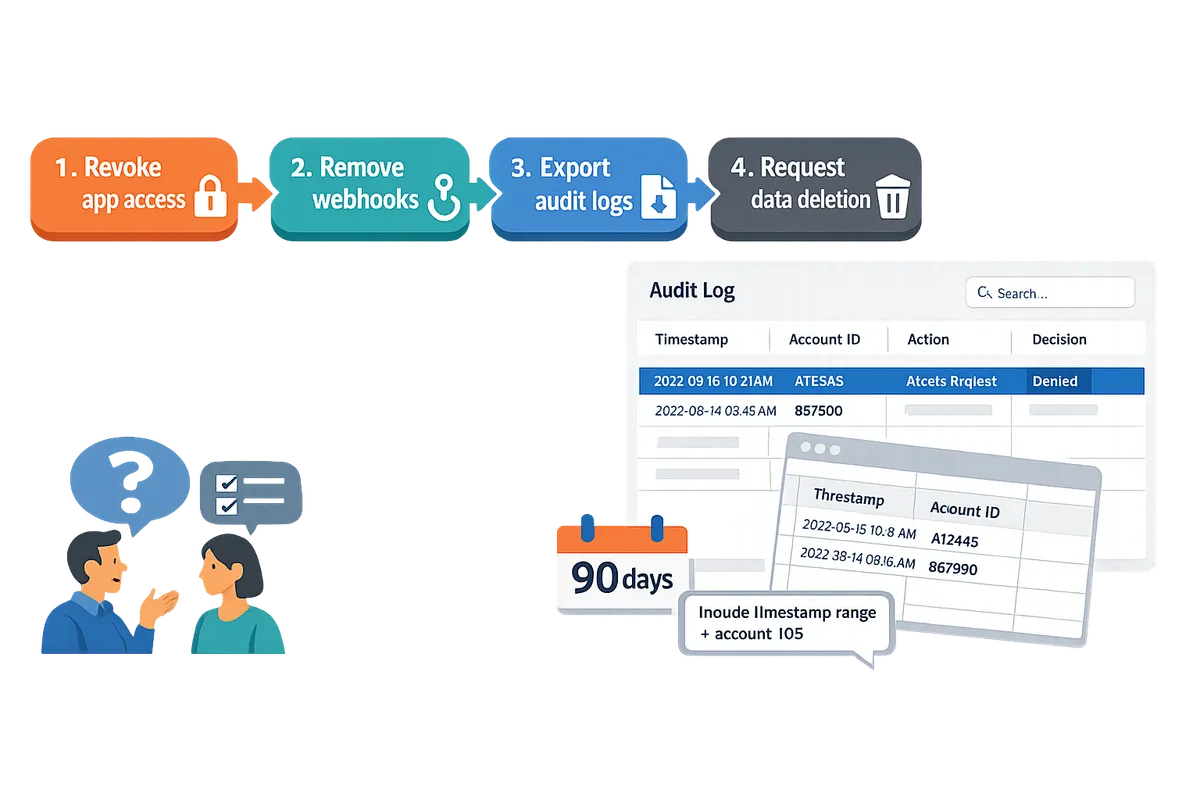
Revoke the app OAuth authorization, delete any RouteReceipts webhooks in Stripe, and remove stored API credentials or backups that reference RouteReceipts. Follow this checklist:
- Open Stripe Dashboard > Installed apps and revoke RouteReceipts' authorization.
- In Stripe, go to Developers > Webhooks and delete any endpoints added by RouteReceipts.
- Remove saved API credentials, service accounts, or automation rules in your internal systems that reference RouteReceipts.
- Search backups, shared drives, and secret managers for tokens or webhook URLs and delete or rotate them.
- Contact RouteReceipts support to confirm your account shows as uninstalled and to request confirmation that no active connections remain.
⚠️ Warning: Export decision audit logs and allowlist snapshots before revoking access if you need records for finance or compliance. Once you request deletion, those artifacts may become unrecoverable.
What compliance and audit steps should I run after uninstalling RouteReceipts?
Run a short audit checklist: export logs, confirm allowlist export or deletion, notify internal teams, and record the uninstall event in change control. Practical items to include:
- Export Stripe event logs relevant to receipt delivery and any webhook deliveries for the uninstall window.
- Export RouteReceipts decision audit logs and allowlist data if you must retain evidence for audits or disputes.
- Confirm whether you requested a full purge under the RouteReceipts privacy policy and save the request and response. RouteReceipts privacy policy and Terms of Service explain request channels and verification requirements.
- Notify finance, security, and support teams so they can update reconciliation processes and monitoring rules.
- Log the uninstall in your change-control system with the user who uninstalled, date, reason, and links to exported evidence.
- Retain proof of webhook removal and token rotation for 90 days or per your internal retention policy.
💡 Tip: When you export audit logs, include the timestamp range and the account IDs used during the uninstall to make later reviews faster.
For step-by-step setup or reinstallation guidance, consult the RouteReceipts documentation and our installation FAQ. See the security FAQ for details on app scopes and which audit artifacts to request during procurement and compliance reviews.
Related reading: RouteReceipts for Stripe: Security, Permissions, and Compliance FAQ (App Scopes, Data Flows, GDPR/SOC 2, Audit Evidence) and the RouteReceipts documentation.
How can I safely reinstall, replace, or troubleshoot RouteReceipts after uninstall?
You can safely reinstall RouteReceipts by following a short validation and test checklist that prevents duplicate receipts and permission errors. Follow these steps before you reauthorize the app, verify the allowlist, and run controlled test charges to confirm routing. Small mistakes during reinstallation cause the most repeated-support volume: a single duplicated receipt often generates dozens of follow-ups.
What are the safe re-install steps for RouteReceipts?
Follow this step-by-step process to reinstall RouteReceipts safely: disable Stripe's automatic receipts, reauthorize RouteReceipts, import or recreate the allowlist, and run controlled tests.
- Confirm admin access. Verify you have a Stripe role with installation permissions (an Admin role is required for app installs and scope grants).
- Disable Stripe automatic receipts. Turn off Stripe's built-in receipt emails in Dashboard > Business settings > Email receipts to avoid duplicates while RouteReceipts is active.
- Import or recreate your allowlist. An allowlist is a list that identifies which customers receive receipts. Export your prior allowlist from RouteReceipts or recreate it from a recent customer CSV before reauthorizing.
- Reauthorize RouteReceipts from the Stripe Marketplace listing or Installed apps page. Use the Marketplace entry to reapply permissions if you previously changed scopes.
- Run a controlled test plan (use test mode or a low-value live charge). Follow the numbered test plan below to verify routing and avoid duplicate messages.
Short numbered test plan to verify receipt routing and prevent duplicates:
- Test in Stripe test mode with one invoice to an allowlisted customer. Confirm RouteReceipts sends the receipt and Stripe’s automatic email is disabled.
- Test one invoice to a non-allowlisted customer. Confirm no email is sent.
- Test one invoice to a previously allowlisted customer after toggling their status to ensure updates propagate.
- Run 5 low-volume live charges (different customers) and check the RouteReceipts decision audit log for each.
- Re-enable any related automations only after all tests pass.
⚠️ Warning: Disable Stripe automatic receipts before reauthorizing RouteReceipts to prevent duplicate emails and customer confusion.
Reference the RouteReceipts documentation for install steps and scope guidance and consult the complete user guide for setup scenarios tailored to mixed enterprise and retail billing.
Uninstall vs Disconnect vs Close account: which should I choose?
Uninstall removes the app integration while leaving your Stripe account intact; disconnect suspends data exchange without removing the app record; closing the Stripe account deletes access and requires account-level data export.
| Action | App access | Data retention | Customer-facing effect | Recommended next step |
|---|---|---|---|---|
| Uninstall app | App no longer runs but may retain stored allowlist and logs on RouteReceipts' side. | RouteReceipts may retain allowlist and decision logs per its privacy policy. | Stops selective routing immediately; Stripe's default email behavior applies if automatic receipts stay enabled. | Use when you want to stop the integration but keep the option to reinstall. See our FAQ on reinstalling. |
| Disconnect app | App can be paused or disconnected without removal from Installed apps list. | Data access is revoked but stored backups or logs may persist. | Stops routing without removing app listing; easier to reauthorize for short interruptions. | Use when pausing work or troubleshooting permissions. Check Installed apps before deciding. |
| Close Stripe account | Removes all integrations and requires exporting transactions and receipts. | You must export data before closure; third‑party app data remains with the vendor per their policy. | Stops all payment processing and integrations; affects customers and subscriptions. | Use only for account decommissioning. Plan data export and customer notifications first. |
If you are unsure which path suits your situation, prefer disconnecting for short-term fixes and uninstalling when you plan to migrate to a different receipt workflow. See our RouteReceipts security and permissions FAQ for more detail on scopes and data flows.
How do I troubleshoot permission, webhook, and duplicate receipt issues after reinstall?
Check user roles, remove stale webhooks, confirm RouteReceipts' requested scopes, and run a single-charge test before full reactivation.
- Verify Stripe role and scopes. Confirm the installing user has Admin privileges and that RouteReceipts requested and received the scopes shown in Dashboard > Settings > Connected apps or during Marketplace authorization.
- Remove stale webhooks and old endpoints. Go to Developers > Webhooks in Stripe and delete endpoints that point to prior RouteReceipts installs or to duplicate endpoints.
- Confirm routing configuration inside RouteReceipts. Check the allowlist, audit log, and any rule settings in the RouteReceipts dashboard to ensure rules match your intended customers.
- Test with a single low-value transaction. Use Stripe test mode or a $1 live charge to an allowlisted and non-allowlisted customer to confirm behavior.
- Check logs for duplicate triggers. If duplicates appear, compare webhook delivery timestamps and the RouteReceipts decision audit log to see whether Stripe and RouteReceipts both sent emails. Adjust webhook endpoints or re-disable Stripe automatic receipts as needed.
If permission errors persist, reauthorize the app from the Marketplace listing and watch the scope consent screen for denied items. For webhook persistence issues, remove all related endpoints and reinstall RouteReceipts to force a clean webhook registration. Our RouteReceipts documentation and the security and permissions FAQ cover scope mapping and typical webhook troubleshooting steps.
💡 Tip: Use a sandbox environment or a single low-value live charge to validate fixes before rolling changes into production.
Frequently Asked Questions
This FAQ lists direct steps and cleanup tasks for uninstalling, updating, and removing RouteReceipts from your Stripe account. Use these answers to remove the app, revoke access, and confirm any retained data so you avoid lingering connections or duplicate receipts.
How do I uninstall the RouteReceipts app from my Stripe account? 🗑️
Uninstall RouteReceipts from Stripe by opening Settings > Installed apps, selecting RouteReceipts, and confirming removal; you must have an Admin or Owner role.
- Sign into Stripe with an Admin or Owner account.
- Go to Settings > Installed apps, find RouteReceipts, and choose Uninstall.
- Confirm removal and note any on-screen instructions about retained data.
- After uninstalling, follow the data-and-access checklist below (remove webhooks, check other systems for tokens, and request app-side revocation if needed). Allowlist is a list that RouteReceipts maintains in its dashboard to control which customers receive receipts. See the RouteReceipts documentation for step-by-step uninstall guidance and screenshots.
💡 Tip: Ask the account Owner to run the uninstall while you watch the Installed apps page to avoid waiting delays.
Will uninstalling RouteReceipts delete my allowlist or audit logs? 🧾
No. Uninstalling RouteReceipts does not automatically delete the app's allowlist or decision audit logs. To remove those records, delete them inside the RouteReceipts dashboard or submit a data-deletion request as described in the RouteReceipts privacy policy. Retained allowlist entries and audit logs may remain in your RouteReceipts account or backups until you request deletion, which can affect compliance reviews and procurement audits.
How do I revoke access to a Stripe app after uninstalling it? 🔐
Revoke access by removing the app from Installed apps, deleting related webhooks in Stripe > Developers, and confirming no OAuth tokens exist in other systems.
- Confirm RouteReceipts no longer appears under Settings > Installed apps.
- In Stripe, go to Developers > Webhooks and delete any endpoints created for RouteReceipts (note the event names to avoid removing unrelated webhooks).
- Check internal tools, CRMs, or middleware for stored OAuth tokens and delete them.
- Request RouteReceipts to revoke app-side tokens if you need confirmation of server-side termination. Removing webhooks and tokens prevents stray automated emails or retries after uninstall.
⚠️ Warning: Only delete webhooks if you can identify which endpoints belong to RouteReceipts; removing the wrong endpoint can break other integrations.
How do I update RouteReceipts through the Stripe Marketplace? 🔄
Update RouteReceipts from its Stripe Marketplace listing by accepting the new release or scope changes and reauthorizing the app when prompted. Before accepting, review the marketplace release notes and RouteReceipts documentation to see which new scopes or webhook events the update requests. If the update adds scopes, an Admin or Owner must reauthorize the app. Follow the marketplace flow to complete the upgrade and then run a quick verification test to confirm receipt-routing still matches your allowlist.
See the RouteReceipts documentation for the recommended pre-update checklist and rollback notes.
Can I safely reinstall RouteReceipts without creating duplicate receipts? ✅
Yes. Reinstall safely by disabling Stripe's automatic receipts, restoring or importing your allowlist, and running a controlled test transaction before returning to full volume. Step-by-step reinstall:
- Disable Stripe automatic receipts in Billing settings to prevent duplicate emails.
- Reinstall RouteReceipts from the Stripe Marketplace and accept scopes.
- Import or verify your allowlist inside the RouteReceipts dashboard.
- Run a single test invoice or terminal payment and confirm the decision audit log shows the expected routing. For Stripe Terminal-specific guidance and test scenarios, see our Stripe Terminal SDK receipts implementation mini-kit.
What Stripe permissions do I need to uninstall or update an app? 🔑
You need an Admin or Owner role on the Stripe account to uninstall or update apps. If you do not have those rights, contact your account owner or administrator and request they perform the action or temporarily grant Admin rights. The Admin/Owner requirement prevents partial removals that leave tokens, webhooks, or permissions active and reduces operational and security risk. See our security and permissions FAQ for details on requested scopes and audit evidence.
How long does RouteReceipts retain my data after I uninstall the app? ⏳
Data retention follows the RouteReceipts privacy policy and uninstalling the app does not immediately shorten that retention period. If you need earlier deletion, submit a deletion request through the RouteReceipts dashboard or contact support per the privacy policy instructions. Typical retained items include the allowlist, decision audit logs, and any backups; request confirmation of deletion and a record of what was removed if you need proof for compliance or procurement.
For more detailed setup and troubleshooting, review the RouteReceipts documentation and the RouteReceipts FAQ. You can also read our complete user guide for no-code setup and selective routing scenarios.
Follow these final steps to update, uninstall, or safely reinstall RouteReceipts.
Removing or updating Route Receipts requires a short checklist to prevent duplicate emails and preserve audit evidence. Disable Stripe's automatic receipts, export or snapshot your allowlist, and confirm routing decisions in the decision audit log. After those checks, revoke the app's access in your Stripe account and keep a record of the removal. If you need to uninstall stripe app, do this sequence first so accounting and security teams have a clear trail.
⚠️ Warning: Revoke app permissions in Stripe and run a data retention audit before deletion to avoid unexpected deliveries or compliance gaps.
Try Route Receipts: follow the getting-started guide in our documentation to rebuild or update your allowlist and complete safe re-install steps for stripe apps. For terminal-specific details, see the Stripe Terminal SDK receipts mini-kit and consult our security and compliance FAQ if you need scope or audit evidence guidance. Subscribe to our newsletter for implementation tips and release notes. When you finish the newsletter sign-up, return to the getting-started guide to finalize your Route Receipts setup.